HAL Id: hal-01818161
https://hal.archives-ouvertes.fr/hal-01818161
Submitted on 18 Jun 2018
HAL is a multi-disciplinary open access
archive for the deposit and dissemination of sci-entific research documents, whether they are pub-lished or not. The documents may come from teaching and research institutions in France or abroad, or from public or private research centers.
L’archive ouverte pluridisciplinaire HAL, est destinée au dépôt et à la diffusion de documents scientifiques de niveau recherche, publiés ou non, émanant des établissements d’enseignement et de recherche français ou étrangers, des laboratoires publics ou privés.
visualisation toolkit
Eugen Volk, Yosandra Sandoval, Nico Eichhorn, Georges da Costa, Thomas
Zilio, Micha Vor Dem Berge, Dirk Michels, Wojciech Piatek, Piotr Grabowski,
Enric Pages
To cite this version:
Eugen Volk, Yosandra Sandoval, Nico Eichhorn, Georges da Costa, Thomas Zilio, et al.. Coolemall D2.6 Final release of the simulation and visualisation toolkit. [Research Report] IRIT-Institut de recherche en informatique de Toulouse. 2014. �hal-01818161�
Project acronym: CoolEmAll
Project full title: Platform for optimising the design and
operation of modular configurable IT infrastructures and
facilities with resource-efficient cooling
D2.6 Final release of the simulation and
visualisation toolkit
Author: Eugen Volk (HLRS)
Version: 1.11
Deliverable Number: D2.6 Contractual Date of Delivery: 31/03/2014 Actual Date of Delivery: 31/03/2014
Title of Deliverable: Final release of the simulation and visualisation toolkit
Dissemination Level: Public
WP contributing to the
Deliverable: WP 2
Authors: Eugen Volk (HLRS)
Co-Authors: Yosandra Sandoval (HLRS)
Nico Eichhorn (HLRS) Georges da Costa (IRIT) Thomas Zilio (IRIT)
Micha vor dem Berge (Christmann) Dirk Michels (Christmann)
Wojciech Piatek (PSNC) Piotr Grabowski (PSNC) Enric Pages (ATOS)
History
Version Date Author Comments
1.0 03.03.14 Eugen Volk (HLRS) Structure and content update based on D2.5 1.1 06.03.14 Yosandra Sandoval
(HLRS) Update of Sections 3.2.3, 4.2.3 and 2.3 1.2 06.03.14 Thomas Zilio (IRIT) Update of Sections 2.2.7,
2.3.6,3.1.7 and 4.1.6 1.3 11.03.14 Micha vor dem Berge
(Christmann)
Update of Section 2.4
1.4 12.03.14 Thomas Zilio (IRIT) Update
1.5 13.03.14 Wojciech Piatek
(PSNC) Updating DCworms-related sections. 1.6 17.03.2014 Yosandra Sandoval
Christmann and IRIT)
1.7 26.03.2014 Enric Pages Update Annex A
1.8 26.03.2014 Piotr Grabowski (PSNC) UpdateSections 1.9 26.03.2014 Wojciech Piatek (PSNC) Updating DCworms-related sections.
1.10 27.03.2014 Nico Eichhorn (HLRS) Updating COVISE-related sections.
1.11 27.03.2014 Yosandra Sandoval
(HLRS) Merging contributions of the partners (PSNC, HLRS, ATOS, Christmann and IRIT)
Approval
Date Name Signature 31/03/2014 Andrew Donoghue (451G)
31/03/2014 Lara López (ATOS)
Abstract
This deliverable describes the realisation of the final prototype of the Simulation, Visualisation and Decision (SVD) support toolkit and the interaction of its components. It further describes the usage and the tests of the components of the final prototype of the SVD-Toolkit, via the CoolEmAll-Web-GUI interface. Another focus of this deliverable is describing the heterogeneous deployment architecture of the SVD-Toolkit and the use of the different components for performing an automatic simulation.
Special focus is put on the distributed deployment architecture, realization, usage and tests of this final prototype of SVD-Toolkit via the CoolEmAll-Web-GUI interface.
Keywords
SVD-Toolkit, CFD, Workload simulator, DCworms, database, deployment, Repository, Simulation, Visualization, COVISE, OpenFOAM
Table of Contents
1 Introduction ... 12
2 Realisation of the final Prototype of SVD-Toolkit ... 14
2.1 Deployment architecture ... 14
2.2 Detailed description of the components ... 21
2.2.1 Application Profiler ... 21
2.2.2 Repository ... 21
2.2.3 Database ... 23
2.2.4 DCworms ... 24
2.2.5 Open-FOAM based CFD-Solver ... 26
2.2.5.1 Naming convention for PLMXML-file ... 28
2.2.5.2 Path to data stored in database ... 29
2.2.5.3 Orientation of velocity at inlet ... 29
2.2.6 COVISE and CFX based CFD Solver ... 30
2.2.7 Metric Calculator ... 31
2.3 Detailed description of the CoolEmAll-Web-GUI ... 32
2.3.1 ExperimentConfigurator GUI ... 34
2.3.2 DEBBConfigurator GUI ... 38
2.3.3 DCworms GUI ... 49
2.3.4 COVISE GUI ... 52
2.3.5 MOP GUI ... 53
2.3.6 Metric Calculator and report-GUI ... 54
2.3.7 User interface ... 57
2.4 Addressing the EcoDesign Directive ... 59
3 Usage of the CoolEmAll-Web-GUI and SVD-Toolkit ... 61
3.1 Usage of the CoolEmAll-Web-GUI ... 61
3.1.1 General Flow ... 61
3.1.2 ExperimentConfigurator selection dialogue ... 62
3.1.3 DEBBConfigurator GUI ... 64
3.1.4 DCworms GUI ... 65
3.1.6 MOP GUI ... 69
3.1.7 Metric Calculator and Report-GUI ... 70
3.2 Expert usage of SVD-Toolkit components ... 71
3.2.1 Application Profiler ... 71
3.2.2 SVN Repository ... 71
3.2.3 Database ... 72
3.2.4 DCworms ... 73
3.2.5 CFD using OpenFOAM ... 74
3.2.6 CFD using COVISE with Ansys CFX ... 75
3.2.7 Metric Calculator ... 76
4 Test of the CoolEmAll-Web-GUI and SVD-Toolkit ... 80
4.1 Test of the CoolEmAll-Web-GUI ... 80
4.1.1 ExperimentConfigurator GUI ... 80
4.1.2 DEBBConfigurator GUI ... 84
4.1.3 DCworms GUI ... 88
4.1.4 MOP-GUI ... 91
4.1.5 COVISE-GUI ... 93
4.1.6 Metric Calculator and Report-GUI ... 93
4.2 Test of the SVD-Toolkit components ... 96
4.2.1 Application Profiler ... 96
4.2.2 SVN Repository ... 98
4.2.3 Database ... 99
4.2.4 DCworms ... 101
4.2.5 CFD simulation using OpenFOAM ... 102
4.2.5.1 Flow through RECS ... 103
4.2.5.2 Flow through Compute Room ... 104
4.2.6 CFD simulation using COVISE with Ansys CFX ... 105
4.2.7 Metric Calculator ... 105
5 Summary ... 109
6 Annex A. Description of test implemented to assess CoolEmAll methodology 111 7 References... 121
List of Figures
Figure 2-1: SVD-Toolkit Architecture overview – 1st Prototype ... 15
Figure 2-2: SVD-Toolkit final prototype ... 17
Figure 2-3: Database Table Structure ... 23
Figure 2-4: Login page ... 33
Figure 2-5: Welcome page ... 33
Figure 2-6: ExperimentConfigurator–GUI Menu ... 35
Figure 2-7: Experiment configuration GUI ... 35
Figure 2-8: New experiment interface ... 36
Figure 2-9: Trial information ... 37
Figure 2-10: DEBB-menu ... 39
Figure 2-11: DEBBConfigurator GUI – Processor tab (components level) ... 40
Figure 2-12: DEBBConfigurator GUI – Node creation ... 43
Figure 2-13: DEBB configuration GUI – Node group creation ... 45
Figure 2-14: DEBBConfigurator GUI – Rack view with costs ... 46
Figure 2-15: DEBB configuration GUI – server room ... 47
Figure 2-16: DCworms GUI ... 51
Figure 2-17: Covise-GUI parameters and visualisation ... 52
Figure 2-18: MOP GUI Visualization ... 54
Figure 2-19: Simulation Report from Metric Calculator report GUI ... 57
Figure 2-20: User menu ... 58
Figure 2-21: Register interface ... 58
Figure 2-22: Register interface ... 59
Figure 3-1: Sequence diagram of ExperimentConfigurator GUI. ... 63
Figure 3-2: Sequence diagram of DEBBConfigurator GUI. ... 65
Figure 3-3: Sequence diagram of DCworms GUI ... 67
Figure 3-4: Sequence diagram of COVISE GUI. ... 69
Figure 3-5: Sequence diagram of MOP GUI. ... 70
Figure 3-6: COVISE visualisation environment and outcome of the heat-flow simulation ... 75
Figure 4-1: Overview of Experiments ... 80
Figure 4-3: List of trials of a particular experiment. ... 83
Figure 4-4: Trail on the context. ... 83
Figure 4-5: node group creation tab with adopted node ... 85
Figure 4-6: Exported room as ZIP file ... 86
Figure 4-7: Positioned heatsink in the chassis ... 88
Figure 4-8: Preview of application profile within DCworms GUI ... 89
Figure 4-9: DCworms GUI – load specification window ... 90
Figure 4-10: DCworms GUI - energy efficiency metrics ... 91
Figure 4-11: MOP-GUI - Standard mode view ... 92
Figure 4-12: MOP-GUI - Comparison mode view ... 92
Figure 4-13: COVISE GUI ... 93
Figure 4-14: Report-GUI experiment selection error ... 94
Figure 4-15: Report-GUI missing report error ... 94
Figure 4-16: Report-GUI currently computing error ... 94
Figure 4-17: Report-GUI normal report ... 95
Figure 4-18: Power usage chart generated for the DCworms simulation ... 102
Figure 4-19: velocity and temperature distribution inside RECS ... 103
Figure 4-20: velocity and temperature distribution inside a compute room ... 104
Figure 4-21: Visualisation of the heat-flow distribution within a room using COVISE renderer ... 105
Figure 22: DEEB configurator menu ... 111
Figure 23: SVN upload path ... 112
Figure 24: Node Group break-down menu ... 114
Figure 25: Room graph window ... 115
Figure 26: Adding data series to MOP ... 117
Figure 27: MOP - setting time for CFD simulation ... 119
Figure 28: CFD heat and air flow simulations ... 120
List of Tables
Table 2-1: Components overview 1st Prototype ... 15Table 2-2: Components of the final prototype of SVD Toolkit ... 18
Table 2-4: Software dependency list for Python Wrapper ... 24
Table 2-5: Software dependency list for DCworms ... 25
Table 2-6: Software dependency list for OpenFOAM based CFD ... 26
Table 2-7: Software dependency list for Metric Calculator ... 32
Table 2-8: Workload and resource management policies available within DCworms ... 49
Table 2-9: Frameworks, libraries and licenses used for implementation of the COVISE-GUI ... 53
Table 4-1: Workload characteristics ... 101
Table 6-1: Node Groups parameters ... 111
Table 6-2: RACK parameters ... 113
Table 6-3: Room parameters ... 114
Table 6-4: Experiment parameters ... 116
Table 6-5: Room parameters ... 116
List of abbreviations
API Application Programming Interface CFD Computational Fluid Dynamics
COVISE Collaborative Visualisation and Simulation Environment DCworms Data Center Workload and Resource Management Simulator DEBB Data Centre Efficiency Building Block
GPL General Public License
LGPL GNU Lesser General Public License GSSIM Grid Scheduling Simulator
GUI Graphical User Interface GWF Grid Workload Format IP Internet Protocol
MOP Module Operation Platform
PLMXML eXtensible Markup Language for Product Lifecycle Management RPC Remote Procedure Call
SVD Simulation Visualisation and Decision support toolkit
SVN Apache Subversion software versioning and revision control system SWF Standard Workload Format
STL Surface Tesselation Language TDP Thermal Design Power
TIMaCS Tools for Intelligent System Management of Very Large Computing Systems
URL Uniform Resource Locator
1 Introduction
In scope of “D2.5 Second Release of the SVD-Toolkit” [D2.5] the realization of the 2nd prototype of the Visualization and Decision Support Toolkit (SVD-Toolkit) was described and delivered in PM 28. Within the last two project months, the focus within the WP2 was on the refinement of the implementation of the Toolkit, removing bugs to make it more stable and simplifying usage of the SVD-Toolkit. In this deliverable the realization of the final prototype of SVD-Toolkit is described, updating D2.5 final description and interaction of its components and CoolEmAll-Web-GUI interfaces. Another focus of this deliverable is to describe the heterogeneous deployment architecture of the SVD-Toolkit and the use of the different components for performing an automatic simulation with and without web based interfaces. It further describes the usage and the tests of the components of the final Prototype of the SVD-Toolkit via CoolEmAll-Web-GUI interfaces.
As noted in D2.4, the SVD-Toolkit is a tool to help design more energy efficient data centres and optimize existing data centres to operate in a more energy efficient manner. It allows assessment of energy- & cooling efficiency and facilitates optimization of data centre building blocks, reflecting various configurations of a data centre and its components on various scale levels, by means of coupled workload and thermal-airflow simulation. This is done in several different consecutive steps. First, different application profiles are calculated. These application profiles resemble the requirements normal applications usually have. With these application profiles synthetic workloads are generated and used by the workload simulator to evaluate various scheduling policies and determine power usage of the individual hardware components reflected in configuration of the data centre. These results are used as inputs for CFD (Computational Fluid Dynamics) simulation to calculate thermal-airflow distribution within compute-room, in order to identify hot spots and assess cooling efficiency. Furthermore, thermal-heat provided by CFD simulation is used to calculate power-usage of the cooling-devices. All results are stored in a central database to be used for calculation of the assessment metrics. Additional results are obtained by conducting several characteristic trials, so that all results can be verified.
In order to simplify the usage of the SVD-Toolkit, in scope of the final prototype a web based GUI interface was developed, allowing users to interact with each component of the SVD-Toolkit to execute and evaluate trials with various configurations in a single web based environment guided by corresponding WEB-GUI pages. Using CoolEmAll-Web-GUI users are capable easily of: (i) defining experiment configuration parameters, (ii) designing data centre efficiency building blocks (reflecting design of data centre components and layout), (iii) selecting application-profiles, workload-profiles and simulating various scheduling policies, (iv) getting visualisation of the workload simulation results and compare these against real measurements, (v) evaluating interactively various data-centre layouts and visualizing heat-flow distribution
within the server-room for various arrangements, and (vi) getting report assessing energy-efficiency and cooling-efficiency of experiment-trials. Furthermore, all components of the SVD-Toolkit have been improved and refined, adding: (i) new scheduling policies on room level, (ii) integrating DEBBs with COVISE and CFD simulation enabling interactive arrangement, and, (iii) adding new assessment metrics on room level. Overview of new components and extended functionality is presented in section 2.
The SVD-Toolkit components along with the CoolEmAll-Web-GUI described in this deliverable can be downloaded from the project-website [SVD-Toolkit]. This deliverable is split into five major parts. Special focus is put on the distributed deployment architecture, realization, usage and tests of this final prototype of SVD-Toolkit via CoolEmAll-Web-GUI interfaces. After the short introduction presented in this section, this deliverable describes the architecture and properties of the individual components of the final prototype of SVD-Toolkit presented in section 2, usage of these components in section 3, and their tests in section 4. Finally, section 5 summarizes this deliverable.
2 Realisation of the final Prototype of SVD-Toolkit
The final prototype of SVD-Toolkit consists of several different components including the web based GUI, called CoolEmAll-Web-GUI, allowing the interaction with the SVD-Toolkit and its components. The development of each component was done individually, while the interaction between all components in a seamless workflow is controlled via scripts and web based GUIs, integrated into a single environment – a portal solution based on Symfony2™ [SF2]. This approach grants the user the possibility of: (i) using each of the components of SVD-Toolkit on its own in expert mode using command line interfaces, and (ii) interacting seamlessly with all components integrated in the SVD-Toolkit via the web based GUI interfaces, allowing changing interactively simulation parameters, executing workload- and CFD- simulations, and visualising simulation results and assessment metrics.
This section is structured as follows: in Section 2.1 we describe the deployment architecture of the SVD-Toolkit, Section 2.2 provides detailed description of the core components of the SVD-Toolkit and Section 2.3 provides detailed description of the CoolEmAll-Web-GUI, consisting of several GUIs enabling interaction with the components.
2.1 Deployment architecture
In this section we describe deployment architecture of the 1st prototype of Toolkit, based on D2.4, and present architecture of the final prototype of SVD-Toolkit, extending the 1st prototype by integrating CFD simulation with COVISE and development of the CoolEmAll-Web-GUI.
The deployment of the SVD-Toolkit components and interaction between components of the 1st prototype is shown in Figure 2-1, presented in D2.4. At the beginning of the experiment DEBB-files are created. In DEBBs (Data centre Efficiency Building Blocks) all information, which is relevant for the individual simulation or trial, is stored. This is especially true for the underlying geometry. The DEBBs are stored in Apache Subversion™ (SVN) [ApSu] repository [CoolEmAll-SVN], along with the experiment description file specifying experiment setting, containing references to DEBB and workload (along with application-profile) used within the experiment. Workload specified in the experiment configuration file is used by the workload simulator DCworms, being executed on hardware represented by power-profiles stored in DEBB. The results, represented by several workload cases with specific power consumption, are then stored into the database. The CFD-simulator then retrieves the data from the database to perform its simulation on it and write the results again to the database where it is the input for the metric calculator. The metric calculator writes back into the database, after the calculation of metrics, where the MOP GUI can retrieve it. With this workflow the experiment conductor has the full feedback about his conducted experiment [D2.4].
For the physical deployment of the individual components the following was implemented in scope of the 1st prototype: Repository, Data Center Workload and Resource Management Simulator (DCworms), and Database are deployed at PSNC location. The Application Profiler and Metric calculator are located at IRIT. The CFD Solver is located at HLRS on a cluster environment. The detailed interaction between SVD-Toolkit components was explained in D2.2.
Figure 2-1: SVD-Toolkit Architecture overview – 1st Prototype
Table 2-1 summarizes components of the SVD-Toolkit, specifying components’ license, description and functionality.
Table 2-1: Components overview 1st Prototype
Component name
License / Website Description Provided
functionality for CoolEmAll
Database GPL License. Version 2 LGPL License for RPC client and RPC server MySQL Database for storing experimental Storing dynamic data, interconnection SVD – Toolkit (Prototype 1) DEBB Airthroughput Powerusage CFD Solver (OpenFOAM)
Data Center Workload and Resource Management Simulator DCWoRMS Sample points histogram Data (1) (2) (3) Airthroughput Powerusage (4) (4) (5) (6) (7) Metrics Calculator (MOP) Database - Components - Power profile - Air thr. profile - g e o m e tr y - p o s iti o n DEBB Repository Workload Repository Application Profile Repository Application (with Paremeters) Application Profiler SVN Repository (1) (1) (10) IRIT PSNC C o o lE m A ll W e b G U I HLRS PSNC M O P G U I (8) PSNC (0)
Download: [SVD Toolkit] data and outcome
point
CFD-simulator
GNU General Public License Version 3
MPL2
The MIT License
Download: [SVD Toolkit] Automated CFD-calculation environment for decision making in thermal management questions Performing flow and temperature calculations SVN-Repository http://subversion.apache.org/ Apache License 2.0 Software versioning and revision control system Repository with input parameters required: DEBBs, Profiles, Workloads DCworms GPL License Download: [SVD Toolkit] Simulator for workload and resource management policies Creates boundary and initial values for CFD-simulation
Metric
calculator Open Source
Download: [SVD Toolkit] Correlates energy consumption to work done Evaluates experiment for energy efficiency Application profiler Open Source Download: [SVD Toolkit] Simulation hardware requirements of different applications Creates application profiles
Figure 2-2 provides an overview of the architecture of the final SVD-Toolkit prototype, extending 1st Prototype by integrating CFD with COVISE and especially implementing CoolEmAll-WEB-GUI, allowing easy interaction with the SVD-Toolkit and its components.
Figure 2-2: SVD-Toolkit final prototype
As noted in D2.2 Design of the CoolEmAll simulation and visualisation environment [D2.2], the Simulation Workflow COVISE (COllaborative Visualization and Simulation Environment) is an extensible distributed software environment capable to integrate simulations, post-processing and visualisation functionalities in a seamless manner. The CFD Solver performing CFD simulation is directly integrated into the COVISE workflow, including all necessary pre- and post-processing tasks. The interaction with the CFD solver in the second prototype is done via COVISE. Both COVISE and CFD solver are deployed at HLRS.
The CoolEmAll-Web-GUI provides a web based GUI environment allowing interaction with the SVD-Toolkit and visualising its results. As noted, in D2.2 [D2.2] it comprises several GUIs integrated into a common web based GUI environment and consists of:
• Experiment configuration GUI enabling users to configure required
experiment and trial parameters,
• DEBB configuration GUI allowing users to define DEBBs on various
granularity level
• DCworms GUI allowing selection of workloads, applications and
SVD - Toolkit
COVISE / Simulation Workflow
CO VIS E Simulation Post-‐ Processing W eb Serv ic e Visualisation Pipeline •Modules •Parameters •Links •Events Ev ent Q ue ue s •Web Server DEBB Airthroughput Powerusage C F D S o lv er (O p en F o am / A n sy s C F X )
Data Center Workload and Resource Management Simulator Sample points histogram Data (1) (2) (3) Airthroughput Powerusage (4) (4) (5) (6) Simulation parameters Simulation results (8) Interaction (9) (10) (11) (7) Metrics Calculator M O P G U I
CoolEmAll Web GUI
Simulation Interaction & Visualisation (COVISE-GUI) (MOP) Database
Simulation Workflow (COVISE) - Components - Power profile - Air thr. profile - g eo m et ry - p o sit io n DEBB Repository Workload Repository Application Profile Repository Application (with Paremeters) Application Profiler Repository (1) (1) (0) (10) (8) (12) D C-‐W O RM S G U I E xp er im en t C o n fig u ra to r D E B B C o n fig u ra to r R ep o rt-G U I
scheduling policies and showing the results of workload execution
• COVISE GUI presenting entire simulation results of the heat-flow (CFD)
simulation and allowing interaction with the simulation by changing position of objects (racks) within the simulated server-room
• MOP-GUI allowing retrieving, visualizing and comparing test bed (real
measurements) and simulation based results to validate models
• Report page providing assessment metrics evaluating energy- and cooling
efficiency on various granularity levels of the simulation results.
Table 2-2 provides overview of the components developed and integrated within the final SVD-Toolkit prototype. As noted, all components of the 1st prototype have been refined, and new components were added, highlighted by bold/italic font style.
Table 2-2: Components of the final prototype of SVD Toolkit
Component
name License / Website Description functionality for Provided
CoolEmAll
Database GPL License Version 2.0
LGPL License for RPC client and RPC server Download: [SVD Toolkit] MySQL Database for storing experimental data and outcome Storing dynamic data, interconnection point CFD-simulator (OpenFOAM)
GNU General Public License Version 2.0 MPL2
The MIT License
Download: [SVD Toolkit] Automated CFD-calculation environment for decision making in thermal management questions Performing flow and temperature calculations
COVISE Dual license:
- Academic license - Commercial license Scientific Simulation and Visualisation program Steering of CFD simulation and visualisation of results CFD solver (Ansys CFX) Commercial Licence of ANSYS (www.ansys.com) CFD solver for calculating heat-flow distribution field Calculating heat-flow distribution to identify hot-spots
SVN-Repository http://subversion.apache .org/ Apache License 2.0 Software versioning and revision control system Repository with input parameters required: DEBBs, Profiles, Workloads DCworms GPL License Download: [SVD Toolkit] Simulator for workload and resource management policies Creates boundary and initial values for
CFD-simulation, delivers data for Metric Calculator and MOP-GUI Metric calculator Open Source Download: [SVD Toolkit] Correlates energy consumption to work done Evaluates experiment for energy efficiency Application profiler Open Source Download: [SVD Toolkit] Simulation hardware requirements of different applications Creates application profiles
CoolEmAll-Web-GUI Symfony2 Open Source PHP Web application MIT license http://symfony.com/ Web based php framework for integration of GUIs of SVD-Toolkit components
Web based GUI to SVD Toolkit
Experiment Configurator GUI
Symfony2 Open Source PHP Web application MIT license http://symfony.com/ GUI for ExperimentConfig urator Configuration of Experiments and Trials for the simulation process DEBB
Configurator GUI
Open source license MIT license
GUI for selection, definition and design of DEBBs
GUI Definition of DEBBs
DCworms-GUI Open source license, MIT license
GUI for DCworms GUI for selecting workloads, workload and resource
management policies and running DCworms simulations
MOP-GUI Apache License 2.0 for MOP-GUI website and Chart Generator, GNU GPL v3 for Vitrall 3D Visualisation component Web site presenting metrics in form of 3D visualisation and 2D line charts. Metrics data visualisation
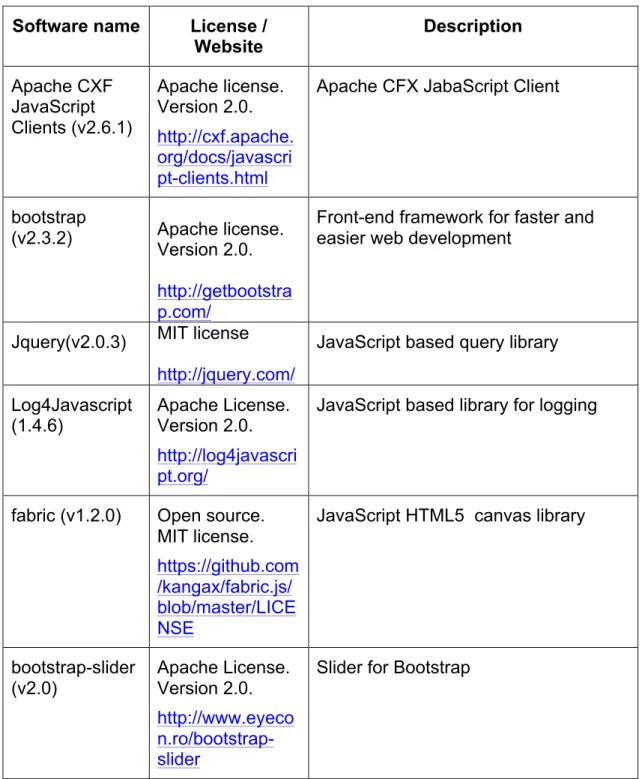
COVISE-GUI Misc licenses: - Apache CXF JavaScript Clients (v2.6.1) - Apache license - bootstrap (v2.3.2) Apache license - Jquery (v2.0.3) MIT license - log4Javascript (v1.4.6) Apache License - fabric (v1.2.0) http://fabricjs.com - bootstrap-slider (v2.0) Apache License
Web based GUI to COVISE renderer, enabling interaction with CFD simulation and visualisation of results Interaction and visualisation Modules for COVISE LGPL http://www.gnu.org/licen ses/lgpl.html Special COVISE modules enabling extraction of data from CFD solver results Extracting and storing CFD data into database
Report GUI Symfony2 Open Source PHP Web application MIT license http://symfony.com/ Web site presenting a summary of calculated metrics for a selected experiment
GUI for Metric-Calculator reports
2.2 Detailed description of the components
This chapter gives a description of the individual components of SVD-Toolkit, based on the description provided in D2.2 [D2.2] and D2.4 [D2.4].
2.2.1 Application Profiler
For simulations in CoolEmAll, the focus is on power-, energy- and thermal-impact of decisions on the system. In order to have realistic simulations, a precise evaluation of resource consumption is necessary. The Application Profiler is used to create profiles of applications that can be read by DCworms for simulation purpose. It uses data obtained during runtime and stored in TIMaCS by the monitoring infrastructure. Using these data, it creates a description of applications based on their phases. For instance, an application following two phases (one CPU-intensive and one Network intensive) would have the following description: <resourceConsumptionProfile> <resourceConsumption> <referenceHardware>Intel_i7</referenceHardware> <duration>PT4S</duration> <behaviour name="cpu"> <value>98</value> </behaviour> <behaviour name="network"> <value>2</value> </behaviour> </resourceConsumption> <resourceConsumption> <referenceHardware>Intel_i7</referenceHardware> <duration>PT93S</duration> <behaviour name="cpu"> <value>77</value> </behaviour> <behaviour name="network"> <value>96</value> </behaviour> </resourceConsumption> </resourceConsumptionProfile>
A more detail explanation is available in D2.3 [D2.3] and D5.4 [D5.4].
2.2.2 Repository
The repository is the central point in the SVD system architecture. It allows storing, editing and accessing files used by SVD-Toolkit components remotely, while ensuring their consistency. The repository contains:
• Application-profiles, describing resource usage of applications at different application phase
• DEBBs, describing data centre building blocks and models used by SVD-Toolkit
• Workload-profiles, workload characteristics in terms of used application-profiles and resource requirements used for workload simulation
For the realization of the repository we use Apache Subversion, short SVN [SVN]. The project repository is located at [CoolEmAll-SVN].
Table 2-3: Software dependency list for SVN
The repository is structured in common and user spaces. Common space contains well-defined application-profiles, DEBBs and workload-profiles, each of them stored in a dedicated repository folder. User space contains files changed/added by each user. Files (particularly PLMXML files of DEBB) in user space can contain "links" to files in both spaces. Files in common space can contain links only to files in common space. The structure of repository is shown below: repository ├── common │ ├── applications │ ├── workloads │ └── debbs └── users
The structure of DEBBS repository-folder is defined as follow:
debbs ├── <location> (PSNC, HLRS, IRIT) │ ├── [objects] │ │ ├── <STL files> │ │ ├── <VRML files> │ ├── <mainPLMXML>.xml │ ├── <DEBBBComponent_X>.xml
Software name License /
Website Description Apache Subversion http://subversion. apache.org/ Apache License. Version 2.0
Subversion is an open source version control system.
The DEBBS top-folder contains for each test bed site dedicated folder <location>, named according to location of the test bed: PSNC, HLRS, IRIT. The <location> folder contains DEBBs that are characteristic for particular test beds located at PSNC, HLRS and IRIT. Within the <location folder>, there is “objects” folder which contains geometrical objects of DEBB, in STL and VRML format. The main PLMXML file and DEBBComponent.xml files are located within the location folder.
2.2.3 Database
For saving simulations data a MySQL database has been designed. In this first version, the database contains the table “metric” with all collected information related to experiments and trials. In Figure 2-3 we can observe the fields of the table. For communication with the database we have created the following component:
• Python Wrapper: to insert and access the data in the MySQL database. Methods defined on the wrapper can be executed, both locally and remotely. For remote executing we have to use the stand-alone Remote Procedure Call (RPC) client available.
The following table provides an overview on software and libraries used for implementation of the developed component.
Table 2-4: Software dependency list for Python Wrapper
2.2.4 DCworms
Data Center Workload and Resource Management Simulator (DCworms) supports studies of dynamic states of IT infrastructures, like power consumption and air throughput distribution, with respect to the various workload and application profiles, resource models and energy-aware resource management policies. Details concerning DCworms can be found in D2.2 [D2.2] and in [DCworms2012].
As described in D2.2 and in D2.4 [D2.4], DCworms is the main component of workload simulation phase, which refers to the specific workload and application
Software name License /
Website
Description
Mysql 5.1 GPLv2
http://dev.mysql.c om/
Used for creating the DB.
MySQLdb
module GPLv2, CNRI Python License, Zope Public License http://mysql-python.sourcefor ge.net/ MySQLdb is a thread-compatible interface to the MySQL database server that provides the Python database API. Stand-alone RPC client GNU Lesser General Public License www.timacs.de [MOP-package]
RPC based client allowing to insert and to retrieve data in DB.
Python 2.6 http://www.python .org/
Open Source, GPL compatible
characteristics as well as to the detailed resource parameters. Based on these models and taking into account applied resource management policy, DCworms is able to provide data including a distribution of power usage and air throughput for the models specified within the SVD-Toolkit. These values may be then analysed directly (using MOP-GUI) and/or provided as an input to the CFD-solver.
Referring to the functionality and characteristics presented in the aforementioned papers and reports ([D2.2], [D2.4] and [DCworms2012]), DCworms has been extended with several new features. They aim is to support the user performing more comprehensive studies on energy-usage optimization.
Firstly, resource description can now be extended with load calendars that describe general load distribution for particular resources. For each resource, user can specify its utilisation levels within different periods of time. This information is then passed to DCworms and can be used by the user to estimate power consumption of the system. By these means, real-world statistics/measurements defining, for instance, background or initial load levels can be easily applied.
Moreover, resource description schema was modified in order to support definition of other, non-IT resources. In this way devices, like fans, cooling system, power supplies, etc. can be described. For each of them, the user can specify their detailed characteristics, including power profiles and power consumption models. These data can be then easily accessed by the user within the DCworms plugins and used, for instance in a scheduling process. DCworms provides also the implementation of power consumption models for cooling equipment following the ones presented in D2.3.1 [D2.3.1].
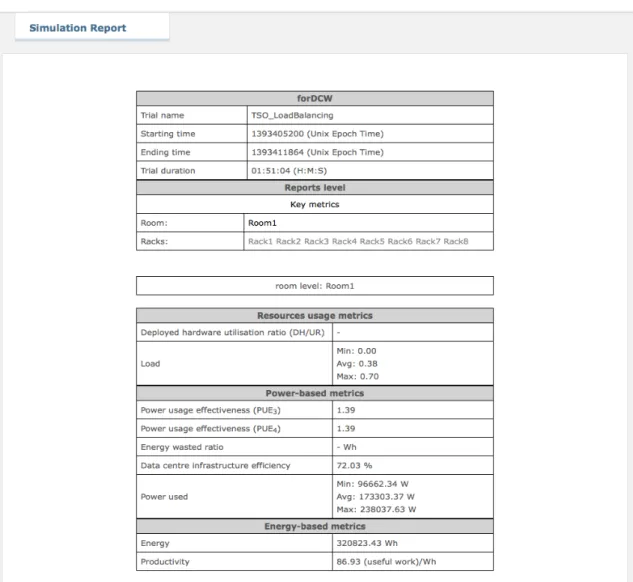
Finally, the outcome of the workload simulation phase was extended. Apart from a set of performance stats and a distribution of power usage and air throughput, a collection of energy efficiency metrics including PUE, productivity and energy waste level is calculated at the end of each simulation.
With respect to the information provided by D2.4, some new software dependencies come with the recent update of DCworms. Table 2-5 presents dependencies added since the ones specified in D2.4.
2.2.5 Open-FOAM based CFD-Solver
In this section we describe Open-FOAM based CFD-Solver, used to simulate heat-flow simulation within the servers (RECS). The description provided here is originated from D2.4 [D2.4].
The CFD-Solver does the CFD-simulation and creates the flow field and values on which other components rely on. For its work it needs input from various other components. First it needs the geometry input from the DEBB in .PLMXML-format, retrieved from the DEBB repository. This is then transformed in a simulation region. Additionally there are boundary conditions and initial conditions needed. These values are supplied by the DCworms workload simulator and automatically retrieved from the MOP database. With these starting values the CFD-toolkit performs the flow and temperature simulation automatically. Therefore it first reads the relevant geometry files. These files are then meshed automatically and supplied to the CFD-calculation tool, which performs the CFD-calculation automatically. After the simulation has finished links to the flow and temperature field are stored in the central database and mean values for all relevant values, e.g. velocity and temperature for the interesting geometry, which are especially inlet and outlet are created and stored to the database.
To perform these calculations different tools of OpenFOAM and specifically developed software is used. The following table summarizes software used by CFD solver.
Table 2-6: Software dependency list for OpenFOAM based CFD
Software name License /
Website
Description
Apache Xalan Apache License, Version 2.0 /
http://xml.apache. org/xalan-j/
An XSLT processor for transforming XML documents into HTML, text, or other XML document types
Guava Apache License, Version 2.0 /
http://code.google .com/p/guava-libraries/
Google's core libraries related to: collections, caching, primitives support, concurrency libraries, common annotations, string processing, I/O, etc.
Software name License Description
CFD-simulator GNU General Public License
Automated CFD-calculation
At the beginning, the setup of the case is done by a script. Then the simulation environment is set up for “blockMesh”. This is done by parsing a XML-file and the rest of the setup for blockMesh is then done automatically. BlockMesh then creates a rectangular mesh. This is the basis for the work of “snappyHexMesh”. But before snappyHexMesh can start its work the .PLMXML-file needs to be parsed and the necessary transformations for the .STL-files, which are the mandatory geometry representations are made. These .STL-files have to be supplied to the toolkit by the user and need to represent all used geometry, especially inlets and outlets, individually. These geometry files are then used by snappyHexMesh to create the computational mesh. After the geometry is transformed into a computational mesh the boundary conditions are set up automatically by invoking the governing scripts and specially developed programs. For all different geometry representations this setup is performed individually. After these introducing steps the decomposition of the mesh is done and the actual calculation is performed in parallel mode to speed up the process. The solver to perform the calculation is “bouyantBoussinesqSimpleFoam”. It is capable of calculating incompressible flow for stationary conditions in conjunction with heat transfer. After the parallel solver has finished the decomposed computational mesh is reassembled and converted to EnSight and VTK format. EnSight-format is the preferred format for COVISE and VTK is the preferred format for Open Source applications such as ParaView [PaVi]. The next step is to calculate the mean values for the relevant geometry and store the data directly to the database. For the flow fields, only links are stored to the database to save
Version 2.0 MLP2
The MIT License
thermal management questions
OpenFOAM GNU General Public Licence Version 2.0.
OpenFOAM is a free, open source CFD software package
Database MySQL based implementation GNU Public License (GPL). Version 2
Data interchange, correct path specification
Eigen MPL2 Library for linear algebra operation written in C++ programming language RapidXML The MIT License Fast XML-Parser written in C++
space inside the database. The utility to perform the final calculation is “swak4foam” and the governing script invokes it automatically.
Dependencies exist especially on the input site of the CFD-Solver. Here are to name the geometry files, which have to be .STL-files. These .STL-files need to be referenced correctly by the .PLMXML-file which represents the DEBB. To ensure consistency between all the invoked applications a naming convention was made.
A second very important convention is set up to find the data stored in the database. This is done by a convention for the data storage path in the database. Another dependency is on the site of the boundary conditions. To create the correct boundary conditions the CFD-solver needs the output of the DCworms workload simulator in the units and for the correct values. The values monitored for this stage power and airflow is used.
For the output only one dependency is obvious. The data, which has to be stored in the database, needs to be put on the right place. Therefore the path where the input data is located is reused and the according data is added.
As noted, each functional surface, e.g. inlet and outlet has their own .STL-files and need to be referenced in .PLMXML-file. This is necessary for setting up the boundary conditions for CFD-simulation. For this purpose the next sections describe naming conventions used in .PLMXML-file and path.
2.2.5.1 Naming convention for PLMXML-file
For now this convention needs to be applied for the “ProductInstances”, as these are the parts, which matter for the CFD-simulation. This naming convention is used for the name of the ProductInstance, e.g. the name specified in the first line of the product instance.
As pointed out, the generation of the geometry data is extracted from the DEBB (main PLMXLM file), containing references to geometric objects specified in .stl files, as described in D3.2 ([D3.2]). The geometric objects are composed of faces1. There are four (4) significant faces for CFD, hat are handled in simulation in different way:
• inlet (source of airflow) • outlet (exhausting airflow) • heatsink (source of heat)
• wall (surface reflecting the airflow)
For specification of the boundary patch, an inlet, name of ProductInstance-Element within the PLMXML file should consist of the keyword, specifying face-type (for inlet this keyword is “inlet”). Next there is a”§” as a separator followed by the name of the corresponding geometry-object the according boundary patch belongs to.
< face-type>§<object-name >
• <face-type> is element of {“inlet”, “outlet”, “heatsink”}, in case of absence of face-type, “wall” face-type is presumed.
• <object-name> is the name of the geometry-object and might contain “@”, that is converted to ‘/’ path-separator used to access object-path. An example for this is: inlet§RackNECWC_01@inlet_01, specifying face-type inlet, object RackNECWC_01 and its part inlet_01.
2.2.5.2 Path to data stored in database
The database stores different input parameters for CFD simulations (such as power and airflow), that belongs to particular surfaces of objects, used within simulation. In order to setup simulation with right parameters (boundary conditions) belonging to corresponding geometry-object, such as airspeed at “inlet” of a rack, these parameters are queried from the database using full object-path to particular geometrical object. The full object-path is built as a concatenation of all object-names in the hierarchy of PLMXML file:
<object-name of level1>/<object-name of level2>/<object-name of level3>/...
We always start out with the configuration of whole setup. We start which the name of the server room (level 1), followed by “/”. Next is the name of the rack (level 2), etc. This makes up the path to the important data stored for the CFD. Inside this path there is the necessary data stored:
• Pressure p • Temperature T • Velocity U
Example: HLRSServerroom/RackNECWC_01/inlet_1
2.2.5.3 Orientation of velocity at inlet
The .STL-files used to define the geometry for CFD-simulation input need the following orientation convention.
The tessellation of .STL-file has to be done according to the right-hand-rule. The face normal vector, which results from this rule, has to point in direction of flow for the inlet.
2.2.6 COVISE and CFX based CFD Solver
For simulation of the heat-flow on room level, COVISE and Ansys CFX have been selected, as OpenFOAM based CFD calculation required too long time, making interactive usage of the CFD simulation impossible – a key-feature of the SVD-Toolkit.
As noted in D2.2 [D2.2], the Simulation Workflow COVISE (Collaborative Visualisation and Simulation Environment) is an extensible distributed software environment capable to integrate simulations, post-processing and visualization functionalities in a seamless manner. The CFD Solver performing CFD simulation is directly integrated into the COVISE workflow, including all necessary pre- and post-processing tasks. COVISE offers a networked SOAP based API and is accessible by all components that can make use of Web Service based components. In CoolEmAll, COVISE firstly retrieves simulation relevant data (step 4 presented in Figure 2-2) from the DEBB repository (containing geometry data and position of objects) and from the Database (containing results from DCworms, i.e., power usage and air throughput), passes over these data to the CFD Solver, receives results from the CFD Solver, post processes and visualizes simulation results allowing at the same time modification of certain parameters such as the arrangement of objects. Results of the simulation are written back into the Database (step 8), while modified geometrical parameters and arrangement of objects are used to update DEBBs (step 8), to be stored in the DEBB repository (step 12). Using COVISE, users can analyse their datasets intuitively and interactively in a fully immersive environment through state of the art visualization techniques, including volume and fast sphere rendering.
The Computational Fluid Dynamics (CFD) Solver is directly integrated into the COVISE workflow and enables to simulate and analyse complex heat flow and dissipation processes, and their consequences on flow guiding structures, such as compute-building blocks (DEBBs) in data centres. For this purpose a heat flow model defined by partial differential equations is defined. CFD solvers are using this model to calculate and simulate the interaction of liquids and gases with surfaces defined by boundary conditions of DEBB’s geometry and other parameters. The results of a simulation, a heat-flow distribution map, are passed over to Simulation Workflow/COVISE and can be visualised using COVISE GUI integrated into CoolEmAll-Web-GUI. In addition, the temperature and airflow on inlet/outlets of the building blocks are extracted from the heat-flow distribution map and stored in the Database, ready to be used by metrics calculator to calculate assessment metrics.
The COVISE licence and its modules are described on the corresponding web-page http://www.hlrs.de/organization/av/vis/covise/ and can be downloaded from http://www.hlrs.de/covise/support/download. COVISE is available for various platforms including: Linux (Fedora, SUSE; Red Hat, Ubuntu), Mac OS, and Windows (ia 32 and x64). Since version 4.5 COVISE will not run without a license anymore. To get a permanent license please contact your project partner
or Uwe Wössner ([email protected]). COVISE with a demo license can be downloaded also from the CoolEmAll web-site [SVD-Toolkit].
ANSYS CFX software is a product of ANSYS and is a high-performance, general-purpose fluid dynamics program solver capable to solve CFD problems very fast. The ANSYS CFX solver can be obtained from the http://www.ansys.com product page.
2.2.7 Metric Calculator
As described in D2.2, the Metric Calculator is responsible for the assessment of the simulation results. Based on metrics identified and defined in D5.1, it assesses energy-efficiency and heat-efficiency of building blocks (DEBBs). The calculation itself is based on data/metrics that are retrieved from the Database. Results of the calculation are written back into the Database, to be retrieved and visualized by MOP GUI and the Report GUI.
The Metric Calculator is a Python command line application that can be called with many different parameters depending of the calculations performed. The calculation is based on metrics retrieved from the database.
The focus here is on hardware metrics available at node, node-group, rack and room level.
While the first prototype was able to calculate 6 metrics, the current implementation of the metric calculator for the final prototype allows us to calculate these 22 following metrics:
Hardware level metrics:
• CPU usage (minimum, maximum, average) • Server usage (minimum, maximum, average) • Memory usage (minimum, maximum, average) • Power usage (minimum, maximum, average)
• Power consumption (minimum, maximum, average) • Power IT consumption (minimum, maximum, average) • Temperature (minimum, maximum, average)
• CPU Temperature (minimum, maximum, average) • Energy consumption
• Productivity • SWAP
• Cooling index low and high (minimum, maximum, average) • Heat generation (minimum, maximum, average)
• DH-UR
• Imbalance of temperature (minimum, maximum, average) • Imbalance of heat generation (minimum, maximum, average) • Power Usage Effectiveness (3 and 4)
• Electricity cost • Carbon emissions • CAPEX
• Energy Wasted Ratio
Depending of the situation, the Metric Calculator will use one of the following databases:
• When calculating metrics for a real world experiment, data will be read from and stored into the TIMaCS database.
• When calculating metrics for a simulation, data will be read from and stored into the SVD database.
• When generating a report, previously calculated metrics will be read from the TIMaCS or SVD database depending of the type of experiment and transferred into the Web-GUI database.
Table 2-7: Software dependency list for Metric Calculator
2.3 Detailed description of the CoolEmAll-Web-GUI
The CoolEmAll-WEB-GUI provides integrated web based graphical user interface allowing interacting with the SVD-Toolkit and visualizing its results. It comprises several GUIs integrated into common web based GUI environment each of them capable of interacting with the corresponding SVD-Toolkit components through the tab-page.
After entering user-name and password via login page (as shown in Figure 2-4 below) user is redirected to the welcome-page Figure 2-5, which shortly describes the components of the SVD-Toolkit.
Software name
License / Website Description
Stand-alone RPC client
GNU Lesser General Public License
www.timacs.de
[MOP-package]
RPC based client allowing to insert and retrieve data from TIMaCS database
Python 2.6 Open Source, GPL compatible, Python Software Foundation License Version 2
All scripts are written in Python
Figure 2-4: Login page
Figure 2-5: Welcome page
The interaction with the SVD-Toolkit is done via this CoolEmAll-Web-GUI that provides a web based user interface allowing interacting with the SVD-Toolkit
and visualizing its results. It comprises several GUIs integrated into the common web based GUI environment.
• Experiment configuration GUI guiding users in specifying parameters
required for simulations.
• The DEBB configuration GUI allows defining, selecting and configuring
data centre building blocks (DEBBs) on various granularity levels (node, node-group, rack and room level). DEBBs reflect components of the data centre and contain models necessary for workload and heat-flow simulation.
• DCworms (Data Center Workload and Resource Management Simulator)
GUI is used for experimental studies of various resource management and scheduling policies. DCworms GUI allows selecting applications, workloads and scheduling policies, and presenting the results of the workload scheduling in a GUI.
• COVISE GUI presents entire simulation results of the heat-flow (CFD)
simulation, visualizing air and heat flow across all building blocks (DEBBs). It allows interacting with the CFD-Simulation and change particular parameters such as the position of racks within the room, and visualizing CFD simulation results using one of the COVISE Renderers. Such an approach allows interactive evaluation of various room layout configurations to find the optimal one preventing hot spots.
• MOP GUI allows retrieving, visualising and comparing testbed (real
measurements) and simulation-based results (from CFD and DCworms) against each other to validate models. Both real data obtained from measurements (e.g. temperatures, system load) and simulated data from CFD and Workload Simulation are stored in the database, both of them will be displayed in the MOP GUI to compare results and validate models.
• Report page provides assessment metrics that evaluate energy- and
cooling efficiency on various granularity levels of the simulation results, applying metrics calculated by the metric calculator to assess efficiency of various configurations.
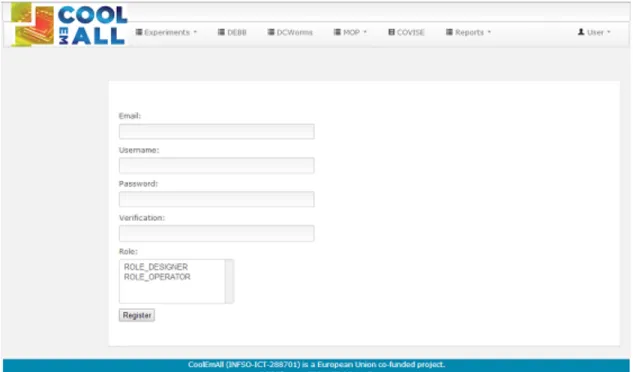
• User: additionally to the SVD-Toolkit GUIs there is also the menu User
interface where there are options to register users on the CoolEmAll-Web-GUI, edit the profile of a particular user and the option to logout of the system when the user is logged in.
These are explained in the following sub-sections. 2.3.1 ExperimentConfigurator GUI
This is the main entry page for definition and selection of the experiment that will be executed on the SVD-Toolkit, controlled by the GUIs of the CoolEmAll-Web-GUI. On the CoolEmAll-Web-GUI the user has to select the option “Experiments” on the top menu where he/she can choose the list of all the experiments or create a new experiment, as we can see on Figure 2-6. The
ExperimentConfigurator allows the user to specify parameters required to execute the simulation through the definition of experiments and trials. The others GUIs can access the information saved on the ExperimentConfigurator via session variable.
Figure 2-6: ExperimentConfigurator–GUI Menu
Once the user chooses the option “List” the Experiment configuration GUI-page will be presented (as shown on Figure 2-7) in which the user can select different options related with the experiment and have an overview of all the experiments saved on the database.
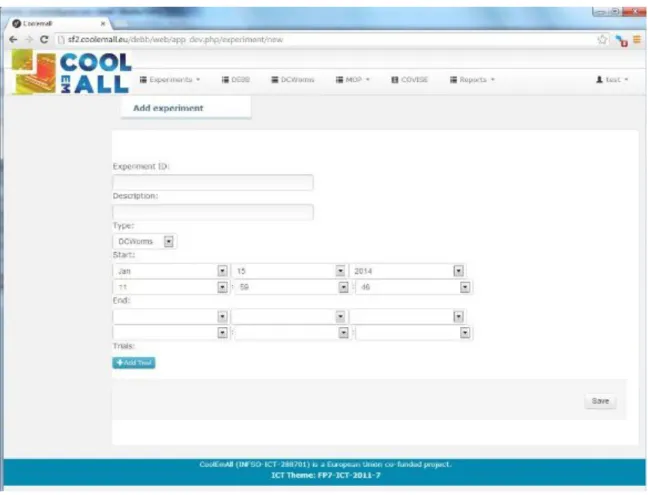
When the user is creating a new experiment the information that he/she must provide on the interface presented on Figure 2-8, as required, is:
- Experiment ID: identifier of the experiment.
- Type: type of experiment, which can be DCworms, CFD, Testbed or All. - Start: the timestamp when the experiment starts.
Additionally, as optional information, the user can provide: - Description: short description for the experiment. - End: the timestamp when the experiment finishes.
Figure 2-8: New experiment interface
In the same interface the user should define the trials to the experiment. The user has to select the option “Add Trial” whereby a new interface will be shown, see Figure 2-9, and fills the required fields. The required information for the trial is:
- Trial name: name of the trial.
- Start: the timestamp when the trial starts on the format (d/m/y h:m:s). - DEBB level: level on the DEBB in which the experiment is performed. Additional fields that can be filled are:
- Timestamp Selected: this is a timestamp selected for CFD simulation on the format (d/m/y h:m:s).
Figure 2-9: Trial information
- Timestamp End: the timestamp when the trial finishes on the format (d/m/y h:m:s).
- DEBB URL: URL to the svn repository where the DEBB files are saved. - Application Profile URL: URL to the svn repository where the Application
profile files are saved.
profile files are saved.
- Path PLMXML: Path on the svn repository where the PLMXML file is saved.
- Path WRL: Path on the svn repository where the WRL file is saved. - Path STL: Path on the svn repository where the STL file is saved.
- Object Path: Path of the metrics that are saved on the database, for the CFD simulation.
- Testbed Instance: instance on the test bed in which the trial is performed. - Alpha: alpha defines the factor for calculations of power usage.
- Baseline Temperature: operating temperature of the data centre / temperature with which air is supplied.
- Ambient Temperature: temperature outside the data centre. - CO2 Emission Factor: CO2 emission factor measured in g/kWh. - Datacentre Massflow: datacentre massflow of the server room.
All the optional fields, both for experiment and trial, can be updated for the other GUIs or as result of the simulation process.
2.3.2 DEBBConfigurator GUI
The DEBBConfigurator GUI makes it possible for the hardware vendor and the end-user to easily create a valid DEBB without using complex XML Editors. The DEBB can then be exported to the SVN repository for other CoolEmAll-tools to be used, or downloaded as a ZIP File that contains different files:
- DEBB description file (.plmxml)
- DEBB component file (.xml)I
- Pictures (.jpg, etc.)
- 3D models (.stl, .wrl)
In the CoolEmAll-Web-GUI the DEBBConfigurator is integrated as a Symfony2 “plugin”.
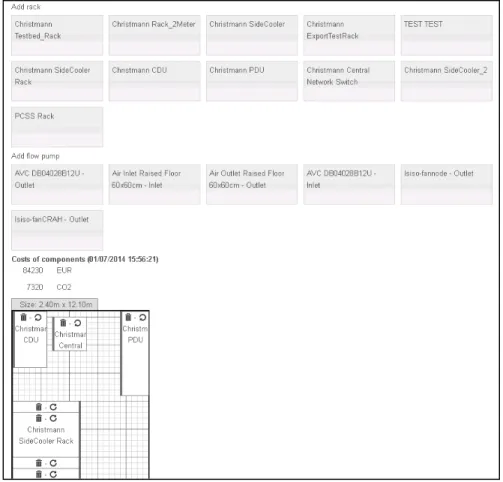
With the DEBBConfigurator the hardware vendor can define the hardware that is available for purchase. The process has a hierarchy-like structure. Meaning you first define the components, then build nodes with these components. And put these nodes in node groups, which are then put in racks, which are placed in a room in the end of the process. This can be done by adding the components (baseboard, processor, memory, heatsink, chassis, etc.) on the component level of the process. Infrastructure components such as cooling devices, power profiles, networks and flow pumps can also be defined on this level by the vendor. Several boundary conditions for the hardware can be set. This is important for later simulation processes or to determine the overall power usage. Furthermore sensors can be specified to give input during simulation, or afterwards. These Sensors can capture several data values like temperature, voltage, throughput, etc.
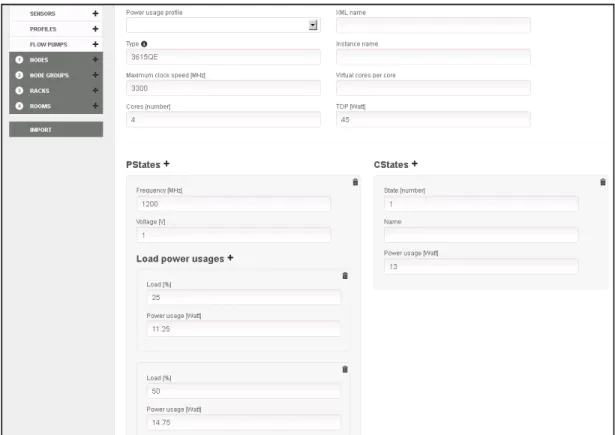
Therefore the vendor just clicks on the plus symbol next to the processors menu for example, fills the form with a product name, manufacture, clock speed, power usage, costs and other information and saves the component part. In addition it is possible to set several power usages for different workloads of the CPU for heat dissipation over the heatsink with a defined transfer rate (as set in the heatsink part) in a simulation.
Figure 2-11: DEBBConfigurator GUI – Processor tab (components level)
General information in every components-creation-menu:
- Component id
- Manufacturer (mandatory)
- Product (mandatory)
- Label
- Costs [EUR]
- Costs (emission of CO2 during the production and transportation of the part) [kg CO2]
- Hostname
- Maximum power usage [W]
- Power usage profile (can be defined in the profiles tab)
- XML name
- Type
- Instance name
There are some special attributes that can be set for some parts: Memory
- Capacity (mandatory) [MB]
- Interface Processor
- Maximum clock speed (mandatory) [MHz]
- Cores [number]
- Virtual cores per core [number]
- TDP (Thermal Design Power) [W]
- PStates (diverse states can be created. e.g. 1000MHz, 800MHz)) o Frequency [Mhz]
o Voltage[V]
o Load power usages (diverse states can be created. e.g. 25%, 50%) Load [%]
Power usage [W]
- CStates (diverse states can be created) o State [number]
o Name
o Power usage [W] Heatsink
- Transform (parameter for simulation)
- Transfer rate [NTU] (efficiency of energy transfer)
- Upload model files (for simulation an visual presentation) Cooling device
- Class (fan, heatpipe, refrigeration, ILC, LCU, CRAH, HVAC)
- Maximum cooling capacity
- Cooling capacity rated
- Energy efficiency ratio
o LWT (water temperature entering the chiller) o CWT (air temperature entering the condenser) o Capacity
o Power usage [W] o EER
Power supply
- Class (PSU, UPS, PDU, MVLVTransformer)
- Total output power (mandatory) [W]
- Typical efficiency (mandatory) [%]
- Power profile (can be defined in the profiles tab) Network
- Interface (Physical Interface description like fibre, twisted pair, etc.)
- Technology
- Max bandwidth [bit/s] Chassis
- Height [RU]
- View (top, front)
- Chassis image upload (shown as background-image when creating a node group with that chassis)
- Model file upload
- The option to add flow pumps
- The option to add nodes
- An area where nodes and flow pumps can be dragged into place, and where the size of the chassis is determined
Sensor
- Class (temperature, voltage, power, humidity, throughput, velocity)
- Unit (for the class like: °C, V, mW, kW, etc.)
- Min value
- Max value
- Factor (multiplier between the current unit and basic unit)
- Accuracy
- Input or not (Input is a flag describing that a sensors is a input value for the simulation or not. For example heat sources can be seen as sources without any output afterwards. Other sensors might be added for extracting results at the end of the simulation)
Flow pump - Width [m] - Height [m] - Depth [m] - Max rpm - Typical efficiency [%]
- Mode (outlet, inlet)
- Transform (parameter for simulation)
- Upload model files (for simulation an visual presentation)
Profiles can be chosen in every components creation tab as power usage profile. They can have several states with different energy consumptions. So the profiles can be used for many hardware items, but must only be created once. They only have the following input boxes:
- Name (mandatory)
- Type
- Flow state (diverse states can be defined. e.g. off and 100% on) o State (at least one is mandatory)
o Flow
o Power usage [W] o Description
o Typical efficiency [%]
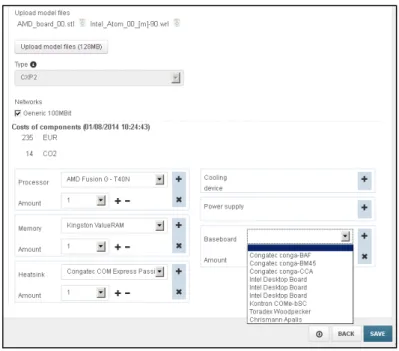
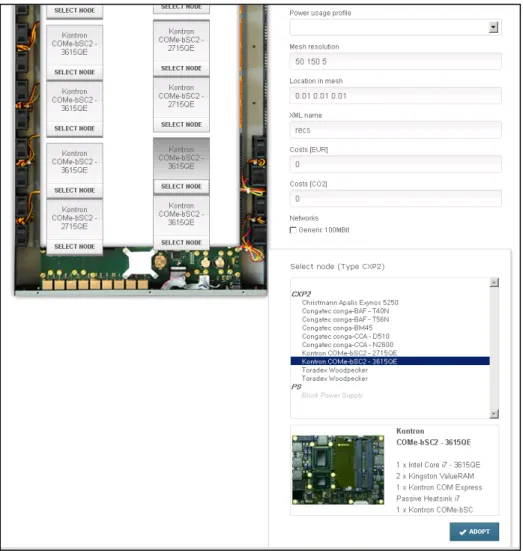
On the node level the vendor assigns the specific hardware to a node that will be choose able for the user. During the node creation the vendor can choose which CPU, baseboard, memory and other hardware should be part of a node. And for
a 3D visual presentation Model files (max 128MB per file) of the components are uploaded via the DEBB-GUI.
Figure 2-12: DEBBConfigurator GUI – Node creation
During the node generation these fields can be filled:
- Upload image
- Upload model files
- Component id
- Manufacturer (mandatory)
- Product (mandatory)
- Label
- Costs [EUR]
- Costs (emission of CO2 during the production and transportation of the part) [kg CO2]
- Hostname
- Maximum power usage [W]
- Power usage profile (components level profile)
- Instance name
- Width [m]
- Height [m]
- Depth [m]
- Mesh resolution (parameter for simulation)
- Location in mesh (parameter for simulation)
- Type (used to tell if that part can later be built into a chassis with a specific interface like: CXP2, PS)