Publisher’s version / Version de l'éditeur:
Vous avez des questions? Nous pouvons vous aider. Pour communiquer directement avec un auteur, consultez la
première page de la revue dans laquelle son article a été publié afin de trouver ses coordonnées. Si vous n’arrivez
Questions? Contact the NRC Publications Archive team at
[email protected]. If you wish to email the authors directly, please see the first page of the publication for their contact information.
https://publications-cnrc.canada.ca/fra/droits
L’accès à ce site Web et l’utilisation de son contenu sont assujettis aux conditions présentées dans le site LISEZ CES CONDITIONS ATTENTIVEMENT AVANT D’UTILISER CE SITE WEB.
Student Report; no. SR-2009-08, 2009-01-01
READ THESE TERMS AND CONDITIONS CAREFULLY BEFORE USING THIS WEBSITE. https://nrc-publications.canada.ca/eng/copyright
NRC Publications Archive Record / Notice des Archives des publications du CNRC : https://nrc-publications.canada.ca/eng/view/object/?id=ec9c9453-e85d-4bf2-a880-bf84cac7d437 https://publications-cnrc.canada.ca/fra/voir/objet/?id=ec9c9453-e85d-4bf2-a880-bf84cac7d437
NRC Publications Archive
Archives des publications du CNRC
For the publisher’s version, please access the DOI link below./ Pour consulter la version de l’éditeur, utilisez le lien DOI ci-dessous.
https://doi.org/10.4224/18227309
Access and use of this website and the material on it are subject to the Terms and Conditions set forth at
Installation, Usage and Design of SwitchView
National Research Council Canada Institute for Ocean Technology Conseil national de recherches Canada Institut des technologies oc ´eaniques
SR-2009-08
Student Report
Installation, Usage and Design of SwitchView.
Contents
List of Figures ... iii
)ntroduction...
)nstallation and Usage...
.
Section Overview...
.
Setting up the Database ...
.
)nstallation and Usage of the Viewer ...
. . Changing Settings...
. . Adding Switches ...
.
)nstalling the Poller...
. . Viewing Data ...
. . )nstalling as a Windows Service ...
. . Log Files...
Design...
.
Design Overview...
.
The Poller...
.
The Viewer...
.
Future )mprovements...
References...
Appendix A
– Poller Code ...
.
MA)N.PY ...
SNMP.PY ...
Appendix B
– Viewer Code...
MA)N.PY...
List of Figures
Figure : Component interaction...
Figure : Database tables...
Figure : Settings tab...
Figure : Switches tab...
Figure ‐ MACs tab ...
Figure : Switch class...
Figure : poll_switches flow chart ...
1
Introduction
SwitchView is a switch port monitoring application developed for use at the
)nstitute for Ocean Technology )OT . While it was developed for )OT, its functions
would work the same on any switched network. The details on the motivation for
the development of a switch monitoring application were previously outlined in the
report titled Analysis of the Difficulty )dentifying Unknown (osts on the )OT
Network SR‐
‐
. SwitchView’s two main functions are, firstly, to log each
MAC address that connects to the network, along with the port it connects to, and
secondly, to alert administrators when a new MAC address is seen on the network.
The application comes in two parts: The poller, which constantly collects and stores
data, and the viewer, which displays data and allows the user to configure
SwitchView. The following sections provide detailed information on the installation,
usage and internal design of SwitchView.
2
Installation and Usage
2.1 Section Overview
This section provides a step‐by‐step process for installing and configuring
SwitchView. Along the way, all of SwitchView’s functions are explained. There are
three main components that need setting up: the database, the poller and the
viewer. The interactions between these components can be seen in Figure .
Figure 1: Component interaction
The poller sends Simple Network Management Protocol SNMP requests to all of
the switches in its list. The switches return a list of MACs and their corresponding
ports to the poller. The poller then updates the information in the database. The
viewer is used to view the collected data and also to configure the system.
2.2 Setting up the Database
SwitchView is designed to use a Microsoft SQL database to store and serve port data
as well as configuration information. The database consists of four independent
tables, as seen in Figure .
These t
Figure 2: Database tables
ables can be created on MSSQL
as follows:
• Copy switchview.mdf and switchview_ .ldf from /SwitchView/Database/
rver/MSSQL. /MSSQL/Data/
to C:/Program Files/Microsoft SQL Se
• Open SQL Server Management Studio
•
Log into the server you will use for the Sw
itchView database
•
Right‐click on Da
tabases in the left tree
•
Select Attac
h…
• Click Add
• Select switchview.mdf and click Ok
• Set up an SQL account on the server with read/write access to the database
2.3 Installation and Usage of the Viewer
The viewer is used to view port data, create the list of switches to monitor and
configure the settings of the poller. For the viewer to be used, it will need to know
where to find the database. This configuration is done in the
/SwitchView/Viewer/config.txt file. The user should open their text editor of
choice and input the specified information after each colon. The result should look
something like this:
[database]
#MAIN DATABASE
server: KARFE
name: switchview
user: switchlog
password: secretpassword123
On Windows, the viewer can be run by executing the file
/SwitchView/Viewer/SwitchView Viewer .exe . This is a compiled version of the
Python scripts for the viewer. To run the viewer from the scripts not compiled one
needs to install the pyodbc and wxPython modules. These can be copied from the
/SwitchView/Viewer/Required Modules/ directory to the /Python /Libs/site‐
packages/ directory. Newer versions of these modules can also be obtained from
their respective websites not necessarily static, use a search engine . Once the
modules are installed the script /SwitchView/Viewer/Scripts/main.py should be
able to run. Note that there is a separate config.txt file in the
/SwitchView/Viewer/Scripts/ directory, which must be filled out exactly the same
as the other.
2.3.1 Changing Settings
Upon opening the viewer for the first time the Settings tab should be selected. The
settings for the poller must be set on the left of this tab Figure A . After each
property is set to the desired value Apply must be pushed to commit these
settings.
B
A
Figure 3: Settings tabE
of properties:
OLL_RATE
: The rate in seconds that the poller asks the switches for the
onnected MACs
xplanation
P
c
MAIL_ON_NEW_MAC
: or value indicating whether a notification should be sent
hen a new MAC
E
w
address is detected
SMTP_SUBJECT
: The subject of notification emails
SMTP_TO
: The email address to send notification emails to
EMAIL_RATE
: T
should be sent at
he rate in seconds that email notifications
SMTP_SERVE
R
: The SMTP server to use for sending emails
MTP_FROM
: The email address notifications appear to be from
S
Setting the POLL_RATE may take some trial and error. (aving a fast POLL_RATE will
cause unnecessary network traffic, while having a slow POLL_RATE will cause the
poller to miss the connection of a computer more often. A value between and
minutes
and
seconds works reasonably well.
Note that POLL_RATE should always be less than EMA)L_RATE because new MACs
can only be detected at the POLL_RATE.
2.3.2 Adding Switches
Figure 4: Switches tab
The poller needs to have a list of switches to poll. This list is maintained using the
Switches tab in the viewer Figure . Adding a new line to the list is done by
pressing the Add button. Every column, except for ignorePorts and type, must be
filled in for each line. Below is an explanation for each column:
N
u
ame
: The name you wish to give to the switch used for searching , must be
nique.
Ty
pe
: The model of switch. N
o function at this time, can be left blank.
P
: )P address of the switch.
I
Community
: The SNMP read/write community string for the switch. This column is
hidden to prevent others from seeing this string. )t can be revealed by double‐
clicking within the field or clicking the community tab at the top.
NM
S
P Port
: The TCP/UDP SNMP port for the switch. Almost always
.
OID
: The SNMP object )D for the MAC address table on the switch. Should always be
. . . . This column is here to accommodate possible future
dditions to t
a
he software.
Ignore Ports
: Switch port numbers that the poller should ignore. Port the
witch’s MAC address and the uplink port should be ignored. The uplink port will
ee many
se MAC addresses.
s
s
MAC addresses and is not useful in the locating of the
nabled
: True if this switch should be polled, false otherwise.
E
The number in the far left column is the auto‐incrementing unique id of the switch
in the database. Deleting a switch from the list is done by selecting the switch’s id
number and then clicking the Delete button. Multiple switches can be selected by
olding the Ctrl key.
h
2.4 Installing the Poller
The poller is uncompiled and because of this it requires Python to run. At this time
it has only been tested with Python . , however, any .x version of Python should
work fine.
)nstallation of Python is a simple process. www.Python.org has links to sources and
installers for several platforms, as well as detailed documentation on the installation
and usage of Python. After Python is installed the Python modules pyodbc and
PySNMP need to be imported. These can be copied from the
After the POLL_T)ME elapses it will start to scan the switches. )t should continue to
poll the switches until the program is closed. After a few polls it is a good idea to
close the poller and check the viewer to see if the database is populating properly.
folder. Alternatively, the latest versions of these modules from their respective
websites use a search engine .
Like the viewer, the poller needs to be configured to use a specific database. This is
done in /SwitchView/Poller/config.txt . The first part of this file should be set up
exactly the same as the viewer’s config.txt. The logging part can be left alone and
will be discussed in the Log Files section.
Barring any problems, the poller is ready for its first run at this point. Running the
poller is done by executing the Python script /SwitchView/Poller/main.py . )t
should output the following on start up:
IOT SwitchView (Poller)
================================ Version: 1.0
Last Update: April 2, 2009
================================
Connecting to database... Retrieving settings table: SMTP_SERVER: mail.nrc.ca SMTP_FROM: SwitchView EMAIL_RATE: 1800 EMAIL_ON_NEW_MAC: 1
SMTP_TO: [email protected] SMTP_SUBJECT: New Host Detected POLL_RATE: 600
Retrieving switch instances:
TC7-2 TC7-1 TC6 TC5-1 TC5-2 TC4 TC3 TC2 TC1 BCR-5 BCR-1 BCR-4 TC1-Stores
T
One may want to set the POLL_T)ME to a lower value at this point in order to speed
up testing. Note that the poller won’t see any settings changes until it is restarted.
2.4.1 Viewing Data
B
A
C
D
Figure 5 MACs tabThe features of the MACs tab of the viewer will now be discussed. The MACs tab can
be seen in Figure .
A. Views: The MAC list has two views. Current which only shows the current
location of each MAC and Log which shows the history of where each MAC
has been. This is done for search efficiency and maintenance reasons.
B. Switch/MAC: These boxes allow the user to filter the list by switch and MAC
address.
C. Sorter: The top bar of the list allows the different columns to be sorted in
ascending or descending order. This is done by clicking the button of the
column one wishes to sort.
D. Copying: MAC addresses can be copied from the list by right clicking on them
and then clicking copy. This feature is only available on Windows.
)t is a good idea to look through the log view and make sure that things look normal.
Sometimes MAC addresses will show up at more than one place, as a result they will
bounce back and forth between these locations in the log. Going to the switches
tab and setting one of the two ports to be ignored can fix this. The database can be
cleared at any time by using the database pruning function of the viewer Figure
B . Using a days value of clears out everything
2.4.2 Installing as a Windows Service
When SwitchView’s settings are adequately tweaked and the database is populated,
the poller is ready to be installed as a service. This allows it to be constantly running
and not require any user input. The following steps will allow one to install the
poller as a Windows service modified version of instructions retrieved from
http://agiletesting.blogspot.com/
/ /running‐python‐script‐as‐
win w
do s.html :
. )nstall the Windows
Resource Kit or get a copy of instsrv.exe and
srvany.exe .
. Run instsrv.exe to install srvany.exe as a service with the name SwitchView:
C:\Program Files\Resource Kit\instsrv SwitchView "C:\Program
Files\Resource Kit\srvany.exe"
. Go to Computer Management‐>Services to make sure SwitchView is listed as
a service. Also make sure the Startup Type is Automatic.
. Create a switchviewservice.bat file with something like the following in it:
cd C:\Program Files\SwitchView\Poller\
C:\Python \python.exe C:\Program Files\SwitchView\Poller\main.py
n
replace Python with your Python versio
5.
Create new registry entries for the service.
a. Run regedt and go to the
lSet\Services\Switc
(KEY_LOCAL_MAC()NE\SYSTEM\CurrentContro
hView entry
b. Add new key Edit‐>Add Key called Parameters
c. Add e
Edit‐>Add Value to set the
App a
n w entry for Parameters key
lic tion name
i. Name should be Application
ii. Type should be REG_SZ
ogram
iii. Value should be path to switchviewservice.bat, i.e. C:\Pr
Files\SwitchView\Poller\switchviewservice.bat
d. Add e
ey Edit‐>Add Value to set the
wor n
n w entry for Parameters k
ki g directory
i. Name should be AppDir
ii. Type should be REG_SZ
iii. Value should be path to the poller directory, i.e. C:\Program
Files\SwitchView\Poller\
. Test starting and stopping the SwitchView service in Computer
Management‐>Services.
There is slight complication to installing a Python script as a service in this way:
When the service is stopped, the python.exe process is not actually ended. One must
open the Windows Task Manager and end the process manually.
2.4.3 Log Files
Services do not provide any output, so in order to check the functioning of the
poller, one needs to read the log file. The SwitchView poller uses a rotating log
system. By default, all output and errors from the poller are logged to the file
/SwitchView/Poller/switchview_log.txt , with the date and time of the occurrence.
When this file reaches megabytes, a backup of this file is made, and a new
switchview_log.txt is created. After of these files have been created, the old ones
will begin to get deleted. The log files should never take up more than
megabytes. These settings can however be modified in the
/SwitchView/Poller/config.txt file. The log file should be checked periodically to
ake sure that the poller is doing its job.
m
3
Design
3.1 Design Overview
SwitchView was designed with some things in mind. )t had to be able to collect and
store a lot of data, possibly for a long time. This was the reason for using a database.
)t also had to be able to constantly monitor the building’s switches, while allowing
any of the members of the Computer Services Group to access the data at any time.
These two requirements led to the use of the poller/viewer model, depicted in
Figure .
3.2 The Poller
On startup the poller retrieves database connection data from config.txt. When it
connects to the database it then retrieves the rest of its settings as well as the list of
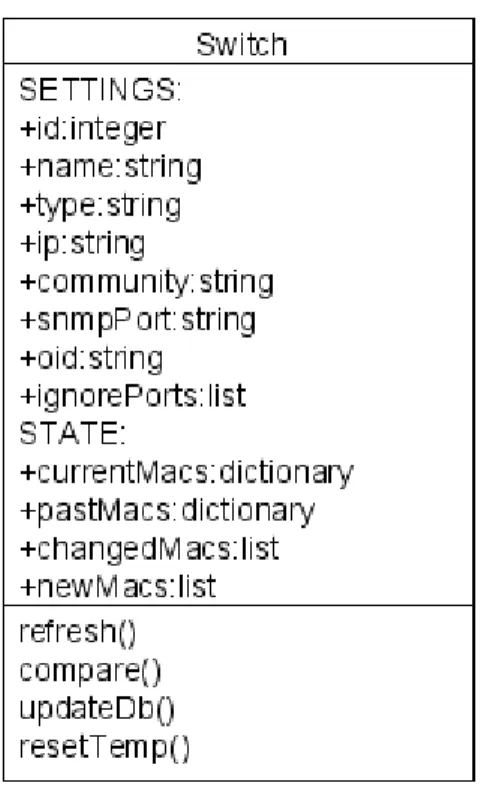
switch instances. The Switch class holds the switch settings, port state and contains
methods for updating its port state. Figure displays the variables and methods of
the class.
Figure 6: Switch class
The refresh() function firstly retrieves the currentMacs for the switch. )t does this
by sending a getNext command to the SNMP O.).D. . . . using the
pysnmp module. Secondly, refresh uses the pyodbc module to get the pastMacs
for the switch. Next compare() is called. Compare()compares the currentMacs and
pastMacs dictionaries in order to create the changedMacs list. )t also compares the
changedMacs list to the entire database of MACs in order to create the newMacs list.
UpdateDb()
sends the information contained in changedMacs and newMacs back to
the database. Note that there are actually two tables for MAC storage in the
database: one which holds the current state and one which holds a log of past states.
This simplifies some operations. ResetTemp() clears all of the state variables in
preparation for the instance to be refreshed.
After the switch list is populated the poller creates two repeating timers, one for the
function poll_switches and one for the function send_email_notification . The
main functionality of the poller the switch methods is called from within the
poll_switches function. A flowchart of what occurs in this function is shown in
figure .
Figure 7: poll_switches() flow chart
The email is actually sent to an outbox at the end of this flow chart, and stays there
until the send_email_notification timer triggers. )t is set up this way so that the
user can change how often they receive emails from SwitchView. The full code for
the poller can be found in Appendix A.
3.3 The Viewer
The viewer’s function is to give simple access to the database for data viewing and
configuration. A graphical user interface GU) was chosen for the viewer in order to
limit the learning curve of the software. The wxPython library was used to build this
interface. A large portion of viewer’s code exists to set up the GU). Very complete
documentation for wxPython can be found at
www.wxpython.org
.
When the viewer starts up, the config.txt file is read, allowing it to connect to the
database. Like the poller, the rest of the settings are then retrieved from the
database. After this the MAC log and MAC state tables are retrieved. The GU) is then
loaded.
The window of the viewer holds a notebook with three tabs: MACs, Switches and
Settings. Each tab has its own class. The main functionality of the MACs tab comes
from the MacsListCtrl object and the populate_list method. The MacsListCtrl is a
subclass of wxListCtrl that uses the ColumnSorterMixin to provide the column
sorting functionality. The populate_list method handles list population and sorting.
The Switches tab is focused around the SwitchesGrid, which is a subclass of wxGrid.
On the creation of the Switches tab the switch list is loaded into a list from the
database. This data is then displayed on the SwitchesGrid, where it can be edited.
Changes made to the data are not sent to the database until __onClick_apply
is
called by pushing the Apply button. (owever the adding and deleting of rows
using the Add and Delete buttons instantly updates the database. This is
somewhat of a design flaw, as someone could delete data from the database without
realizing it. The Settings tab uses a wxGrid similarly to the Switches tab. There are
only two columns in the SettingsGrid, obtained from the config table in the database:
Property and Value. This design makes it very easy to add a new property to
SwitchView’s settings. All one needs to do is add a new entry to the database with its
name in the Property column. The Settings tab also contains a pruning function.
Pushing the prune button calls __onClick_prune , which executes a simple database
query to clear data older than a certain number of weeks entered in the text box .
The full code of the viewer is available in Appendix B.
3.4 Future Improvements
SwitchView was developed during a limited time frame. There are several features
and fixes the developer would have liked to include. Some of these possible future
improvements will be discussed in this section.
Expand to a Modular SNMP Monitoring Package
Care has been made to leave room for SwitchView to be able to monitor SNMP
values other than MAC addresses. A variety of useful data can be accessed via SNMP
on many network devices. A customizable system for retrieving, parsing, logging
and responding to different types of SNMP data could prove to be useful for many
network administrators.
Testing and Debugging on Linux Systems
SwitchView was developed with cross‐operating‐system compatibility in mind.
Theoretically, it should be able to run on Linux systems. (owever, installation on a
Linux system has not yet been tested. Minor changes will probably need to be made
to the code for it to run properly.
Association of MAC and IP addresses in the MAC log
)t would be quite useful for the user to be able to associate MAC addresses in the log
with )P addresses on the network. This would allow the user to get more info on the
connected computers and cross‐reference with other logs that log by )P like a
firewall . The functionality could be implemented using Address Resolution
Protocol.
Wildcard for MAC Search
(aving a wildcard character for the MAC address filter in the MACs tab of the viewer
would allow the user to track down computers via network card vendor. Vendors
are normally assigned the first digits of their MAC addresses.
References
lms, W
chnology.
E
ayne. Computer Services Group. )nstitute for Ocean Te
St. John’s, NL, Canada. Personal Correspondence.
.
Gheorghiu, Grig. Running a Python script as a Windows service. Retrieved April ,
, from
http://agiletesting.blogspot.com/
/ /running‐python‐
script‐as‐windows.html
utz, M
L
ark and David Ascher. Learning Python.
nded.
O’Reilly Media,
.
Sebastopol, CA, United States:
olina
ro, Anthony.
M
SQL Cookbook.
sted.
Sebastopol, CA, United States: O’Reilly Media,
.
alsh,
hnology.
Doug. Computer Services Group. )nstitute for Ocean Tec
W
St. John’s, NL, Canada. Personal Correspondence.
.
ong,
chnology.
Gilbert. Computer Services Group. )nstitute for Ocean Te
St. John’s, NL, Canada. Personal Correspondence.
.
W
Appendix A – Poller Code
Note: The code in these appendices was not formatted very nicely by the word
processor. For a serious look at the code one should load the files into a code editor
PyDev works well .
Eclipse +
MA)N.PY
import sys import os import string import mail import time import threading import ConfigParser import logging import logging.handlers import snmp import pyodbc class Switch:def __init__(self, id, name, type, ip, community, snmpPort, oid, ignorePorts, enabled): self.id = id self.name = name self.type = type self.ip = ip self.community = community self.snmpPort = snmpPort self.oid = oid self.ignorePorts = ignorePorts.split(',') for i in range(len(self.ignorePorts)): self.ignorePorts[i] = int(self.ignorePorts[i]) self.currentMacs = {} self.pastMacs = {} self.changedMacs = [] self.newMacs = [] self.rawCurrMacs = [] def __str__(self): return self.name def refresh(self): self.resetTemp() self.rawCurrMacs =
snmp.get(self.ip,self.snmpPort,self.oid,self.community) #Get list of all MACs currently connected to switch
for currMac in self.rawCurrMacs: currPort = currMac[0][1]
if not(currPort in self.ignorePorts): #For each MAC seen on all ports except for ignored ports
mac = string.zfill(str(hex(currMac[0][0][11])[2:]), 2) #Convert to string
for i in range(5): #Format mac += ':' +
string.zfill(str(hex(currMac[0][0][12+i])[2:]), 2) if not(currPort in self.currentMacs):
self.currentMacs[int(currPort)] = [mac] else:
self.currentMacs[int(currPort)].append(mac)
cursor.execute("""
SELECT mac, port FROM macstate WHERE switchid = ? """, self.id) for row in cursor: port = row[1] mac = row[0]
if not(port in self.pastMacs): self.pastMacs[port] = [mac] else:
self.pastMacs[port].append(mac) cnxn.commit() #Commit database changes self.compare()
def compare(self):
for currPort, currMacs in self.currentMacs.iteritems(): if currPort in self.pastMacs:
for currMac in currMacs:
for pastMac in self.pastMacs[currPort]: if currMac == pastMac:
break
else:
self.changedMacs.append([currMac, currPort]) else:
for currMac in currMacs:
self.changedMacs.append([currMac, currPort])
def updateDb(self):
for changedMac in self.changedMacs: cursor.execute("""
INSERT INTO maclog (mac, port, switch, date) VALUES (?, ?, ?, GETDATE())
""", (changedMac[0], changedMac[1], self.id)) cnxn.commit() #Commit database changes
seenBefore = bool(cursor.execute(""" SELECT * FROM macstate WHERE mac = ? """, (changedMac[0])).rowcount) if seenBefore: cursor.execute(""" UPDATE macstate
SET port = ?, switchid = ?, connectedon = GETDATE()
INSERT INTO macstate (mac, switchid, port, firstseen, connectedon)
VALUES (?, ?, ?, GETDATE(), GETDATE())
""", (changedMac[0], self.id, changedMac[1])) self.newMacs.append(changedMac) cnxn.commit() def resetTemp(self): del self.rawCurrMacs[:] del self.newMacs[:] del self.changedMacs[:] self.currentMacs.clear() self.pastMacs.clear() class Email:
def __init__(self, toAddr, fromAddr, subject, server): self.toAddr = toAddr self.fromAddr = fromAddr self.subject = subject self.body = '' self.server = server def send(self):
mail.mail(self.server, self.fromAddr, self.toAddr,
self.subject, self.body)
#Timer class by Bryan Coish
class Timer(threading.Thread):
def __init__(self, interval, function, args=[], kwargs={}): threading.Thread.__init__(self, name="Timer")
self.__interval = interval self.__function = function self.__args = args self.__kwargs = kwargs self.__finished = threading.Event() self.__running = True def cancel(self): self.__finished.set() self.__running = False def run(self): while(self.__running): self.__finished.wait(self.__interval) if not self.__finished.isSet(): self.__function(*self.__args, **self.__kwargs) self.__finished.clear()
#Main switch polling function
def poll_switches(): start = time.time() global switchEmailBody global poll_count
print time.strftime("[%H:%M]") + "Polling switches..."
email_body_section = ''
instance.refresh() instance.updateDb()
if len(instance.newMacs)>0:
message("New MACs Detected at "+ instance.name +": " + str(instance.newMacs))
email_body_section += 'SWITCH:' + instance.name + "\n"
for newMac in instance.newMacs:
email_body_section += (str(newMac[1]) + ": " + newMac[0] + "\n") if len(email_body_section): switchEmailBody = time.strftime("[%H:%M]") + "\n" + email_body_section cnxn.commit() poll_count += 1
message("Poll finished in %.1f seconds. Polled %s times since start." % (time.time() - start, poll_count))
def send_email_notification(): global switchEmailBody
if len(switchEmailBody)and(bool(settings['EMAIL_ON_NEW_MAC'])): message("New MACs found.")
message("Emailing notification...") switchEmailBody = "\nNEW HOSTS
DETECTED:\n=====================\n" + switchEmailBody
switchEmail = Email(settings['SMTP_TO'], settings['SMTP_FROM'], settings['SMTP_SUBJECT'], settings['SMTP_SERVER'])
switchEmail.body = switchEmailBody switchEmail.send()
switchEmailBody = ''
message("Done sending.") #Message output def message(text): if print_messages: print text if log_messages: logger.debug(text) if __name__ == "__main__": instSwitch = [] settings = {} switchEmailBody = '' poll_count = 0 #Configuration print_messages = True
single_poll = False #Future function: Run with an argument so that only one poll occurs
#Useful if some other process scheduler is used print "Reading config.txt..."
database_user = config.get('database', 'user')
database_password = config.get('database', 'password')
log_messages = bool(config.get('logging', 'log_messages')) log_stderr = bool(config.get('logging', 'log_errors'))
log_max_file_size = int(config.get('logging', 'max_file_size')) log_number_of_files = config.get('logging', 'number_of_files')
#Logger
if log_messages:
LOG_FILENAME = 'switchview_log.txt'
# Set up a specific logger with desired output level logger = logging.getLogger('logger')
logger.setLevel(logging.DEBUG)
# Add the log message handler to the logger handler = logging.handlers.RotatingFileHandler(
LOG_F)LENAME, maxBytes=log_max_file_size, backupCount=log_number_of_files
formatter = logging.Formatter("%(asctime)s - %(message)s") handler.setFormatter(formatter)
logger.addHandler(handler)
#stderr logging if log_stderr:
se = open("switchview_log.txt", 'a', 0)
sys.stdout = os.fdopen(sys.stdout.fileno(), 'w', 0) os.dup2(se.fileno(), sys.stderr.fileno())
message("""
IOT SwitchView (Poller) ================================ Version: 1.0
Last Update: April 24, 2009 ================================ """)
message("Connecting to database...") cnxn = pyodbc.connect('DRIVER={SQL
Server};SERVER=%s;DATABASE=%s;UID=%s;PWD=%s'% (database_server, database_name, database_user, database_password)) #Initiate database connection
cursor = cnxn.cursor()
message("Retrieving settings table:") cursor.execute("""
SELECT name, value FROM config
""")
for row in cursor:
settings[row[0]] = row[1]
message("%s: %s" % (row[0], row[1]))
message("\nRetrieving switch instances:") cursor.execute("""
FROM switchlist
WHERE enabled = 'True' """)
for row in cursor:
row[6] = tuple(map(int, (row[6].split('.')))) #Convert OID format from Tuple to String
instSwitch.append(Switch(row[0], row[1], row[2], row[3], row[4], row[5], row[6], row[7], row[8]))
temp = ''
for each in instSwitch: temp += str(each) + ' '
message(temp)
poll_timer = Timer(int(settings['POLL_RATE']) , poll_switches) email_timer = Timer(int(settings['EMAIL_RATE']) ,
send_email_notification) poll_timer.start() email_timer.start()
message("\n\nTimers initialized.")
SNMP.PY
from pysnmp.entity.rfc3413.oneliner import cmdgen
def get(ip,port,oid,community):
errorIndication, errorStatus, errorIndex, varBindTable = cmdgen.CommandGenerator().nextCmd(
cmdgen.CommunityData('SwitchMonitor', community, 1), cmdgen.UdpTransportTarget((ip, port)), oid ) #print "Error:", #print "Error St
return varBindTable
errorIndication atus:", errorStatusAppendix B – Viewer Code
Note: The code in these appendices was not formatted very nicely by the word
processor. For a serious look at the code one should load the files into a code editor
PyDev works well .
Eclipse +
MA)N.PY
import sys import pyodbc import wx import wx.gridimport wx.lib.mixins.listctrl as listmix
import sys import string import win32clipboard as wc import win32con import ConfigParser class Frame(wx.Frame):
def __init__(self, *args, **kwds):
kwds["style"] = wx.DEFAULT_FRAME_STYLE wx.Frame.__init__(self, *args, **kwds)
icon = wx.Icon('observatory.ico', wx.BITMAP_TYPE_ICO, 16, 16) wx.Frame.SetIcon(self, icon)
global backcol
self.notebook = wx.Notebook(self, -1, style=0) self.settings_panel = SettingsPanel(self.notebook) self.switches_panel = SwitchesPanel(self.notebook) self.macs_panel = MacsPanel(self.notebook) self.__set_properties() self.__do_layout() self.Bind(wx.EVT_NOTEBOOK_PAGE_CHANGED, self.__onPageChanged, self.notebook) def __set_properties(self):
self.SetTitle("IOT SwitchView") self.SetSize((400, 400)) def __do_layout(self): sizer_5 = wx.BoxSizer(wx.VERTICAL) self.notebook.AddPage(self.macs_panel, "MACs") self.notebook.AddPage(self.switches_panel, "Switches") self.notebook.AddPage(self.settings_panel, "Settings") sizer_5.Add(self.notebook, 1, 0, wx.EXPAND)
self.SetSizer(sizer_5)
sizer_5.SetMinSize((400, 600)) sizer_5.SetSizeHints(self) self.Layout()
def __onPageChanged(self, event): new = event.GetSelection() if new == 1:
dlg_warning(self, "Be very careful changing these settings!\n"+
"Refer to the readme for information on adding switches.") event.Skip()
class SwitchesPanel(wx.Panel): def __init__(self, parent):
wx.Panel.__init__(self, parent, -1) self.grid_2 = SwitchesGrid(self, -1)
self.add_button = wx.Button(self, -1, "Add")
self.delete_button = wx.Button(self, -1, "Delete") self.apply_button = wx.Button(self, -1, "Apply")
self.__set_properties() self.__do_layout()
self.Bind(wx.EVT_BUTTON, self.__onClick_add, self.add_button) self.Bind(wx.EVT_BUTTON, self.__onClick_delete, self.delete_button) self.Bind(wx.EVT_BUTTON, self.__onClick_apply, self.apply_button) def __set_properties(self): #self.SetBackgroundColour("#e0dfe3") font = self.GetFont() font.SetWeight(wx.BOLD) attr = wx.grid.GridCellAttr() attr.SetFont(font) attr.SetBackgroundColour(wx.BLACK) self.grid_2.SetColAttr(3, attr) attr.IncRef() def __do_layout(self): sizer_8 = wx.BoxSizer(wx.VERTICAL) sizer_9 = wx.BoxSizer(wx.HORIZONTAL) sizer_10 = wx.BoxSizer(wx.VERTICAL) self.SetSizer(sizer_8) sizer_8.Add(sizer_9, 0, wx.SHAPED) sizer_8.Add(self.grid_2, 1, wx.EXPAND) sizer_9.Add(self.add_button, 1, wx.ALIGN_CENTER_HORIZONTAL) sizer_9.Add(self.delete_button, 1, wx.ALIGN_CENTER_HORIZONTAL) sizer_9.Add(self.apply_button, 1, wx.ALIGN_CENTER_HORIZONTAL)
def __onClick_add(self, event): print "SWITCHES - Adding Row"
FROM switchlist """).fetchone()[0] cursor.execute("""
INSERT INTO switchlist (id) VALUES (?) """, ((currId+1))) self.grid_2.AppendRows(1, 0) self.grid_2.Rows.append([currId+1, '', '', '', '', 161, '', '', '']) self.grid_2.SetRowLabelValue(self.grid_2.GetNumberRows()-1, str(currId+1))
cnxn.commit() #Commit database changes
def __onClick_delete(self, event):
selected = sorted(self.grid_2.GetSelectedRows()) selected.sort()
selected.reverse()
print "SWITCHES - Removing row(s):", selected for row in selected:
self.grid_2.DeleteRows(row, 1, 0) cursor.execute("""
DELETE FROM switchlist WHERE id = ?
""",(self.grid_2.Rows[row][0])) for row in selected:
self.grid_2.Rows.remove(self.grid_2.Rows[row]) cnxn.commit() #Commit database changes
def __onClick_apply(self, event): for row in self.grid_2.Rows: id = row[0]
colNum = 1
for cell in row[1:]:
column = self.grid_2.Cols[colNum][0] cursor.execute("""
UPDATE switchlist
SET """ + column + """ = ? WHERE id = ?
""", (str(cell), id)) #Column is concatenated into the string because there was a strange bug occurring when trying to use the ? marks
colNum = colNum + 1
cnxn.commit() #Commit database changes print "SWITCHES - Changes committed"
class SettingsPanel(wx.Panel): def __init__(self, parent):
wx.Panel.__init__(self, parent, -1) self.grid = SettingsGrid(self, -1)
self.apply_button = wx.Button(self, -1, "Apply")
self.prune_box = wx.StaticBox(self, -1, "Database Pruning") self.settings_box = wx.StaticBox(self, -1, "Poller Settings") self.prune_button = wx.Button(self, -1, "Prune")
self.prune_text = wx.TextCtrl(self, -1, size=(40, -1))
self.prune_label = wx.StaticText(self, -1, "Prune MACs older than(days): ")
self.log_stats_label = wx.StaticText(self, -1, "Entries in MAC log table: " + str(connectionLogLength))
self.state_stats_label = wx.StaticText(self, -1, "Entries in MAC state table: " + str(connectionCurrentLength))
self.__set_properties() self.__do_layout() self.Bind(wx.EVT_BUTTON, self.__onClick_apply, self.apply_button) self.Bind(wx.EVT_BUTTON, self.__onClick_prune, self.prune_button) def __set_properties(self): #self.SetBackgroundColour("#e0dfe3") font = self.grid.GetFont() font.SetWeight(wx.BOLD) attr = wx.grid.GridCellAttr() attr.SetFont(font) attr.SetBackgroundColour(wx.LIGHT_GREY) attr.SetReadOnly(True) attr.SetAlignment(wx.RIGHT, -1) self.grid.SetColAttr(0, attr) attr.IncRef() self.grid.Fit()
self.grid.Size = (self.grid.Size[0], self.grid.Size[1]+1)
def __do_layout(self):
sizer_6 = wx.BoxSizer(wx.HORIZONTAL) sizer_1 = wx.BoxSizer(wx.VERTICAL) sizer_0 = wx.BoxSizer(wx.VERTICAL)
sizer_7 = wx.StaticBoxSizer(self.prune_box, wx.VERTICAL) sizer_8 = wx.StaticBoxSizer(self.settings_box, wx.VERTICAL) sizer_13 = wx.BoxSizer(wx.HORIZONTAL) sizer_6.AddSpacer(10) sizer_6.Add(sizer_0, 1, wx.ALIGN_CENTER_HORIZONTAL) sizer_0.AddSpacer(20) sizer_0.Add(sizer_8, 0, wx.ALIGN_CENTER_HORIZONTAL) sizer_8.Add(self.grid) sizer_8.AddSpacer(5) sizer_8.Add(self.apply_button, 1) sizer_6.Add(sizer_1, 1, wx.ALIGN_CENTER_HORIZONTAL) sizer_1.AddSpacer(20) sizer_1.Add(sizer_7, 0, wx.ALIGN_CENTER_HORIZONTAL) sizer_7.Add(self.log_stats_label, 0, wx.ALIGN_CENTER_HORIZONTAL) sizer_7.Add(self.state_stats_label, 0, wx.ALIGN_CENTER_HORIZONTAL) sizer_7.AddSpacer(10) sizer_7.Add(sizer_13, 1, wx.ALIGN_CENTER_HORIZONTAL) sizer_13.Add(self.prune_label, 0, wx.ALIGN_CENTER_VERTICAL) sizer_13.Add(self.prune_text, 0) sizer_7.Add(self.prune_button, 1, wx.ALIGN_CENTER_HORIZONTAL)
def __onClick_apply(self, evt): #Maps dictionary changes to the database
for name, value in settings.iteritems(): cursor.execute(""" UPDATE config SET value = ? WHERE name = ? """, (value, name)) cnxn.commit()
print "SETTINGS - Changes committed"
def __onClick_prune(self, evt): try:
days = -int(self.prune_text.GetString(0,10)) except ValueError:
dlg_error(self, "Enter a positive integer into the prune field.")
else:
rows = cursor.execute(""" SELECT *
FROM maclog
WHERE date < DATEADD(dd, ?, GETDATE()) """, (days)).fetchall()
logprunecount = str(len(rows)) rows = cursor.execute("""
SELECT * FROM macstate
WHERE connectedon < DATEADD(dd, ?, GETDATE()) """, (days)).fetchall()
stateprunecount = str(len(rows))
if dlg_confirm(self, logprunecount + " entries will be removed from the log table.\n"+
stateprunecount + " entries will be removed from the
current state table.\n"+
"Are you sure you want to do this?") == wx.ID_YES: cursor.execute("""
DELETE FROM maclog
WHERE date < DATEADD(dd, ?, GETDATE()) """, (days))
cursor.execute(""" DELETE
FROM macstate
WHERE connectedon < DATEADD(dd, ?, GETDATE()) """, (days))
cnxn.commit() #Commit database changes print "SETTINGS - MAC addresses pruned"
class SettingsGrid(wx.grid.Grid):
def __init__(self, parent, id, *args, **kwds): wx.grid.Grid.__init__(self, parent, id)
self.Bind(wx.grid.EVT_GRID_CELL_CHANGE, self.OnCellChange)
self.CreateGrid(len(settings), 2) #Create grid of correct size self.EnableDragRowSize(0) #Disable row resizing
self.SetColLabelValue(1, "Value") self.SetRowLabelSize(20)
row = 0 #Populate grid
for name, value in settings.iteritems(): self.SetCellValue(row, 0, name) self.SetCellValue(row, 1, value) row = row+1
def OnCellChange(self, evt): #Any cell changes are sent to the settings dictionary
print "SETTINGS - Cell changed: (%d,%d)" % (evt.GetRow(), evt.GetCol()) settings[self.GetCellValue(evt.GetRow(), 0)] = self.GetCellValue(evt.GetRow(), 1) class SwitchesGrid(wx.grid.Grid):
def __init__(self, parent, id, *args, **kwds): wx.grid.Grid.__init__(self, parent, id)
self.Bind(wx.grid.EVT_GRID_CELL_CHANGE, self.OnCellChange)
self.Cols = cursor.execute(""" SELECT COLUMN_NAME
FROM INFORMATION_SCHEMA.Columns WHERE TABLE_NAME = 'switchlist' """).fetchall()
self.numCols = len(self.Cols)
print "Retrieving switch list..."
self.Rows = cursor.execute(""" SELECT * FROM switchlist """).fetchall() self.numRows = len(self.Rows)
for row in self.Rows:
switchDict[string.zfill(str(row[0]),3)] = row[1] switchChoiceList.append(str(row[1]))
self.CreateGrid(self.numRows, (self.numCols-1)) #Create grid of correct size self.EnableDragRowSize(0) #Disable row resizing
count = 0
for col in self.Cols[1:]:
self.SetColLabelValue(count, col[0]) #Column labels count = count + 1
self.SetRowLabelSize(20)
rowNum = 0
self.SetCellValue(rowNum, cellNum, str(cell)) cellNum = cellNum + 1 rowNum = rowNum + 1 self.Fit()
def OnCellChange(self, evt):
print "SWITCHES - Cell changed: (%d,%d)" % (evt.GetRow(), evt.GetCol())
self.Rows[evt.GetRow()][evt.GetCol()+1] =
self.GetCellValue(evt.GetRow(), evt.GetCol())
class MacsListCtrl(wx.ListCtrl, listmix.ListCtrlAutoWidthMixin): def __init__(self, parent, ID, pos=wx.DefaultPosition,
size=wx.DefaultSize, style=0):
wx.ListCtrl.__init__(self, parent, ID, pos, size, style) listmix.ListCtrlAutoWidthMixin.__init__(self) self.Bind(wx.EVT_LIST_BEGIN_LABEL_EDIT, self.__OnBeginLabelEdit) self.Bind(wx.EVT_COMMAND_RIGHT_CLICK, self.__OnRightClick) # for wxMSW self.Bind(wx.EVT_RIGHT_UP, self.__OnRightClick) # for wxGTK
def __OnBeginLabelEdit(self, event): event.Veto()
def __OnRightClick(self, event):
# only do this part the first time so the events are only bound once
if not hasattr(self, "popupID1"): self.popupID1 = wx.NewId() #self.popupID2 = wx.NewId()
self.Bind(wx.EVT_MENU, self.OnPopupOne, id=self.popupID1) #self.Bind(wx.EVT_MENU, self.OnPopupTwo, id=self.popupID2)
# make a menu menu = wx.Menu() # add some items
menu.Append(self.popupID1, "Copy")
#menu.Append(self.popupID2, "Iterate Selected")
# Popup the menu. If an item is selected then its handler # will be called before PopupMenu returns.
self.PopupMenu(menu) menu.Destroy()
def OnPopupOne(self, event):
selected_row = self.GetFocusedItem()
selected_mac = str(self.GetItemText(selected_row)) copy_to_clipboard(selected_mac)
class MacsPanel(wx.Panel, listmix.ColumnSorterMixin): def __init__(self, parent):
wx.Panel.__init__(self, parent, -1, style=wx.WANTS_CHARS) tID = wx.NewId()
self.list = MacsListCtrl(self, tID,
style=wx.LC_REPORT | wx.LC_EDIT_LABELS | wx.LC_SORT_ASCENDING | wx.LC_VRULES
)
self.radiobox = wx.RadioBox(self, -1, "View", choices=["Current", "Log"], majorDimension=0,
style=wx.RA_SPECIFY_ROWS)
self.switch_choice = wx.Choice(self, -1, (100, 50), choices=switchChoiceList)
self.switch_choice.SetSelection(0)
self.mac_text = wx.TextCtrl(self, -1, size=(105, -1)) self.filter_button = wx.Button(self, -1, "Filter") self.mac_label = wx.StaticText(self, -1, "MAC:")
self.switch_label = wx.StaticText(self, -1, "Switch:") listmix.ColumnSorterMixin.__init__(self, 5) self.populate_list(0,"", "") self.SetAutoLayout(True) self.__set_properties() self.__do_layout() self.Bind(wx.EVT_BUTTON, self.__onClick_filter, self.filter_button) def __set_properties(self): #self.SetBackgroundColour("#e0dfe3") pass def __do_layout(self): sizer_11 = wx.BoxSizer(wx.VERTICAL) sizer_12 = wx.BoxSizer(wx.HORIZONTAL) self.SetSizer(sizer_11) sizer_11.AddSpacer(3) sizer_11.Add(sizer_12, 0, wx.ALIGN_BOTTOM|wx.SHAPED, 0) sizer_11.AddSpacer(5) sizer_11.Add(self.list, 1, wx.EXPAND) sizer_12.AddSpacer(5) sizer_12.Add(self.radiobox, 0, 0, 0) sizer_12.AddSpacer(20) sizer_12.Add(self.switch_label, 0, wx.ALIGN_CENTER_VERTICAL|wx.SHAPED, 0) sizer_12.Add(self.switch_choice, 0, wx.ALIGN_CENTER_VERTICAL|wx.SHAPED, 0) sizer_12.AddSpacer(20) sizer_12.Add(self.mac_label, 0, wx.ALIGN_CENTER_VERTICAL|wx.SHAPED, 0) sizer_12.Add(self.mac_text, 0, wx.ALIGN_CENTER_VERTICAL|wx.SHAPED, 0) sizer_12.AddSpacer(20)
def __onClick_filter(self, event): #Maps dictionary changes to the database self.list.ClearAll() self.populate_list(self.radiobox.GetSelection(),switchChoiceList[self.s witch_choice.GetCurrentSelection()],string.replace(string.lower(self.ma c_text.GetString(0,17)),"-",":"))
def populate_list(self, view, switchFilter, macFilter): self.list.InsertColumn(0, "MAC")
self.list.InsertColumn(1, "Port") self.list.InsertColumn(2, "Switch")
self.list.InsertColumn(3, "Connected On")
if view:
items = connectionLog.items() else:
self.list.InsertColumn(4, "First Seen") items = connectionCurrent.items()
for key, data in items:
switchName = switchDict[data[2]] if
(((switchFilter==switchName)or(switchFilter=="")or(switchFilter=="ALL") )and((macFilter==data[0])or(macFilter==""))):
index = self.list.InsertStringItem(sys.maxint, data[0]) self.list.SetStringItem(index, 1, data[1]) self.list.SetStringItem(index, 2, switchDict[data[2]]) self.list.SetStringItem(index, 3, data[3][:22]) if not(view): self.list.SetStringItem(index, 4, data[4][:22]) self.list.SetItemData(index, key) self.list.SetColumnWidth(0, 100) self.list.SetColumnWidth(3, wx.LIST_AUTOSIZE) self.list.SetColumnWidth(4, wx.LIST_AUTOSIZE) self.list.SetColumnWidth(1, 40) self.list.SetColumnWidth(2, 50) # how to select an item
self.list.SetItemState(0, wx.LIST_STATE_SELECTED, wx.LIST_STATE_SELECTED) self.currentItem = 0 if view: self.itemDataMap = connectionLog else: self.itemDataMap = connectionCurrent self.SortListItems(3, 0)
# Used by the ColumnSorterMixin, see wx/lib/mixins/listctrl.py def GetListCtrl(self):
return self.list
def dlg_confirm(self, message):
dlg = wx.MessageDialog(self, message, "Warning", wx.YES_NO |wx.ICON_WARNING |wx.NO_DEFAULT) choice = dlg.ShowModal() dlg.Destroy() return choice
def dlg_error(self, message):
dlg = wx.MessageDialog(self, message, "Error", wx.OK |
wx.ICON_ERROR) dlg.ShowModal()
dlg.Destroy()
def dlg_warning(self, message):
dlg = wx.MessageDialog(self, message, "Warning", wx.OK | wx.ICON_WARNING) dlg.ShowModal() dlg.Destroy() def copy_to_clipboard(text): if sys.platform == 'win32': wc.OpenClipboard() wc.EmptyClipboard() wc.SetClipboardData(win32con.CF_TEXT, text) wc.CloseClipboard() else:
print "ERROR: Copy not supported on your OS."
if __name__ == "__main__": print """
IOT SwitchView (Viewer) ================================ Version: 1.0
Last Update: April 24, 2009 ================================ """ switchDict = {} switchChoiceList = ['ALL'] config = ConfigParser.RawConfigParser() config.read('config.txt')
database_server = config.get('database', 'server') database_name = config.get('database', 'name') database_user = config.get('database', 'user')
database_password = config.get('database', 'password')
print "Connecting to database..."
cursor = cnxn.cursor()
print "Retrieving global settings table..."
settings = {} cursor.execute("""
SELECT name, value FROM config
""")
for row in cursor:
settings[row[0]] = row[1]
print "Retrieving connection log..."
connectionLogList = cursor.execute(""" SELECT * FROM maclog """).fetchall() connectionLogLength = len(connectionLogList) connectionLog = {} connectionCurrent = {}
print "Retrieving current connection state..."
for row in connectionLogList:
connectionLog[row[0]] = (str(row[1]), string.zfill(str(row[2]),
2), string.zfill(str(row[3]), 3), str(row[4])) connectionCurrentList = cursor.execute(""" SELECT * FROM macstate """).fetchall() connectionCurrentLength = len(connectionCurrentList) for row in connectionCurrentList:
connectionCurrent[row[0]] = (str(row[1]),
string.zfill(str(row[2]), 2), string.zfill(str(row[3]), 3), str(row[4]), str(row[5]))
print "Loading GUI..."
app = wx.PySimpleApp(0) wx.InitAllImageHandlers() frame_4 = Frame(None, -1, "") app.SetTopWindow(frame_4) frame_4.Show()
app.MainLoop()
print "Closing connection to database..."