
HAL Id: hal-00953292
https://hal.inria.fr/hal-00953292
Submitted on 28 Feb 2014
HAL is a multi-disciplinary open access
archive for the deposit and dissemination of
sci-entific research documents, whether they are
pub-lished or not. The documents may come from
teaching and research institutions in France or
abroad, or from public or private research centers.
L’archive ouverte pluridisciplinaire HAL, est
destinée au dépôt et à la diffusion de documents
scientifiques de niveau recherche, publiés ou non,
émanant des établissements d’enseignement et de
recherche français ou étrangers, des laboratoires
publics ou privés.
Leaf Menus: Linear Menus with Stroke Shortcuts for
Small Handheld Devices
Anne Roudaut, Gilles Bailly, Éric Lecolinet, Laurence Nigay
To cite this version:
Anne Roudaut, Gilles Bailly, Éric Lecolinet, Laurence Nigay. Leaf Menus: Linear Menus with Stroke
Shortcuts for Small Handheld Devices. Conference Proceedings of INTERACT’09, International
Con-ference on Human-Computer Interaction, Springer LNCS (Lecture Notes in Computer Science), 2009,
Uppsala, Sweden. pp.616-619. �hal-00953292�
Leaf Menus: Linear Menus with Stroke Shortcuts for
Small Handheld Devices
Anne Roudaut1
, Gilles Bailly1,2
, Eric Lecolinet1
, Laurence Nigay2
1 Telecom ParisTech – CNRS LTCI UMR 5141, 46 rue Barrault, 75013, Paris, France.
{anne.roudaut, gilles.bailly, eric.lecolinet}@telecom-paristech.fr
2
LIG-IIHM, University of Grenoble 1, B.P. 53, F-38041 Grenoble Cedex 9, France {gilles.bailly, Laurence.nigay}@imag.fr
Abstract. This paper presents Leaf menu, a new type of contextual linear menu that supports curved gesture shortcuts. By providing an alternative to keyboard shortcuts, the Leaf menus can be used for the selection of commands on tabletops, but its key benefit is its adequacy to small handheld touchscreen devices (PDA, Smartphone). Indeed Leaf menus define a compact and known layout inherited from linear menus, they support precise finger interaction, they manage occlusion and they can be used in close proximity to the screen borders. Moreover, by providing stroke shortcuts, they favour the selection of frequent commands in expert mode and make eye-free selection possible.
Keywords: Menu Techniques, Mobile Devices, One-handed Interaction
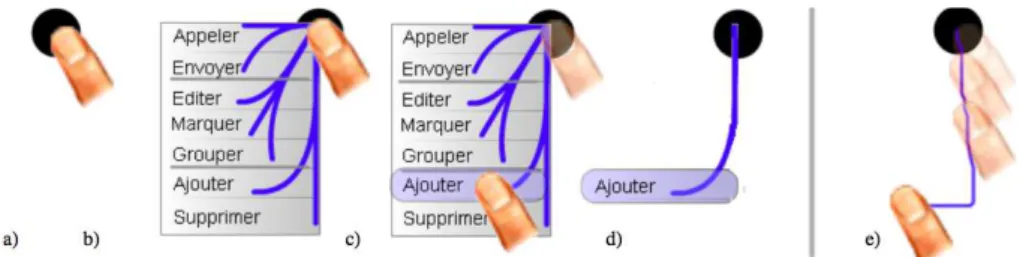
Fig. 1. Leaf menu. a) The user presses a target. b) The menu appears after 0.3 s. A stroke shortcut is defined for each item. c) When the user releases his finger, the command is executed. d) A visual feedback occurs to confirm the selection. e) The user selects the item in expert mode and draws the corresponding marks without waiting for the menu to appear.
1 Introduction
Althoughthecommandselectionisafrequenttaskininteractivesystems,few studies have been proposed to improve menus for the case of handheld touchscreen devices. The widespread menu techniques are still linear menus whereas they do not fit well with mobile device limitations. First, in comparison with the interface of a classical computer, those of mobile devices are dramatically impoverished: 1) the lack of screen real estate makes it difficult to display much information (especially in the widthways direction); 2) the user cannot use hotkeys(keyboard shortcuts) because there is often no keyboard; 3)thereisnorightclickwhileusingatouchscreenas opposed toamouse.Moreoverthesedevicesare used in mobile situations and users very often
interact with fingers and with only one hand [6]. In this case, they use their thumb and this has several implications on interaction including the occlusion of the thumb,the difficultytoreachthebordersofthescreenandthelack of accuracy as defined in [7].
To overcome these limitations, we introduce Leaf menu, a context linear menu with stroke shortcuts, which is designed for mobile touchscreen devices. Leaf menus provide a compact layout, support precise finger interaction, manage occlusion and can be used in close proximity to the screen borders.
2 Related Work
Thumb menus are dedicated to mobile devices [4]. Indeed they take into account the constraints of thumb interaction on mobile devices by avoiding occlusion and increasing accuracy. However they do not have an expert mode (often no keyboard) and do not permit selections in close proximity to the borders of the screen. Moreover their semi-circular layout is not compact in comparison with a linear menu.
Gesturing strokes define an efficient alternative to increase the accuracy [8]. However, they have two limitations. First some strokes cannot be performed near the borders (such as a downward stroke in close proximity to the bottom border of the screen). Second this interaction style is not self-revealing [5]: the system does not provide information about what commands are available and how to invoke them.
One solution consists of displaying stroke shortcuts to items of menus attached to a menu bar [1,5]. However, as these menus are not contextual and stroke shortcuts must be explicitly learned, this forces users to interrupt his/her activity’s flow. In the opposite way, Marking menus are context circular menus that offer a "fluid transition" from novice mode (selection in the menu) to expert mode (gestural interaction) because users execute the same gesture in these two functional modes. So, users learn the expert mode implicitly just by using the menu repeatedly in novice mode. However the circular representation of Marking menus does not fit well with small screen devices. Indeed, such menus require more horizontal space than two linear menus (items are laid out on both sides around the center point). Moreover, they do not solve the problem of strokes in close proximity to the borders of the screen.
3 Leaf Menu
Leaf menus are context linear menus with stroke shortcuts (Fig. 1). Leaf menus present five main differences with linear menus that overcome the previous limitations:1) When the menu enters in novice mode (after a delay of 0.3 s), it appears by default on the south-west zone (for right-handed people) to avoid the occlusion of the hand on it, as recommended by [4]; 2) Each item has a corresponding stroke that canbeusedinexpertmode(iftheuser does not wait and begins gesturing immediately); 3) Stroke shortcuts are drawn globally to the menu (instead of inside the items as in [1,5]) in order to be easily legible on small screens and to favour implicit learning as with the Making menus; 4) A visual feedback occurs after the activation of one item to help the learning of stroke shortcuts ; 5) The Leaf menu uses a mirror effect (Fig. 2) when the space below the activation point is not sufficient to display the menu. The mirror effect (Fig.2) consists of displaying the menu above the activation
point and to invert the order of items by a vertical symmetry. By doing so item 1 of Fig.2 is always the closest item of the activation point. The item 1 can then be quickly reached according to Fitt’s law, no matter what the location of the menu on the screen. This contrasts with linear menus where item 1 is the furthest awayitemwhen themenuisactivatedclosetothebottom border and is therefore shifted upward.
When the user does not wait and begins gesturing immediately, the menu is in
expert mode. As Marking menus, the user must perform the appropriate stroke to select an item. Stroke shortcuts are mapped to items depending on their positions in the menu, so that the user can easily learn the expert mode. Indeed, this mapping helps the user to easily associate an item to a stroke or to predict the other strokes (by knowing the position of the item, in the menu or relatively to neighbor items).Since the Leaf menu layout corresponds to a quarter of the circular layout of a Marking menu, it is not possible to have more than 3 straight gestures for maintaining good performance (a limitation identified in Marking menus [5]). Leaf menus therefore support curved gestures as in Flower menus [2], an extension of Marking menus. The curved gestures are simple enough to be accurately executed and to permit eye-free selection, useful when visual modality is already used or impossible in mobility context. Leaf menus therefore support 3 straight and 4 curved gesture shortcuts used in the expert mode while allowing more items in the novice mode. The frequent items can therefore be mapped with the 7 gesture shortcuts. Moreover, Leaf menus are hierarchical. In novice mode, they work in the same way as linear menus: submenus appear on the left or on the right of the parent item. In expert mode, the user executes a series of "simple" overlapping marks, one mark by menu level [2].
Fig. 2. Left, the four configurations of the Leaf menu (mirror effect). Right, experimental results of our pilot study: the type of selection [success or error] and the mode [novice or expert] per block number.
Finally a major difference with previous menus is that the expert mode of Leaf menus is always available wherever the menu is activated. Indeed, each item has several symmetrical stroke shortcuts, thanks to the mirror effect (Fig. 2). This flexibility that Leaf menus offer makes it possible to always have at least one available stroke shortcut everywhere on the small screen.
4 Pilot Study and Discussion
The experiment aims at evaluating if users can select and memorize commands in expert mode. The 8 participants were asked to activate items as quicklyandaccurately as possible on a target. Targetswere located in the4corners ofthescreentoevaluatethe Leafmenuintheworsescenario:indeeduserswere confronted with all horizontal and vertical symmetries. No instructionswere given about the mode to use (novice or expert). Participants interacted on a HTCP3600(supporting Windows Mobile 5.0) with the thumb of their dominanthand.Theexperimentwas divided into 10 blocks of 28 trials (7 commands*4 target locations). The order of items was counter-balanced and the position of targets was randomized. The 4 results found are explained below.
Fig. 2 shows the type of selection (success or error) and the mode used (novice or expert) per block number. As expected, blocks have a significant effect on correct selections in expert mode (F9,63=25.9, p<.0001) indicating that participants learnt and
correctly used the expert mode (2 blocks of practice are sufficient). Moreover, these results can be improved by revisiting our basic recognition algorithm by taking into account the morphology of the thumb. For instance, simply by studying the recorded traces, 12% of selections in expert mode could be corrected for the item 3.
An analysis of the first block shows that more than 24% of correct selections were made in expert mode for items 1, 6, 7 and more than 15% for items 2 and 4. Then 5 commands can be quickly learned (< 4 trials) and it is not necessary to independently learn all gestures, because the symmetry of the menu helps to deduce them easily. This suggests that the simplicity of a gesture may be as important as the repetition. This result needs to be investigate further.
Most of participants said that once gestures are learned (number of blocks > 5), the expert mode (89.1% of correct selections) was more accurate that the novice mode (84.4%) because gestures are more accurate than a pointing task. So gestures are not
only faster but also less error-prone, as previously highlighted in [8].
Finally, all our participants enjoy the mirror effect and some of them found it more
"logical" than the linear menu. They also like drawing marks to select items.
References
1. Appert, C., Zhai, S. 2009. Using Strokes as Command Shortcuts: Cognitive Benefits and Toolkit Support. ACM CHI’09, 2289-2298
2. Bailly,G.,Lecolinet,E.,Nigay,L.FlowerMenus:ANewTypeofMarkingMenus withLarge MenuBreadth,withinGroupsandEfficientExpertModeMemorization.ACM AVI'08, 15-22. 3. HanCock, M.S., Booth, K. S. 2004. Improving menu placement strategies for pen input.
ACM GI’04, 221-230.
4. Huot, S., Lecolinet, E. 2007. ArchMenu et ThumbMenu : Contrôler son dispositif mobile "sur le pouce". ACM IHM'07.
5. Kurtenbach, G. 1993. The Design and Evaluation of Marking menus. University of Toronto. Ph.D., Thesis.
6. Parhi, P., Karlson, A., Bederson, B. 2006. Target Size Study for One-Handed Thumb Use on Small Touchscreen Devices. MobileHCI’06, 203-210.
7. Roudaut, A., Lecolinet, E., Huot, S. 2008.Taptap and MagStick: Improving One-Handed Target Acquisition on Small Touch-screens. ACM AVI’08, 146-153.
8. Yatani, K., Partridge, K., Bern, M., Newman, M. W. 2008. Escape: a target selection technique using visually-cued gestures. ACM CHI’08, 285-294.
![Fig. 2. Left, the four configurations of the Leaf menu (mirror effect). Right, experimental results of our pilot study: the type of selection [success or error] and the mode [novice or expert] per block number](https://thumb-eu.123doks.com/thumbv2/123doknet/11488448.292800/4.892.195.705.630.824/configurations-mirror-effect-right-experimental-results-selection-success.webp)
