A Drawing Application for Curl
by
Arthur E. Housinger
Submitted to the Department of Electrical Engineering and Computer
Science
in partial fulfillment of the requirements for the degree of
Masters of Engineering in Electrical Engineering and Computer
Science
at the
MASSACHUSETTS INSTITUTE OF TECHNOLOGY
@ Massachusetts Institute
n'
May 1998
of Technology 1998. All rights reserved.
to r
A uthor ... .. . ~.. ... .
.
.. ..
...
Department of Electrical Engin'ering and Computer Science
May 26, 1998
Certified by..
.:.. o... - ...Stephen A. Ward
Professor
Thesis Supervisor
Accepted by ...
....
.
Arthur C. Smith...
..Arthur C. Smith
MASSACHUSETTS INSTITUTE
OF TECHNOLOGY
Chairman, Department Committee on Graduate Students
JUL 14199
LIBRARIES
A Drawing Application for Curl
by
Arthur E. Housinger
Submitted to the Department of Electrical Engineering and Computer Science
on May 26, 1998, in partial fulfillment of the
requirements for the degree of
Masters of Engineering in Electrical Engineering and Computer Science
Abstract
Curl is a new Web devolopement language. As a new language, there is a learning
curve necessary for users to overcome before being able to create interesting web
pages.
This thesis introduces Canvas, an application for creating web pages written in
Curl. The strength of Canvas is two fold. First, it is a visual tool that keeps the Curl
code as far away from the user as possible. Second, Canvas is written to facilitate
additions to it. As Curl evolves and more features are added to it, the Canvas may
too be updated.
Thesis Supervisor: Stephen A. Ward
Title: Professor
Acknowledgments
I would like to thank my parents for their love and support throughout my life. They
have made me what I am today. A big thank you also goes out to all my friends who
ignored me in the final weeks before this thesis was due. I would like to thank Steve
Ward for his patience and positive feedback every time we talked. Finally, I would
like to thank Rena Yang for her input both on the design and on the paper, for her
encouragement the past few months, and for taking care of the "little things" while
I worked.
Contents
1 Introduction
11
1.1
Background and Motivation ...
....
...
..
11
1.2
Project Overview ...
12
2 A Brief Curl Introduction
13
3 Related Work
15
3.1 Presentation Applications ...
...
15
3.2 Drawing Applications ...
16
3.2.1
Pixel Based Applications ...
..
17
3.2.2
Object Based Applications ...
. . . .
17
4 Graphical User Interface of Canvas
19
4.1 The Parts . . . .. .
19
4.2 An Exam ple . .. .. ...
. ...
....
21
5 Canvas Internals
27
5.1
Canvas Objects ...
27
5.2
Canvas M odes ...
29
5.3
Selection Boxes and Markers ...
30
5.3.1
Boxes . . . .. .
30
5.3.2
Markers ...
30
5.4
The Visual Parts ...
32
5.4.1
The Drawing Sheet ...
32
5.4.2
The Other Visual Components . ...
34
5.5 The Application ...
...
35
6 The Files
37
7 Future Work
39
7.1
Canvas ...
. . . ....
...
39
7.2 C url . . . .
. . . .. ..
40
8 Conclusions
43
A Code
45
A.1 Generic Tools ...
45
A.1.1 com m on.curl ...
...
45
A .1.2 generic.curl . . . .
54
A.1.3 dynam ic.curl
...
61
A .1.4 m enu.curl . . . .
68
A .1.5 toolbar.curl . . . .
73
A .1.6 type.curl . . . .
. . . . .. . ..
77
A.2 Non-Visual Components ...
...
78
A .2.1 cevhand.curl . . .. . . . ...
....
...
. .. . . . . .
78
A .2.2 cm enu.curl ...
...
...
...
....
80
A .2.3 constants.curl ....
...
...
....
...
.
83
A .2.4 edit.curl . . . .
. . . . .. . ..
85
A .2.5 geom .curl .. . . . ...
...
. . . .. .
91
A.3 Objects Found in the Drawing Sheet . ...
101
A.3.1 cbox.curl . ...
. .
...
.
.
101
A.3.2 cobjects.curl ...
...
114
A .3.3 line.curl . . . .
125
A.3.4 m arkers.curl ...
140
A .3.5 rect.curl . . . .
153
A.4 Visual Components ...
...
164
A .4.1 canvas.curl .. . . . .. . . . . .. ...
. . . .. . . .
164
A .4.2 cruler.curl . . . .
195
A .4.3 ctoolbar.curl . .. ...
..
204
A .4.4 dialogs.curl . .. . . .. . . . .. .. .. . . . .. . . . . .
210
A.4.5 m essage.curl ...
214
A .4.6 widget.curl
. . . .. . . .. .. . . . .. .. . . . . .
216
A.5 The Canvas Application ...
222
A .5.1 all.curl . . . .
222
List of Figures
2-1
Placing a Button object inside of a Frame object
. ...
14
4-1
The initial Canvas. ...
20
4-2 Drawing in Canvas...
23
4-3 Rotating and Moving in Canvas ...
..
24
4-4 Resizing and Exporting in Canvas . ...
. . . . .
25
Chapter 1
Introduction
1.1
Background and Motivation
Curl is an object-oriented language for creating web documents. Curl is intended to
be a gentle-slope system, which is defined as a system "accessible to content creators
at all skill levels ranging from authors new to the web to experienced programmers" .[8]
In accomplishing this task, Curl encompasses a large body of functionality currently
found in HTML, Tcl/Tk, Java
TM ,and
TeXTM.1However, as with any new language, Curl requires its users to learn a new
syn-tax and become familiar with built-in classes. New users find themselves reading
specifications, source code, and tutorials. For authors new to the web, this may be
daunting. In addition, since Curl is still in its Alpha stages, the specifications for
classes are changing. This can lead to difficulties when programming in Curl.
To help programmers avoid the obstacles of learning a new computer language,
many applications have been created that allow the programmer to directly
manip-ulate the visual layout, rather than the code of the language.[7, 11, 13, 14, 15] In
addition, these applications may remind the user of different objects' specifications
and often fill in attributes of the objects with defaults for the user.
1Java is a trademark of Sun Microsystems, Inc. in the United States and other countries. TEXis a trademark of the American Mathematical Society.
1.2
Project Overview
This thesis presents the framework for an application, entitled Canvas, that helps
a user create web pages in Curl. The purpose of this application is to reduce the
learning curve for Curl, as well as to facilitate quick creation of Curl pages. Since
Curl is still evolving, and since Curl may be extended by its users, Canvas is written
to allow programmers to easily extend its functionality.
In addition, a drawing mechanism is added to Canvas. This mechanism serves
three purposes. First, it tests the correctness of Canvas. Second, it tests the usability
of Canvas. Third, it gives Curl users a way to draw without having to manipulate
pixel values, which is currently the only way to draw in Curl.
The rest of the thesis is laid out as follows. Chapter 2 explains briefly the drawing
and layout mechanisms for Curl used in this thesis. Chapter 3 talks about other
applications that influenced the design of Canvas. Chapter 4 discusses the user
inter-face for Canvas, and includes an example of its use. Chapter 5 discusses the internal
classes and procedures that are used to create the Canvas application, as well as the
philosophy behind them. Chapter 6 discusses the two file formats used to save work
done in Canvas. Chapter 7 discusses future work to be done for both Canvas and
Curl. Finally, Chapter 8 reviews the successes and failures of the Canvas with respect
to its goals.
Chapter 2
A Brief Curl Introduction
There are several mechanisms that Curl supplies for laying out a web page. Currently,
however, Canvas only takes advantage of two: Frame objects and the draw method.
An object of type Frame contains objects that inherit from the class Graphic.
Frames were used by Canvas because they allow the positions of contained objects to
be specified. For example, in Figure 2-1 the Button (which inherits from Graphic) is
first placed in the Frame, and then moved to a location in the middle of the Frame.
This flexibility was needed for placing the different objects created in Canvas.
The second mechanism, the draw method of a Graphic object, is automatically
called by the Curl browser. This method is passed a GraphicContext, which has many
methods to facilitate drawing, including the following: set-color, set-font, draw-line,
draw-rect, and draw-text. By calling these methods, an object can draw in its
allocated space on the screen.[4]
Example
{let f:Prae={nev Frate width-200 height=200 border-style 'black border-width= }
b:Dutton- (new Button label-'Zxaxaple) {fappend-object b)
(b. set-position x=100 p=100) (value f)
}
Chapter 3
Related Work
Many applications were researched for ideas of what to include, what not to include,
what complements a gentle slope language, and what is difficult to learn. Of the
applications researched, two categories arise. First, there are applications meant for
creating a presentation of sorts. Second, there are applications that are meant
specif-ically for drawing. Although presentation applications often support drawing, and
drawing applications often support presentations, the main focus of the applications
are used to categorize them.
3.1
Presentation Applications
Three presentation applications were researched: HoTMetaL PROTM, PowerPoint®,
and FrameMaker@.' [9, 10, 11] These three applications are used most often to
respec-tively create web pages, create business presentations, and create text documents.
HoTMetaL PRO gave insight into what features must be contained in an
applica-tion used to create web pages. HoTMetaL PRO offers its users several text formatting
options, a table editor, and a forms and widget editor. The widgets can be edited,
via a dialog box, to perform actions or contain code. The dialog box offers a gateway
to code, without completely forsaking the visual power of a layout application.
Un-'HoTMetaL PRO is a trademark of SoftQuad Inc. PowerPoint is a registered trademark of Microsoft Corporation. FrameMaker and Adobe are trademarks of Adobe Systems Incorporated.fortunately, the user interface is difficult to utilize efficiently; its numerous buttons
slow down the application considerably, and they slow down the user in trying to find
a desired button.
PowerPoint offers a more powerful presentation application. The numerous tools
offered are organized into a hierarchy of menus. In addition, it offers a set of page
templates. Items, such as text or a polygon, can be moved, reshaped, rotated, and
aligned. However, PowerPoint has two main drawbacks as a model. First, it only
allows a user to create objects visually; creating a line that is exactly four inches long
is impossible. Secondly, it forces a style of creation for the user. For example, after
drawing a line, the user is forced to be in select mode, where they can move the line,
reshape the line, or change the attributes of the line. However, in this mode, the user
cannot draw another line; they must reselect the line drawing mode. While this may
be useful when creating a document with only a few lines, it is an annoyance when
creating a page made of many lines.
FrameMaker software offers a wide variety of tools, including drawing capabilities
and equation editing. Each tool offers its own separate pop-up toolbar. This is
convenient because it keeps toolbars separate, and it allows new features to be easily
added by Adobe@. FrameMaker software, however, has the same problems that we
mentioned PowerPoint having. (Although rulers make "exact" drawing more feasible.)
Many small stylistic attributes of the FrameMaker and PowerPoint (such as being
forced into select mode) are similar, and were used extensively as guidelines when
coding this thesis.
3.2
Drawing Applications
There were two classes of drawing applications: pixel based and object based. Pixel
based applications allow manipulation of each pixel separately. Although you can
draw objects, once drawn, there is no relation between the pixels. Object based
drawings allow the user to manipulate the different objects, such as lines, rectangles,
and circles.
3.2.1
Pixel Based Applications
A pixel-based approach to drawing is not acceptable for Canvas, since Canvas is
meant for creating Curl code. A pixel-based drawing application for Curl would only
serve in creating bitmaps added to a Curl page, and this goal is better served by
drawing the pictures in other applications and exporting to a bitmap for inclusion on
a Curl web page. Therefore, many lessons offered by pixel-based applications[l, 6]
were unusable. However, both user interface information and some features of the
applications were considered.
For example, SuperPaint@ for the Macintosh@ has four ways to resize a
rect-angular region.
2First, you can "scale" the region, which changes the length of all
four sides of the region. You can use "slant" to keep one corner fixed, while changing
the positions of the other three corners. "Distort" keeps two corners intact, while
the other two move. Finally, "stretch" keeps three corners fixed while the last corner
moves. Canvas was designed to allow any reshaping of the objects within it. Although
objects are not pixel based, the aforementioned reshaping methods are all possible
within Canvas.
3.2.2
Object Based Applications
A number of object based drawing applications were viewed during the design phase of
this thesis, and attributes were taken from each. The applications researched included
Canvas (the original drawing application in Curl), xfig, CanvasTM (an application for
the Macintosh)
3, Sketchpad, and AutoCAD®.
4[2, 5, 12, 16]
Curl's original Canvas application offers some components for reuse. However,
much of its organization did not allow for the versatility desired. Therefore, most of
the original work was discarded.
2SuperPaint is a registered trademark of Aldus Corporation. Macintosh is a registered trademark
of Apple Computer Inc.
3For clarity, the phrase "original Canvas" is used throughout to refer to the first drawing
applica-tion in Curl, and the phrase "Deneba's Canvas" is used to refer to the applicaapplica-tion for the Macintosh. All other uses of the phrase "Canvas" refer to the application presented in this thesis.
4Canvas is a trademark of Deneba Systems Incorporated. AutoCAD is a registered trademark of
The application xfig was most useful because its source is available.[16] The
mech-anism in Canvas for handling mouse events was inspired by xfig. In addition, the undo
mechanism in xfig was mimicked. Finally, much of the layout of xfig is simple and
communicates easily to the user, and was therefore partially adapted. However, xfig
is very limited, both in what it can do and also in features that it is capable of adding,
and care was taken not to copy xfig in any way that might limit the functionality of
Canvas.
Deneba's Canvas application for the Macintosh was interesting in that it has some
features that none of the other applications have. For example, it allows the user to
"snap to grid" in the x direction only, y direction only, or both. (Most application
require both or none.) It also allows users to define their own line type and arrow
type. This thesis attempted to mimic the versatility of Deneba's Canvas.
Sketchpad is a drawing application created at Lincoln Laboratories in 1963.
De-spite being created decades ago, it has one feature that is not found in current
ap-plications: the ability for objects to mimic each other. For example, you can draw a
bolt and place copies of that bolt in hundreds of locations in your drawing. Then, if
the specifications for the bolt changed, you could change just one of the bolts, and
the rest would change automatically. This feature is supported by Canvas.
AutoCAD contains, by far, the most drawing options. For example, a user can
draw an arc eleven different ways in AutoCAD. However, this versatility can be
daunt-ing and confusdaunt-ing to a new user, an undesirable feature for a gentle slope language.
At the same time, the power that it offers was desirable. (Allowing a dialog for each
modes in Canvas was inspired by the versatility of AutoCAD.) In addition, since
Au-toCAD is so large, it attempts to be as clear as possible. For example, when drawing
a line, a button press is requested for both points. Finally, AutoCAD attempts to
give the user several "shortcuts" to different features; a user can draw a line by
typ-ing "line" at the text prompt, by gotyp-ing to "Line" in the menu bar, or by gotyp-ing to
"Line" on the dynamic menu bar. Canvas attempts to capture both the clarity and
the versatility of AutoCAD.
Chapter 4
Graphical User Interface of Canvas
To use Canvas, a user creates a Curl web page that contains an object of type
Can-vasApplication. This object, then, will then be laid out as shown in Figure 4-1. The
application, from the user's standpoint, may be divided into six main parts: the
drawing sheet, the mode toolbar, the PopupDialog button, the property toolbar, the
menu, and the message windows.
In the first section, we define the parts and explain how each is used. In the second
section, we demonstrate their use.
4.1
The Parts
The drawing sheet is the large square in the center of the Canvas application. This
is where all drawn figures and all created objects appear. In addition, the rulers on
the sides of the sheet track the current mouse position. Users may switch between
different drawing sheets using the menu choice Windows.
The mode toolbar is located to the left of the drawing sheet. This toolbar may
dynamically change to assist in different modes (such as table creation, drawing, and
text layout). Currently, however, the only available mode toolbar is for drawing. This
toolbar is made up of three sections: Draw, Edit, and Action. Only one button found
in the Draw and Edit sections may be selected at a time, and the selected button
defines the interpretation of mouse events within the drawing sheet. Buttons in the
Figure 4-1: The initial Canvas.
Action section perform functions, such as flipping horizontally or vertically. Once
finished with their function, control returns to the currently selected Draw or Edit
button. (Currently, no action buttons are implemented.)
Immediately below the mode toolbar is a button labeled "Popup Dialog". When
pressed, this button causes a dialog box to pop up for the currently selected mode.
The dialog box gives the user a text interface to the current mode.
The property toolbar is located below the drawing sheet. This toolbar is used to
change properties for Canvas such as line width, line color, and fill color. Each
prop-erty button, when clicked, invokes a dialog box for the user to change the propprop-erty.
As with the mode toolbar, the property toolbar may display a different selection of
buttons during a Canvas session.
The menu is located in the upper-left corner of the Canvas application. In addition
to providing options not available elsewhere in Canvas, it provides another means for
switching modes and changing properties. For example, by choosing the menu option
"Polyline" under the menu heading "Draw", the current mode will change to the
polyline mode and the mode toolbar will reflect this change.
The message windows are located above the drawing sheet. The message window
on the right is used to convey to the user what effect the mouse has in the current
mode. The message window on the left is used to communicate with the user in a
unobtrusive way.
4.2
An Example
Before discussing the internal components of Canvas, an example of its use will be
presented. This example does not extend the functionality of the current Canvas,
nor does it discuss how programmers may do this. In addition, because we focus on
graphical user interface in this chapter, no mention is made of what happens internally
during the example. The example chosen is drawing a simple house, rotating it, and
exporting it.
To begin drawing, we select the mode for drawing a rectangle, as shown in Figure
4-2a. Next, in figure Figure 4-2b, we select the fill color and change its value to "grey".
Then, in Figure 4-2c, we draw the body of the house. Finally, in Figure 4-2d, we
finish the house by changing to the polyline mode and drawing a simple roof over the
house.
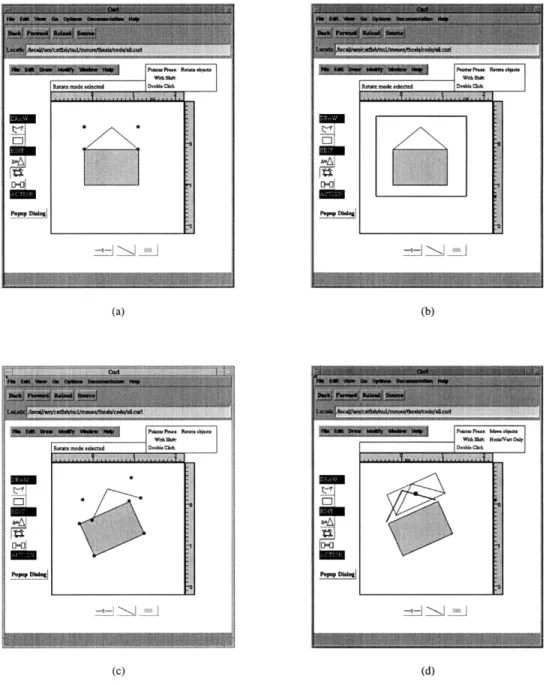
At this point, all drawing is done, and we begin editing. First, we choose rotate.
As shown in Figure 4-3a, Canvas has automatically selected our last drawn object as
the object to rotate. However, we wish to rotate both the house body and the house
roof; therefore, we draw a select box around both objects, as shown in Figure 4-3b.
At this point we can rotate. However, when editing multiple objects at once, each
object is edited separately. Therefore, when rotating the two parts of the house, the
body and the roof rotate about their individual centers. Each object is rotated by
the same degree, but, as shown in Figure 4-3c, the final rotated product is not what
we desire. To correct this, we switch to move mode, in order to move the roof. Since
two objects were just selected, Canvas assumes that we want to move both objects.
We select just the roof (by first clicking away from all objects and then clicking on
the roof) and move the roof to its proper location, as shown in Figure 4-3d.
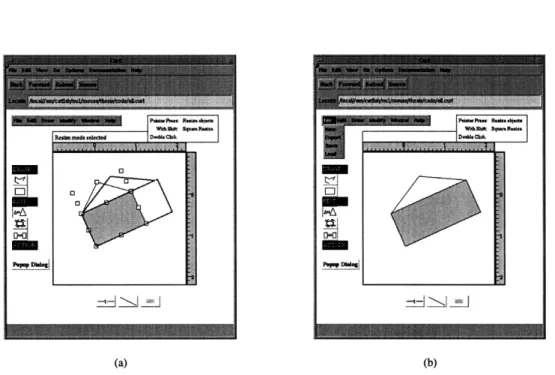
Our house is now rotated. We now decide to make the house larger. Therefore,
we change to resize mode, select both objects again, and begin resizing. Notice in
Figure 4-4a that although the house is rotated, it may be expanded "to the right" as
though it has not been rotated. This feature may be turned on or off, but for this
example we will use it. Finally, we export the house to a file (we are prompted for
the filename) to be included in a Curl web page. (See Figure 4-4b and Figure 4-5.)
POM DWsg
WA~ok Sq.
7.,, , .Ch ,I
...
In part a, the user is about to choose the mode to draw a rectangle. In part b, the
user is in the process of changing the current fill color. In.,part c, the user is in the
process of drawing the rectangle. In part d, the user is in the process of drawing a
polyline.
Figure 4-2: Drawing in Canvas.
q,"~PIBIIIBb
311111811s1ls3%11P81IIIIPl~aPI I L ~ a~illlrslLrlrrr~llr
I ....i ...'._1
RP* p w : -VM&Y
r
P." D~fql ... mlI
W
I fli: RttzmodeclSd la~r :~ir~~>i >1 Oa P.Dhq~ti
.ti~tB~~B~
i ftrUflU~b~aF
hl
In part a, the user has selected the rotate mode. The polyline is ready for rotation.
In part b, the user is selecting both the polyline and the rectangle using a select box.
In part c, the user has finished rotating both objects. In part d, the user is moving
the polyline.
Figure 4-3: Rotating and Moving in Canvas
aB~i~e~B~ hillltur: Rr~~a.VdS*RRa*cmDdcrdrchl DnY CLlh
AINEEM291WIF
l~aBB~XBi~B~sIIIBBIIBsClgBIBllgBI~~ IslPIIBIBlllsBlllg81~11~
... ..
M ost sq.\I.. ashVt sqmau
(a) (b)
In part a, the user is resizing both the rectangle and the polyline. In part b, the
object is finished, and the user is about to export the picture to a file.
I File created by Curl's Canvas Application
I And now everything drawn in the Canvas {define-class class-number-i {SimpleGraphic}
width:int height:int {define {init} {set self.width 322} {set self.height 322} {super.init} } I method: init
{define public {layout}:{return int int} {return self.width self.height}
} I method: layout
{define public {draw gc:GraphicContext}:void
I CanvasLineObject stuff {let
line-color:any='black line-width:int=1
{gc.draw-line 68 148 137 57 line-color line-width} {gc.draw-line 137 57 248 67 line-color line-vidth}
} I let {let
line-color:any='black line-width:int=1
I rotated rectangle I Start with the filling
{gc.fill-polygon 'grey 67 148 251 65 287 144 103 228}
I and now the border, which may overwrite filling {gc.draw-line 67 148 251 65 line-color line-width} {gc.draw-line 251 65 287 144 line-color line-width} {gc.draw-line 287 144 103 228 line-color line-width} {gc.draw-line 103 228 67 148 line-color line-width}
} I let
I Finally, a call to super.draw {super.draw gc}
} I method: draw
} I class class-number-1
The resulting exported file for the example in Section 4.2.
Figure 4-5: Exported Code
Chapter 5
Canvas Internals
Canvas's internal design is divided into the following parts: the objects, the modes,
the selection boxes, the five externally visual parts, and the application as a whole.
In this chapter, we will describe the purpose of each part. In addition, key methods
for achieving these purposes will be explained. Finally, this chapter explains some of
the advantages and disadvantages of the current organization. The actual code may
be viewed in conjunction, and may be found in Appendix A.
5.1
Canvas Objects
All objects found in the drawing sheet must inherit from class NewCanvasObject.
These objects contain all necessary information to be drawn, selected, and exported
by Canvas. Objects of type NewCanvasObject may be queried for attributes by
other components of Canvas.
The objects may also be modified. Both queries
and modifications are accomplished using the methods four-corners, encloses-object,
partially-encloses-object, add-to-canvas, remove-from-canvas, reshape, rotate,
distance-to-object, copy, change-object-property, save-to-file,
read-from-file, and export-draw. Finally, public member variable marker-type may
be used by selection boxes and markers. (See Section 5.3 for more information.)
The method four-corners is used to identify the four corners of the object. If
the object is unrotated, this would be the corners of the Graphic object from which
the object inherits. However, if rotated, this method allows the object to define its
rotated bounding box.
The methods encloses-object and partially-encloses-object are used for selection
purposes. They are passed two points, representing the corners of an unrotated
rectangle on the screen. The object returns whether the rectangle fully encloses the
object (in the case of encloses-object) or whether the rectangle encloses any part of
the drawn object (in the case of partially-encloses-object).
The methods add-to-canvas and remove-from-canvas are used to place and
re-move an object from a drawing sheet. An object is given control of adding and
removing itself to the drawing sheet, so that any special actions that it may require
can occur. However, if the object must be added through other means, the method
added-to-canvas should be called.
The reshape method is used to modify an existing object. It is passed a function
that takes a point and returns a new, modified point. Depending on other arguments,
an object may either apply this function to a single point or to all points that define
it. The generic nature of reshape allows for objects to be able to "stretch", "distort",
and "slant" (as defined in Chapter 3) without understanding the details of these
operations. In addition, the generality of reshape allows new ways of reshaping to be
added to Canvas in the future. The reshape method should be used for all reshaping
except for rotation. Rotation should be done solely by calling the rotate method.
The rotate method takes an angle for the object to rotate. This method is separate
from reshape so objects may retain an orientation to the Canvas application. This
lets a user rotate a rectangle and then move the "left side" of the rectangle, as
demonstrated previously in Figure 4-4.
The method distance-to-object is called to determine how far away a mouse click
was from the visual representation of the object. The object takes into account the
fact that it does not draw in all of its allocated space.
The copy method is used to make a copy of a NewCanvasObject. This is currently
used extensively by undo and redo. See Section 5.4 for more information on this use.
The method change-object-property allows for visual attributes of the object
to be changed. Visual attributes include line color, line width, and fill color. If
an attempt is made to change a property not previously added by the object, the
call to change-object-property is ignored. This is because a property not added by
the object cannot be utilized by the object. Therefore, adding the property would
needlessly take up memory in the object, and it might mislead a programmer to think
the property is used.
The next two methods, save-to-file and read-from-file, are used during the saving
and loading of a Canvas file. The object stores all internal state information when
saving. When loading, the object will reinitialize all variables. This design allows the
object to modify how it stores its state, without having to change other code.
The final method, export-draw, is only found in objects of type
NewCanvasDrawingObject. This method assume that it is invoked while a draw
method is being written to the output file. In other words, this method is used
to export code that creates an image of the object using methods available in the
GraphicContext.
5.2
Canvas Modes
All modes for Canvas must inherit from class NewCanvasEventHandler. The mode
will be passed events from the drawing sheet. The mode then interprets the events
and may draw on the drawing sheet or add objects to the drawing sheet. The following
paragraphs describe the interface to a NewCanvasEventHandler.
The methods pointer-motion, pointer-release, pointer-press, and pointer-dbl-clk
are passed two items: the original PointerEvent for the mouse event and a point
describing the "snap coordinates" of the event.' Each mode may then decide if it is
more appropriate to use the snap coordinate or the original position.
The method key-press receives all keyboard input with the exception of the ESC
key. An ESC key press causes a call to esc-key-press, which by default calls method
'For those unfamiliar with snap, snap rounds the coordinates of mouse events to the nearest point that is a multiple of the snap size. Snap size may usually be set by the user. Snap coordinates refers to the position of the new point, after rounding the coordinates.cancel.
When method cancel is invoked, a mode clears any visual changes that it has
made to the drawing sheet. In addition, it may release any memory that it would
unnecessarily be keeping. Similarly, the method named "selected" is invoked to
no-tify a mode when it is selected, allowing the object to reinitialize and, if necessary,
reallocate some memory for internal variables.
Finally, popup-dialog-box creates a dialog box for the mode. This box allows text
input for the mode, facilitating precise creation or precise manipulation of objects.
5.3
Selection Boxes and Markers
5.3.1
Boxes
Selection boxes are the boxes that appear around a selected object. Selection boxes are
of type CanvasBox, a subclass of NewCanvasObject; however, they are different from
NewCanvasObjects for several reasons. First, items of this type are always visually
on top of the other items in a drawing sheet. Second, these items are not allowed
to add themselves to the drawing sheet. (An error will signal if add-to-canvas is
called.) Third, selection boxes always visually surround a NewCanvasObject. Finally,
and most importantly, many selection boxes always appear with "markers" of type
NewCanvasSelectMarker.
Markers are drag-able objects that are used to modify
objects within select boxes.
Selection boxes have one important public method, change-object. This method,
when invoked, changes which object the CanvasBox surrounds and changes. In this
way, a single selection box may be recycled, and hence avoid the costs of reallocation.
5.3.2
Markers
Markers, or objects of type NewCanvasSelectMarker, are drag-able objects. They are
the only objects placed in the drawing sheet that respond directly to mouse events.
For this reason, very few of its methods need to be called externally. Instead, a marker
reacts to drag events directly, and calls its own methods to react. Specifically, when
being dragged, a marker calls its update-dragging method, and when released, the
method done-dragging is called. In both methods, the marker then performs three
actions: it updates its internal state, it locates objects to modify, and it changes these
objects. These three actions are the focus of the following paragraphs.
How a marker updates its internal state is specific to the marker. However, the
general mechanism can be shown by using a specific marker as an example, and
RotateBoxMarker is chosen. When dragged, a rotation marker first finds its pixel
offset from its original location. From this information, it then calculates the angle
defined by the three points
* the original position of the marker
* the center of the marker's associated NewCanvasObject
* the new position of the marker
with the object's center being the vertex of the angle.
After changing internal state, a marker finds all selected objects that respond to
its intended changes. To determine all objects that respond to a particular action,
the marker looks at the member variable marker-type for each NewCanvasObject
selected. Each NewCanvasObject uses this variable to declare what actions may be
performed on it. This mechanism has two strengths. First, it allows objects, such as
text, to prevent impossible actions from being attempted, such as rotation. Second, it
allows for new types of markers (and new types of object modifications) to be added
to Canvas without all objects having to know about the new marker.
Finally, once all changeable objects are found, a marker will modify the objects.
This is done indirectly through either an object's reshape method or its rotate method.
The word indirectly is used because the marker will actually call the drawing sheet's
method update-object-for-undo, which is discussed in the next section.
5.4
The Visual Parts
The drawing sheet is an object of type NewCanvasSheet. The drawing sheet and the
Canvas application share a role as a central point for all components to report. The
drawing sheet receives all queries and actions that effect objects within the drawing
sheet, while the Canvas application receives all queries and actions that effect objects
outside the drawing sheet. In this section, we will first discuss the methods available
in NewCanvasSheet. We then discuss the relation between the other visual parts, the
drawing sheet, and the Canvas application.
5.4.1
The Drawing Sheet
NewCanvasSheet has many methods for assisting the other components of Canvas.
These include change-MEH, add-select-box, remove-select-box, add-canvas-object,
remove-canvas-object, hide-layers, show-all-layers, closest-object,
exchange-canvas-objects, commit-exchange, update-object-for-undo, undo, redo,
get-object-CanvasBox, popup-MEH-dialog, add-canvas-property,
change-canvas-property, and get-canvas-property.
The first method, change-MEH, changes the current NewCanvasEventHandler,
which is the event handler for the current mode. As you will recall from Section 5.2,
the NewCanvasEventHandler is passed all keyboard and mouse events that are sent
to the drawing sheet. Before changing modes, this method invokes the current mode's
cancel method. In this way, the different modes do not have to communicate with
each other.
The two methods add-select-box and remove-select-box are used directly to add
objects of type CanvasBox. For example, a NewCanvasEventHandler that just created
a new selection box would then call add-select-box to add this box to the drawing
sheet. This way, the NewCanvasSheet has control and may add and remove other
selection boxes, without the knowledge of the newest selection box. The methods
add-canvas-object and remove-canvas-object, however, should be called only by the
NewCanvasObject being added or removed. This allows the objects to do any special
initializing.
The method hide-layers can be used to show only a sub-set of the objects added
to the drawing sheet. This method will also set internal state of the drawing sheet
to reflect that layers are hidden. This setting then allows the drawing sheet to act
appropriately when the current depth is changed or when new objects are added. The
effects of hide-layers may be undone with a call to show-all-layers.
The method closest-object takes a point and returns the object closest to that
point. This method gives quick access to the currently added objects and is used to
aid in selection.
The methods exchange-canvas-objects and commit-exchange are used to allow
actions to be reversed. The former takes two sets of objects, those to be removed and
those to be added, either of which may be empty sets. In addition, you may specify
that the exchange is part of a larger set of exchanges, to be undone with one call. In
this case, a call to commit-exchange may be used to signal the end of the exchange.
One may also use update-object-for-undo. This method takes an object and a
method name. It will make a copy of the object, invoke the passed method of the copy,
and then exchange the new object for the original. The original object is then stored,
and may be switched with the new object to reverse the effects of the update. This
mechanism for undo does use extra memory. However, the alternative protocol would
not copy the object, but require each object to be able to undo the last modification
to it. The extra use of memory is a much smaller cost compared to the complexity
the alternative would add.
The method undo may be invoked consecutively multiple times. Hence, the user
may undo several actions. Currently, the undo buffer size is set at ten. A call to redo
has effect only if no objects have been added since the last undo.
The method get-object-CanvasBox allows for an easy way to see if a
particu-lar NewCanvasObject is currently selected. If it is, the CanvasBox that surrounds
the object will be returned. Although this is slower than storing a pointer to the
CanvasBox in the NewCanvasObject, there is no reason for the NewCanvasObject to
know when it is selected, or even to know about selection boxes.
The next method, popup-MEH-dialog, allows the PopupDialog button in the
mode toolbar to have minimal knowledge. Without this method, the button would
have to have knowledge of the current selected NewCanvasEventHandler.
Finally, the three methods add-canvas-property, change-canvas-property, and
get-canvas-property allow manipulation of the properties known by the drawing
sheet. These properties are the visual properties of objects, such as line color, line
width, and fill color. The method add-canvas-property allows for new properties
to be added by programmers who extend Canvas. One method could have been
used for both add-canvas-property and change-canvas-property, but the purpose of
invocation is unclear in such a design.
5.4.2
The Other Visual Components
As mentioned at the beginning of this section, each visual component of Canvas
(other than the drawing sheet) use the drawing sheet and the application itself as
connections to the other components of the application. Other than these connections,
the components are as separated as possible.
The message windows are the most separate from the other components of Canvas.
They communicate no information to any other part of Canvas, and they receive
infor-mation from the other parts only through methods supplied in the CanvasApplication.
The menu is connected both to the CanvasApplication and to the
NewCanvasSheet. Using methods in the CanvasApplication, programmers may add
items to the menu or remove items from the menu. Invocation of the menu items
cause the current NewCanvasSheet to be passed to the associated procedure for the
menu item. This allows menu items to change the state of the drawing sheet, such as
changing properties, copying objects, and removing objects.
New buttons may be added to either toolbar using methods available in the
CanvasApplication. (See Section 5.5.) In addition, either toolbar may be switched
with another toolbar, allowing, for example, a mode bar for Tables and a mode bar for
drawing. Once toolbars are in place, they communicate with the drawing sheet rather
than the application. Mode buttons, when selected, either call the NewCanvasSheet's
change-MEH method or perform their action on currently selected items in the
draw-ing sheet. Property buttons, when selected, call change-canvas-property with the new
value entered by the user.
5.5
The Application
The Canvas application is an object of type CanvasApplication. As already
men-tioned, the application itself is used as a central location for components to
commu-nicate with other components. In this section, we outline the different methods
avail-able to access the different parts of the Canvas application. We will discuss the
meth-ods CanvasApplication add-canvas-sheet, set-current-sheet, remove-canvas-sheet,
make-new-sheet, add-menu-heading, add-menu-item, remove-menu-item,
add-toolbar, change-toolbar, add-toolbar-button, set-error-msg, set-message,
set-event-descriptions, add-semaphore, check-semaphore, lock-semaphore,
release-semaphore, set-canvas-property-button, add-application-property,
get-application-property, and change-application-property.
The first four methods, add-canvas-sheet, set-current-sheet,
remove-canvas-sheet, and make-new-sheet, allow the user to open multiple files
si-multaneously and to use multiple drawing sheets. The next three, add-menu-heading,
add-menu-item, and remove-menu-item, allow a programmer to dynamically change
the mode bar.
The next three methods, add-toolbar, change-toolbar, and add-toolbar-button,
allow a programmer to change both the mode toolbar and the properties toolbar. The
first method will add a toolbar to the list of known toolbars. The second allows the
programmer to change which toolbar is currently visible. This may be used if there
are two modes toolbars, such as one for tables and one for pictures. The last method
is used to add buttons to any of the toolbars.
The methods set-error-msg, set-message, and set-event-descriptions are used
to update the message boxes. Each method simply passes its arguments onto the
message boxes. Although this adds a layer of method calls, it prevents other parts of
Canvas from having to understand how messages are displayed.
Canvas supports the use of semaphores by supplying the methods add-semaphore,
check-semaphore, lock-semaphore, and release-semaphore. This allows for new to
be easily added. Currently, two semaphores exist: mode and popup. The mode
semaphore is locked when a user is in the middle of using one of the tools. The
popup semaphore is locked when a popup dialog is currently up. If either semaphore
is locked, many components of Canvas (such as the menu items) are disabled.
The method set-canvas-property-button is used to identify the button used to
change a drawing sheet property. This was necessary, since these buttons are supposed
to display the current value of the property. When a drawing sheet property is
changed, the button is automatically updated by Canvas.
Finally, the methods add-application-property, get-application-property, and
change-application-property are used to manipulate the properties of the Canvas
application. These are properties that effect the interaction with the user, such as
whether snap coordinates are used, what the grid size is, and whether rulers are
dis-played. Of course, properties added are only observed by objects programmed to be
aware of the properties.
Chapter 6
The Files
There are two types of files generated by Canvas: Canvas files and Curl files. A
Canvas file is used to save state between sessions. A Curl file is used to export the
Canvas contents for use in a Curl web page.
A separate format was chosen for Canvas files for three reasons. First, the amount
of time required for reading and writing files is decreased when using an optimal
format for the requirements of Canvas, and the Canvas files may take advantage of
the most efficient storage of its information. Second, it is easier, as a programmer, to
be able to write and read any format that you wish, rather than a format that must
also be correct Curl code. This is important since Canvas is meant to be extended by
its users, and any new object types added to Canvas will have to save and load their
internal state. Third, if Canvas files were written in Curl code, the users might edit
these files. Once a file is edited, it might not be possible for Canvas to interpret that
file, and the users might be confused as to the reason why.
Each type of file is created by selecting the appropriate menu option from the
Canvas menu. In the rest of this chapter, we briefly discuss about each type of file.
The internal files are created by a two step process. First, the current file format
version is written as a comment in the file specified by the user. This version number
allows multiple saving formats to be supported in future versions of Canvas. For
the second step, each object in the drawing sheet has its save-to-file method called.
Objects are given the power to save in any format that they wish, and the application
is kept free from any knowledge of this format.
When exporting Curl files, the process is again two steps. In the first step, all
NewCanvasObjects that are also considered objects in Curl are exported using the
syntax for defining a Curl class. Currently, no such objects exists, but in future
versions this would include Tables, groups of objects, and formatted text. In the
second step, a class is written that represents the entire drawing sheet. This class
will inherit from Frame (see Chapter 2). All items already saved as classes will be
added to and placed in the Frame as Curl objects. All other objects will have their
export-draw method called, so as to place their output in the draw method of the
Frame.
Chapter 7
Future Work
As stated in the introduction, this thesis created the framework for Canvas; the
current state of Canvas is not a complete application. In this chapter, we list a few
items that are currently missing in Canvas. In addition, we discuss features found to
be currently missing in Curl that make some Canvas features impossible. However, we
note that since Curl is in its Alpha stages, missing features are to be to be expected.
7.1
Canvas
Currently, there are many properties added to Canvas that have no effect. For
ex-ample, although a property for grid size exists, currently it is not used. All added
properties need to be made effective throughout the code.
Secondly, a number of common drawing mechanisms are not yet implemented.
Drawing modes should include polygons, circles, and freehand drawing. Objects also
need a way to draw arrows, dashed lines, and fill patterns. Needed edit modes include
moving vertices and editing with a dialog box. Needed actions include align, flip, and
distribute.
In general, many dialog boxes are needed. Currently, the only way to change
many of Canvas's properties is by programming a call to change-canvas-property or
change-application-property. Also, the drawing modes do not currently have a way
to enter points through a dialog. Finally, the dialog boxes currently implemented do
not offer an optimal graphical user interface, although they are sufficient.
Canvas needs more functionality added to it. Needed toolbars include one for
Tables, one for text, and one for forms.
Finally, Canvas needs more testing. Additions were being made to Canvas until
the end. Although each addition was tested, the thoroughness of the testing was not
sufficient.
7.2
Curl
The drawing mechanism in Curl is incomplete. The most needed feature for Canvas
is the ability to draw an arc. Without this feature, curved rectangles, rotated ellipses,
and all arcs will not be possible. A more complex problem is the fact that an object
of type GraphicContext (and not a subclass of GraphicContext) is the only class that
may be sent to the draw method. Therefore, users of Curl are limited to the methods
available in GraphicContext. The ability to copy and subclass the GraphicContext,
and then pass this new GraphicContext, is needed in Curl.
Drawing xor lines is currently a limited feature in Curl. First, the current drawing
protocol does not allow for xor lines to be used during the draw method, and regular
lines cannot be drawn outside of the draw method. This prevents Canvas from having
consistent drawing during the creation of a new object. Second, objects are not
notified when the Curl browser is iconified. For this reason, it is impossible to tell if
the xor lines are still valid or not.
The current mechanism for event handling in Curl is good; however, two features
are missing. The first is the ability to ignore mouse clicks. With this ability, a
Curl object would be able to pretend, for the moment, to not be an event handler,
and the mouse event would go to the next-most-reasonable object. Without this
feature, it is either impossible for a new polyline to have a vertex inside an established
rectangle, or it is impossible for an object to respond to mouse events for selection
or movement. To get around this missing feature, Canvas currently duplicates much
of the event handling mechanism. The second missing feature for event handling in
Curl is the ability to simulate new events, including mouse movement, mouse and
keyboard presses, and dragging. Just as it is easier for the user to create a web page
using a visual tool, it is easier for the components of Canvas to communication with
other components by simulating pointer and keyboard events.
Chapter 8
Conclusions
Canvas was written with three goals in mind. First, it was created to reduce the
learning curve for Curl. Second, Canvas was meant to facilitate quick creation of Curl
pages. Canvas accomplishes these first two tasks by removing the user from most of
the code. However, the currently limited number of features of Canvas minimizes
its advantages. Finally, Canvas was meant to be extended easily. Currently, many
mechanisms are in place for functionality to be added to Canvas. However, a trade-off
was made between easy creation of new components and the functionality of Canvas.
As objects in Canvas acquire more functionality, the time to create such an object
will unfortunately increase.
In short, although much work remains to be done, it is hoped that the work
pre-sented in this thesis provides the foundation for creating a diverse Curl development
environment.
Appendix A
Code
A.1
Generic Tools
A.1.1
common.curl
I
File for CanvasApplication thesis, by Arthur HousingerThese are things that I think should be defined for all users of
I
Curl.
{define {round x:float}:int {if {< x O}
{return {- x .5}} {return {+ x .5}}
{define {->text thing:any}:text
{return {format void ""p" thing}}
} I procedure: ->text
{define {text-width t:text g:Graphic start:int=O len:int=0}:int
I Find the width of the text string using the default font for the I graphic. If length is 0, assumes the full text string.
font:FFont
gc:GraphicContext
{set font {get-font g}} {if {= len 0}
{return {TextWidth font t start len}}
}
I
procedure: text-width(define (text-height g:Graphic}:int (return (get-font g}.pointsize}
}
I procedure: text-height(define {myapply-method class:type slot:symbol obj:any 1:list} (apply-method class slot (list->vector (cons obj 1}}}
} I procedure: myapply-method
(define-constant MAXINT:int=#x7FFFFFFF} (define (bit-not i:int}:int
(return {bit-xor #xFFFFFFFF i}}}
{define public (rubberband-lines i:Graphic pts:list}:void len:int=(list-length pts}
pointi:Point point2:Point
(cond {{= 0 len} (return}} (({{= 1 len}
{set pointi (car pts}}
{set point2 {new Point pointl.x (+ 1 pointi.y}}}
(rubberband-line i pointl.x pointl.y point2.x point2.y}
}
(else
{set point2 (car pts}}
{set pts (cdr pts}}
(while (not {void? pts}} (set pointi point2} {set point2 {car pts}} (set pts {cdr pts}}
{rubberband-line i pointl.x pointl.y point2.x point2.y}
} while
}}
I
else-cond
}
I
rubberband-linesIIlllll
IIl
llllllllII
llIll1111111111111111111111l11111111111
IIIIIIIIIIIIIIIIIIIIIIIIIIIIIIIIIIIIIIIllIII(IIIIIIIIllIIIIIIIIIII
I
hack: nasty hack to get around permission problems. sb:StringBuffer={get-string-buffer}txt:text
{if {void? t} {return void}} {format sb ""p" t} {dotimes {i 6} {sb.ReadCh}} {set t {read-string sb}} {return {text->symbol t}} } I procedure: type->symbol
{define {char->int ch:char return-negative:bool=true}:int
{cond {{and {>= ch #\O} {<= ch #\9}}
{return {- ch #\0}}
}
{{and {>= ch #\A} {<= ch #\Z}}
{return {+ {- ch #\A} 1O}}
} {{and {>= ch #\a} {<= ch #\z}} {return {+ {- ch #\a} 10}} } {{< ch O} {return ch} } {else {if return-negative {return -i} {return 0}
}
}} I else and cond
} I procedure: char->int
{define {text->int t:text start:int=O base:int=10
return-void:bool=false return-length:bool=false}:any
I returns the int and the number of characters used to make that int
i:int len:int ans:any read-proc:{proc {}:char} peek-proc:{proc {}:char} {set i start}
{set len {length t}}
{set read-proc
{if {>= i len} {return -1}} {set i (+ i 1}} {return {aref t {- i 1}}} {set peek-proc {lambda {}: char {if {>= i len} {return -1}} {return (aref t i}}
{set ans {generic-parse-int peek-proc read-proc base=base}} {if {void? ans}
{if return-void (return void} {if return-length (return {make-list 0 0}} {return 0}}} {if return-length
{return {make-list ans {- i start}}} {return ans}
}
}
} I procedure: text->int
(define {text->float t:text start:int=O base:int=10
return-void:bool=false return-length:bool=false} : any
i: int len:int ans :any
read-proc: (proc {} : char} peek-proc: (proc {}: char} {set i start}
{set len {length t}}
(set read-proc (lambda {}: char (if {>= i len) (return -1}} {set i {+ i i}} (return (aref t (- i 1}}} (set peek-proc (lambda {}: char
{if
{>=
i len}
{return -1}}
{return {aref t i}}
{set ans {generic-parse-float peek-proc read-proc base=base}}
{if {void? ans}
{if return-void
{return void}
{if return-length
{return {make-list
0 0}}
{return 0}}}
{if return-length
{return {make-list ans
{-
i start}}}
{return ans}}
}
}
I
procedure: text->float
{define private {generic-parse-int peek-char-proc:{proc {}:char}
read-char-proc
:
{proc
{} :
char}
base:int=10}:any
ch:
char
chVal:int
sum:
int
negative :bool
{loop
{set ch {peek-char-proc}}
{if
{< ch
0}
I
no integer here
{return void}
}
{if {not {isspace ch}}
{break}
{read-char-proc}
}
} I
loop
I
do we have a negative sign?
{when
{=
ch
#\-}
{set negative true}
{read-char-proc}
{set ch {peek-char-proc}}
} I
when
I
do we have a number?
{set chVal {char->int ch}}
{if {or {< chVal O} {>= chVal base}} {return void}
}
I ALRIGHT! We got something useful! {set sum chVal}
{read-char-proc} {loop
{set ch {peek-char-proc}} {set chVal {char->int ch}}
(if {or {>= chVal base} {< chVal 0}} (break}}
(set sum (+ {* sum base} chVal}} {read-char-proc} } I while (if negative (return {- sum}} (return sum}
}
} I procedure generic-parse-int{define private {generic-parse-float peek-char-proc:{proc {}:char} read-char-proc:{proc {}:char} base:int=base}:any sum:float temp-num:any decimal-read-proc:{proc {}:char} decimal-peek-proc:{proc {}:char} i:int (set temp-num
{generic-parse-int peek-char-proc read-char-proc base=base}} (if (void? temp-num}
(return void}
(set sum temp-num}}
I
Ok, are we at a decimal place? (if (not (= {peek-char-proc} #\.}}(return sum} {read-char-proc}
}
I OK, make sure the next thing is a digit (set temp-num (char->int (peek-char-proc}}} {if {or {< temp-num 0} (>= temp-num base}}