Publisher’s version / Version de l'éditeur:
Vous avez des questions? Nous pouvons vous aider. Pour communiquer directement avec un auteur, consultez la première page de la revue dans laquelle son article a été publié afin de trouver ses coordonnées. Si vous n’arrivez Questions? Contact the NRC Publications Archive team at
[email protected]. If you wish to email the authors directly, please see the first page of the publication for their contact information.
https://publications-cnrc.canada.ca/fra/droits
L’accès à ce site Web et l’utilisation de son contenu sont assujettis aux conditions présentées dans le site LISEZ CES CONDITIONS ATTENTIVEMENT AVANT D’UTILISER CE SITE WEB.
Laboratory Memorandum; no. LM-2004-10, 2004
READ THESE TERMS AND CONDITIONS CAREFULLY BEFORE USING THIS WEBSITE. https://nrc-publications.canada.ca/eng/copyright
NRC Publications Archive Record / Notice des Archives des publications du CNRC :
https://nrc-publications.canada.ca/eng/view/object/?id=d03ab0d8-91cc-492c-8596-025865d12d8b https://publications-cnrc.canada.ca/fra/voir/objet/?id=d03ab0d8-91cc-492c-8596-025865d12d8b
NRC Publications Archive
Archives des publications du CNRC
For the publisher’s version, please access the DOI link below./ Pour consulter la version de l’éditeur, utilisez le lien DOI ci-dessous.
https://doi.org/10.4224/8896230
Access and use of this website and the material on it are subject to the Terms and Conditions set forth at
Implement Automated Patch Management Using Software Update
National Research Council Canada Institute for Ocean Technology Conseil national de recherches Canada Institut des technologies oc ´eaniques
Laboratory Memorandum
LM-2004-10
Implement Automated Patch Management Using Software
Update
R. Powell
April 2004
DOCUMENTATION PAGE REPORT NUMBER
LM-2004-10
NRC REPORT NUMBER DATE
April 2004
REPORT SECURITY CLASSIFICATION
Unclassified
DISTRIBUTION
Unlimited
TITLE
IMPLEMENT AUTOMATED PATCH MANAGEMENT USING SOFTWARE UPDATE
AUTHOR(S)
Robert Powell
CORPORATE AUTHOR(S)/PERFORMING AGENCY(S)
Institute for Ocean Technology, National Research Council, St. John’s, NL
PUBLICATION
SPONSORING AGENCY(S)
Institute for Ocean Technology, National Research Council, St. John’s, NL
IMD PROJECT NUMBER NRC FILE NUMBER
KEY WORDS
Patching, hotfixes, Software Update Services (SUS)
PAGES iii, 38, App. A-C
FIGS. TABLES
SUMMARY
Patch management is an important part of an organization’s security strategy. Patch management refers to the method of distributing, tracking, and recording the installation of necessary software patches for computers. Software Update Services (SUS) simplifies patch management by providing a central location for patch distribution. It enables network administrators to control distribution as well as track and record the installation of security updates by computers running particular Microsoft Windows operating systems. This report provides an introduction to patching and describes the installation, setup, and usage of Software Update Services (SUS) version 1.0 with Service Pack 1 for use within the Institute for Ocean Technology.
ADDRESS National Research Council
Institute for Ocean Technology Arctic Avenue, P. O. Box 12093 St. John's, NL A1B 3T5
National Research Council Conseil national de recherches Canada Canada Institute for Ocean Institut des technologies
Technology océaniques
IMPLEMENT AUTOMATED PATCH MANAGEMENT
USING SOFTWARE UPDATE
LM-2004-10
Robert Powell
TABLE OF CONTENTS
SUMMARY... iii
1. INTRODUCTION... 1
1.1 BASICS OF PATCHING...1
1.2 WHY IS PATCHING NECESSARY? ...1
1.3 PREVIOUS METHODS OF DEPLOYING UPDATES...2
1.4 ADVANTAGES OF SOFTWARE UPDATE SERVICES...3
2. BACKGROUND ... 4
2.1 WHAT IS SOFTWARE UPDATE SERVICES? ...4
2.2 THE FOUNDATION OF SOFTWARE UPDATE SERVICES...4
2.3 HOW DOES SOFTWARE UPDATE SERVICES WORKS? ...5
2.3 SUS REQUIREMENTS...6
2.3.1 Client Requirements...6
2.3.2 Server Requirements ...6
3. SETUP ... 8
3.1 PREPARING INTERNET INFORMATION SERVICES (IIS)...8
3.2 INSTALLING SOFTWARE UPDATE SERVICES...9
3.3 CONFIGURING CLIENTS USING GROUP POLICY...10
3.3.1 Active Directory ...11
3.3.2 Group Policy Settings...11
3.4 CONFIGURING CLIENT PCS WITHOUT USING GROUP POLICY...18
4. USAGE... 19
4.1 TESTING UPDATES BEFORE DEPLOYMENT...19
4.2 APPROVING UPDATES...19
4.3 USER’S PERSPECTIVE...20
4.3.1 Case 1: User clicks on the icon. ...22
4.3.2 Case 2: User ignores the icon; computer is powered off at 3:00...22
4.3.3 Case 3: User ignores the icon; stays logged in at 3:00. ...23
4.3.4 Case 4: User ignores the icon; is logged out at 3:00am but computer is on. ...23
4.3.5 All Cases ...23
5. MONITORING SUS ... 24
5.1 CLIENT LOGS...24
5.2 IIS LOGS...25
5.3 MICROSOFT BASELINE SECURITY ANALYZER (MBSA) ...26
5.4 NESSUS...27
6. TROUBLESHOOTING CLIENTS... 28
6.1 BASIC TROUBLESHOOTING...28
6.2.1 Checking the SUS client state...28
6.2.2 Forcing Clients to Poll the SUS server ...30
6.2.3 Checking the Client for proper Group Policy ...31
6.2.4 Refreshing Group Policy ...34
6.2.5 More Resources ...35
7. LIMITATIONS OF SOFTWARE UPDATE SERVICES ... 35
8. CONCLUSION AND RECOMMENDATIONS ... 36
9. BIBLIOGRAPHY ... 36 APPENDIX A – MICROSOFT’S PATCH RATING SYSTEM
APPENDIX B – APPLYING THE UPDATED WINDOWS UPDATE TEMPLATE APPENDIX C – AUTOMATIC UPDATES ERROR CODES
Summary
Patch management is an important part of an organization’s security strategy. Patch management refers to the method of distributing, tracking, and recording the installation of necessary software patches for computers. Software Update Services (SUS) simplifies patch management by providing a central location for patch
distribution. It enables network administrators to control distribution as well as track and record the installation of security updates by computers running particular Microsoft Windows operating systems. This report provides an introduction to patching and describes the installation, setup, and usage of Software Update Services (SUS) version 1.0 with Service Pack 1 for use within the Institute for Ocean Technology.
1. INTRODUCTION
1.1 Basics of Patching
Patching refers to the act of modifying software to rectify a flaw in its’ design. A patch is the bundle of computer code that performs the modifications. Patches are typically designed to repair flaws by modifying or replacing the necessary files. This document will only discuss patching involving Microsoft Windows operating systems. Patches released by Microsoft are also referred to as updates and the two terms are often used interchangeably. Microsoft categorizes their updates as hotfixes, security patches, or service packs, and rates updates according to their importance on a scale of low, moderate, important and critical. Microsoft uses service packs to combine security patches with updates designed to provide added functionality. Updates are released by Microsoft, usually as binary executables (.exe) or Microsoft installer (.msi) files.
Updates can be installed using a variety of methods each with different advantages and disadvantages. Distributing a patch or patches to the necessary computers in an
organization is referred to as deployment. Software Update Services provides
automated patch deployment. Automated patch deployment refers to the distribution of a patch or patches to the necessary computers without requiring a member of the computer staff to access each computer.
1.2 Why is patching necessary?
Security vulnerabilities are frequently discovered in various components of
Microsoft’s operating systems. Microsoft regularly releases patches designed to correct these vulnerabilities. Patches are often reverse-engineered by hackers/crackers to exploit the vulnerability before affected computers are fixed. Therefore, after a patch is
released by Microsoft, system administrators often have a very short period of time to install a patch before it can be exploited. Vulnerabilities that are exploited can allow a malicious user to cause damage to computers, deface company websites, launch denial of service attacks, or steal sensitive information. Also, many viruses and worms are created to exploit these vulnerabilities and can spread quickly through an unpatched network. Viruses or worms can cause problems including interrupting network traffic and opening ‘backdoors’ into a computer system. Patching or updating computers has become a necessary task for system administrators to prevent potential problems. Updating about one hundred computers in a medium-sized organization such as the Institute for Ocean Technology can often be very time consuming or overlooked. A good patch management system is vital in order to minimize the time required to update computers and ensure all computers are updated before it is too late. See Appendix A for an explanation of the severity ratings and the recommended timeframes for installing updates.
1.3 Previous Methods of Deploying Updates
Prior to the installation of Software Update Services (SUS), only two basic methods of deploying patches/updates to computers were utilized at the Institute. The two methods were manual installation and installation via login scripts. The advantage of manually updating computers is that only the updates that are necessary for that particular computer are installed. The disadvantage of manually installing updates is that with the large number of computers in use at the Institute there is simply not enough time to manually update all computers. The use of login scripts to install updates helped solve the problem by deploying updates to computers more quickly.
When using login scripts the updates are installed on each computer when a user logs in, eliminating the need for computer staff to visit the computer. However, there are several disadvantages to using a login script for deploying updates. Using login scripts increases the amount of time it takes for a user to log on to the network. Furthermore, login scripts cannot update computers which are used infrequently or do not require a user to log in. Also, login scripts are difficult to write and complex to manage for many patches with different versions of operating systems. The Institute implemented Software Update Services as a third method for deploying updates to overcome the disadvantages associated with manually installing updates or using login scripts. Together, the three methods provide a comprehensive patch management solution.
1.4 Advantages of Software Update Services
Software Update Services (SUS) allows network administrators to quickly and easily deploy updates to many computers. Administrators do not have to visit each computer to install an update and a user is not required to log in for updates to be installed. SUS is less complex and easier to manage than login scripts because administrators choose the updates to deploy through a user-friendly graphical user interface and do not need to learn command line switches for every individual update. SUS can reduce the amount of downtime experienced by users due to patching by installing updates during non-business hours. In addition, SUS requires less network bandwidth than other methods while providing more tracking and recording options.
2. BACKGROUND
2.1 What is Software Update Services?
Software Update Services (SUS) is a program designed by Microsoft to assist medium to large sized enterprises deploy critical updates to their windows-based
computers. SUS is a server and client based system. The SUS server contains a copy of the updates and the client computers connect to the server to download and install the updates. By using SUS, administrators are able to selectively deploy updates from those made available by Microsoft. SUS can be deployed in configurations consisting of any number of SUS servers in order to suit the needs of a company. This guide focuses on the deployment of a single SUS server serving approximately 100 clients.
2.2 The Foundation of Software Update Services
Microsoft’s Windows Update software provides the foundation on which Software Update Services operates. SUS improves upon Microsoft’s Windows Update for use in medium to large sized organizations. Windows Update is a small package designed to address a consumer need for an easy to use updating tool. Microsoft has included Windows Update in recent Service Packs and with new versions of Windows. Typically, the Windows Update client would connect directly to Microsoft’s Windows Update
Services site (windowsupdate.microsoft.com) via the internet and download all available updates. Windows Update works well for a workstation not part of a Local Area
Network (LAN) and hooked directly to the internet. However, in a networked
environment Windows Update has several disadvantages. Windows Update does not allow administrators to choose which updates should be installed. This means updates that are unnecessary and could potentially result in problems may be installed. The
Windows Update program does not allow the network administrator time to properly test patches before they are installed. In a network environment with special software and hardware it is important to ensure that a patch will not cause any conflicts before it is installed throughout the organization. Another disadvantage of Windows Update is that monitoring is difficult because no central location for log files exists. Therefore, each PC has to be checked individually. Additionally, Windows Update is very bandwidth
intensive as each PC downloads updates over the internet. Due to these constraints, Windows Update is not desirable for medium to large sized organizations.
Software Update Services offers several improvements over using the Windows Update client software alone. SUS provides a “middleman” between the Microsoft Windows Update Service and client PCs. Instead of each client checking for updates from Microsoft, clients check the SUS server for updates. This allows for several
benefits. On the SUS server, network administrators can specify which updates should be made available to clients. Administrators can delay the deployment of updates until proper testing can be done and prevent certain updates from being installed if they will cause problems. In addition, more monitoring features are available as the SUS server keeps a record of SUS clients when they check for updates. Less internet bandwidth is used because only the SUS server downloads the updates over the internet.
2.3 How Does Software Update Services Works?
SUS creates a website on a local server that mirrors some of the functionality of Microsoft’s Windows Update server. The local server with SUS installed is referred to as the SUS server. The website runs on Microsoft’s Internet Information Services (IIS) web server using port 80. The SUS server checks the Windows Update Services site
for new updates and downloads any updates that are available. This process is called synchronization. Once synchronized, an administrator chooses the updates which should be “approved” or made available to clients. Clients check or “poll” the server every 17 – 22 hours to see if new updates are available. If updates are available, clients download the updates using idle bandwidth via the Background Intelligent Transfer System (BITS). Once the updates are downloaded the client waits for the scheduled install time to install the updates.
2.3 SUS Requirements
2.3.1 Client Requirements
The client computers use the Windows Update client software. Software Requirements:
• Windows 2000 Professional or Server (SP2 or higher), XP Professional or Home (SP1 or higher), or 2003 Server.
It is necessary to install the updated Windows Update client software on computers running Windows 2000 with Service Pack 2. The updated software is
available from Microsoft in a Microsoft Installer package named wuau22.msi or it can be obtained from windowsupdate.microsoft.com. Windows 2000 Service Pack 3 and higher and Windows XP Service Pack 1 and higher computers do not require the installation of additional software since the updated Windows Update client is already included.
2.3.2 Server Requirements
Software Requirements:
• Windows 2000 Server, Advanced Server, or Datacenter Server (SP2 or higher) or Windows 2003 Server.
• Internet Information Services (IIS) 5.0 or higher. • The SUS website must run on TCP port 80.
*SUS SP1 allows for the installation of SUS on a domain controller. Hardware Requirements:
• PIII 700 MHz or higher (or equivalent) • 512 MB RAM
• Network Adapter with access to the internet or another SUS server • NTFS file system with >100MB free for installing SUS
• NTFS file system with >6 GB to host updates locally
The above hardware requirements should be able to provide updates for 15,000 clients. Necessary files:
• SUS with SP1 approximately 33MB.
• Updated Windows Automatic Updates policy template: wuau.adm The above files can be found by conducting a search of Microsoft’s website.
3. SETUP
Setting up a Software Update Services system involves preparing Internet
Information Services (IIS), installing the SUS package on the server, and configuring the SUS clients either through group policy, local policy, or the registry.
3.1 Preparing Internet Information Services (IIS)
SUS uses the Microsoft web server IIS 5.0 or higher. If IIS 5.0 is already configured for hosting a website, the installation of SUS may be unsuccessful. The installation depends on how IIS was previously configured and if IIS Lockdown or URLScan was previously installed. IIS Lockdown is a utility released by Microsoft to permit administrators to easily increase the security of web servers. URLScan is a utility included in IIS Lockdown. At the Institute, the previous configuration of IIS prevented SUS from installing correctly. The configuration for the original website hosted by the SUS server was relatively simple, thus, the easiest method of installing SUS was to start with a new installation of IIS and restore the other website after installing SUS (described below). It is important to note that the SUS installation procedure will run IIS Lockdown with a specific security template. Therefore, websites requiring certain features may not work properly after installing SUS. Microsoft does not recommend running other services on an SUS server but list certain applications that are compatible with SUS in the SUS deployment guide.
If your website is compatible with SUS perform the following to install SUS: Record current website settings:
1. Open Internet Information Services:
Administrative Tools -> Internet Information Services
2. Record necessary configuration settings for your website such as folder
locations, IP address restrictions, directory security, or any other information that will be required to setup your website after installing SUS.
Unistall IIS Lockdown and/or URL Scan if installed:
3. Open Control Panel -> Add/Remove Programs look for URL Scan and IIS Lockdown and remove either if installed.
Uninstall IIS:
4. Open Control Panel -> Add/Remove Programs -> Windows Components 5. Deselect Internet Information Services
6. Restart if necessary. Reinstall IIS
7. Open Control Panel -> Add/Remove Programs -> Windows Components 8. Select Internet Information Services -> Details
9. Select only Internet Information Services unless your website requires other features.
10. Install any necessary security updates for IIS.
3.2 Installing Software Update Services
1. On the server, run the installer SUS10SP1.exe
2. Click next.
3. Accept the terms of the End User License Argreement and click next. 4. Under setup type select custom.
5. Change the two locations to match the desired setup. Under website files specify Y:\PCcommon\Web\SUS. Under Update Storage choose to save the updates to
this local folder and enter S:\content\ as shown in the subsequent Figure. Click ‘next’ after specifying the location.
6. Specify the languages in which updates are to be provided. In the case of the Institute, only English was chosen. Click next.
7. Choose to automatically or manually approve new versions of updates. In this case, manually was chosen to provide more control over the patch deployment process. Click next.
8. Click install.
9. If installation was successful, note the location of the SUSAdmin page and click finish.
10. Test out the SUSadmin page to ensure proper functioning.
3.3 Configuring Clients using Group Policy
Group Policy is configured through the Active Directory Users and Computers console. To open the console go to Start –> Programs -> Administrative Tools -> Active Directory Users and Computers.
3.3.1 Active Directory
Active Directory (AD) is the directory service included with Windows 2000. Inside the Active Directory database are computers, users, printers, and various other network objects. These network objects are members of domains. A domain is a grouping of servers and other network objects under a single security boundary. Organizational Units (OUs) are logical containers within domains which can hold users, groups, computers, resources, and other organizational units. Group Policy is a set of configuration options applied to Organizational Units. A Group Policy affects all computers within the OU.
To configure SUS client computers through Group Policy it is necessary to have the computers using SUS in an organizational unit that does not contain any computers not using SUS. At the Institute all computers were only members of the default
‘Computers’ OU so a new OU was created called SUS-IOT. SUS clients were moved from the ‘Computers’ OU to the SUS-IOT OU. Multiple OUs can be created to
accommodate for multiple SUS servers or to have different configurations for particular client computers.
***Note the SUS-IOT organizational unit was later changed to ‘Computers SUS’ to make the name more relevant.
3.3.2 Group Policy Settings
Group Policy settings are applied to Organizational Units using Group Policy Objects (GPOs). In order to create a GPO for SUS, open the ‘properties’ dialog for the OU, go to the ‘Group Policy’ tab and create a new group policy object as shown in the
next figure. It is recommended to create a new GPO for SUS instead of modifying an existing GPO.
Next, it is necessary to edit the GPO. In the Group Policy editor, navigate to computer configuration -> administrative templates -> Windows components ->
Windows update. There should be four configuration options present as shown in the next figure. If not all four options are present the updated administrative template for windows update (wuau.adm) needs to be applied. For instructions on applying the updated template see Appendix B.
The first policy ‘Configure Automatic Updates’ has to be set to ‘Enabled.’ There are several options available for configuring automatic updates. The ‘Explain’ tab provides a brief description of each option. For SUS to work without requiring user interaction, configure automatic updating must be set to ‘4 – Auto download and schedule the installation’ as shown in the following figure. The scheduled install day and scheduled install time are set as desired. Scheduling only takes effect when option 4 is selected. In the case of the Institute, the scheduled install day was set to ‘every day’ in order to decrease the number of days required to install an update. The scheduled install time was set to 3:00 am in order to install the updates during non-business hours.
The second policy ‘Specify intranet Microsoft update service location’ must be set to ‘enabled’ when using SUS. The field ‘Set the intranet update service for detecting updates:’ is set to the address of the SUS server. Note the addess must be preceded by ‘http://’. The field ‘Set the intranet statistics server’ is set to the address of a server running IIS which will be used for logging SUS client activity. In the case of the Institute the server running SUS also performs the logging of client activity.
The third policy ‘Reschedule Automatic Updates scheduled installations’ allows update installations to be rescheduled after system startup in the event the scheduled install time was missed. Scheduled install times are typically missed due to the
computer being powered-off. At the institute the policy was set to ‘Enabled’ because many computers are powered-off at the end of the workday. The wait time was set to 1 minute so that the updates would be installed as soon as possible after system startup. The wait time cannot be set to less than one minute.
The forth policy, ‘No auto-restart for scheduled Automatic Updates installations’ determines if non-administrative users will be able to postpone a restart when one is necessary in order to complete patch installation.
If the policy is enabled, non-administrative users will be given a choice to restart the computer. If the policy is disabled, non-administrative users are given a warning to save their work and the computer will automatically restart in five minutes. For a more complete description of the policy see the following table.
Scenario follow ing a scheduled installation With NoAutoRebootWithLoggedOnUsers enabled With NoAutoRebootWithLoggedOnUsers disabled or not configured
No users logged on
Auto restart immediately following installation
Automatic restart immediately following installation
Single user with
administrative privileges
Restart notification that allows user to initiate the shutdown or postpone it. This notification does not have a countdown timer. Therefore the user must initiate the system shutdown.
Restart notification that allows user to initiate the shutdown or postpone it. This notification has a 5 minute countdown timer. When the timer expires, the automatic restart begins. Single user with restart privileges but no other administrative privileges
Restart notification that allows user to initiate the shutdown but not to postpone it.
This notification does not have a countdown timer. Therefore the user must initiate the system shutdown.
Restart notification that allows user to initiate the shutdown but not to postpone it.
This notification has a 5 minute countdown timer. When the timer expires, the automatic restart begins. Single
non-administrator without restart privilege
Restart notification that does not allow the user to initiate the shutdown or postpone it.
This notification does not have a countdown timer. Therefore the user must wait for an authorized user to initiate the system shutdown.
Restart notification that does not allow the user to initiate the shutdown or postpone it.
This notification has a 5 minute countdown timer. When the timer expires, the automatic restart begins. Administrator
while with other users are logged on
Restart notification that does not allow the user to initiate the shutdown but does allow the user to postpone it. This notification does not have a countdown timer. Therefore the user must initiate the system shutdown.
Restart notification that does not allow the user to initiate the shutdown but does allow the user to postpone it. This notification has a 5 minute countdown timer. When the timer expires, the automatic restart begins. Non-administrator with restart privilege while other user are logged on
Restart notification that does not allow the user to initiate the shutdown or postpone it.
This notification does not have a countdown timer. Therefore the user must initiate the system shutdown.
Restart notification that does not allow the user to initiate the shutdown or postpone it.
This notification has a 5 minute countdown timer. When the timer expires, the automatic restart begins. Non-administrator without restart privilege while other user are logged on
Restart notification that does not allow the user to initiate the shutdown or postpone it.
This notification does not have a countdown timer. Therefore the user must wait for an authorized user to initiate the system shutdown.
Restart notification that does not allow the user to initiate the shutdown or postpone it.
This notification has a 5 minute countdown timer. When the timer expires, the automatic restart begins.
3.4 Configuring Client PCs without using Group Policy
Clients that have access to the SUS server but are not part of a domain can be configured without using Group Policy. Configuring client computers without using Group Policy can be done in two ways, through Local Policy or via the registry. The procedure for configuring SUS through Local Policy is very similar to the Group Policy method but performed locally on each client computer. Configuring client computers through the registry is often done in organizations that do not use Active Directory because the modifications can be performed using a script such as a login script. The registry method was not used at the Institute since Active Directory is used.
4. USAGE
4.1 Testing updates before deployment
Testing updates before deployment is crucial in order to ensure that widespread deployment of an update does not cause major problems. Conducting thorough testing of each update for all computers at the Institute would be nearly impossible, but basic testing is possible. In order to test an update for use in the Institute, members of the computer staff install the update manually via the Windows Update site and test the applications commonly used by most members of the institute. After the initial phase, if there are no problems discovered, research can be conducted on the internet to see if other people have published reports of problems with the particular update. If reported problems are not relevant to the Institute the patch can be approved for deployment. The amount of time a patch should be tested varies with the importance of the patch, mitigating factors, and whether or not a workaround can be used.
SUS distributes critical updates and service packs. Critical updates should typically be installed within a few days. Microsoft recommends installing critical updates within 24 hours with a maximum delay of 2 weeks. Service Packs require more
elaborate testing than typical patches and should not be approved until extensive testing is conducted. Deploying Service Packs is usually are not as urgent as critical updates. Microsoft recommends not falling more than two Service Packs behind.
4.2 Approving Updates
Approving Updates is the method used to select patches for distribution to the clients. Approving updates is achieved by connecting to the SUSAdmin web page on the SUS Server. To connect to the SUSAdmin page an account with administrator
privileges on the SUS server must be used. The following steps are taken to approve updates:
1. Log on to the SUS server using an administrator account.
2. Use Internet Explorer to connect to http://servername/SUSadmin 3. Click ‘Synchronize Server’
4. Check ‘Synchronize Now’ then click ‘ok’ when the synchronization complete dialog appears. The approve updates page loads automatically.
5. Select the update to be deployed and click ‘approve’
6. Click ‘ok’ and then ‘accept’ to accept the terms of the pending End User License Agreement
7. Click ‘ok’ to confirm that new updates are available to the clients
Note: The initial synchronization of the server may take a long time as it requires downloading all available updates.
4.3 User’s Perspective
Software Update Services can be completely transparent to end-users or require user interaction, depending on the conditions present at the scheduled install time for updates. The conditions which determine the transparency of the updating process are; the power status of the computer, whether or not a user is logged in, and the privilege level of the user. The flow chart in the following figure describes the updating process. If the logged in user is not a local administrator, updates are installed automatically in the background without prompting the user. The process is transparent unless a restart is required, then the user is prompted to restart the computer.
Yes No Yes No Yes No Yes No No Yes Is Admin user logged in? No Balloon indicator. Wait for
3:00 am. Show balloon indicator: new updates are available. User clicks on Balloon Is Computer on? Case 1: New updates are installed by user. Install updates. Install updates 1 minute after next
startup. Is Computer on at 3:00 am? Case 2: Install updates 1 minute after next startup.
Is a user logged in? Case 3: Prompt user to install. Updates are installed automatically after 5 minutes. Case 4: Install updates. New updates downloaded from SUS Server
If the logged in user is a local administrator, then a balloon indicator icon appears to inform the user to install the updates, as shown below.
first case occurs when the user clicks on the indicator icon. The final three cases occur when the user ignores the icon.
4.3.1 Case 1: User clicks on the icon.
Case one occurs when a user with administrator permissions clicks on the indicator icon. After the icon is clicked, a prompt appears to install the updates. The user clicks the install button and the updates are installed. If a restart is necessary, the user is prompted to restart the computer.
4.3.2 Case 2: User ignores the icon; computer is powered off at 3:00
Case two occurs when a user powers off their computer at the end of the day. When an administrator ignores the indicator icon and shuts down their computer at the end of the day, the updates are scheduled to be installed one minute after the next system startup. If no user is logged in one minute after the next system startup, the updates are installed automatically and the computer is restarted if necessary. If the administrative user is logged in one minute after startup, he/she is prompted to install the updates as shown on the left in the next figure. The updates are installed
installing the updates, the user is prompted as shown in the figure on the right. The restart will not occur automatically.
4.3.3 Case 3: User ignores the icon; stays logged in at 3:00.
Case three occurs when the user is not logged out at 3:00am. At 3:00am, a prompt appears to install the updates. The updates will automatically be installed after 5 minutes. The user will be prompted to restart if necessary. The restart will not occur automatically.
4.3.4 Case 4: User ignores the icon; is logged out at 3:00am but computer is on.
Case four occurs when a user logs out at the end of the day and leaves the computer powered on. At 3:00am the updates are installed automatically. The computer automatically restarts if necessary. Case 4 is the most transparent to the user.
4.3.5 All Cases
There are several similarities that exist in the previous cases. If updates are not installed at the scheduled install time, the installation will be attempted again at the next install time. If an update requires a restart to complete and a user is logged in, he/she is prompted. When a restart is necessary, the client computer will not check the SUS server for new updates until the restart occurs.
5. Monitoring SUS
5.1 Client Logs
Client logs are stored by each computer in: ‘%windir%\windows update.log’ %windir% typically refers to C:\WINNT for Windows 2000 computers and C:\WINDOWS for Windows XP computers.
Client logs can be used to determine: • When a client last polled for updates • The address of the server used • If new updates were available
• If any http errors occurred during download (error codes expressed in hexadecimal format)
• If the updates were installed
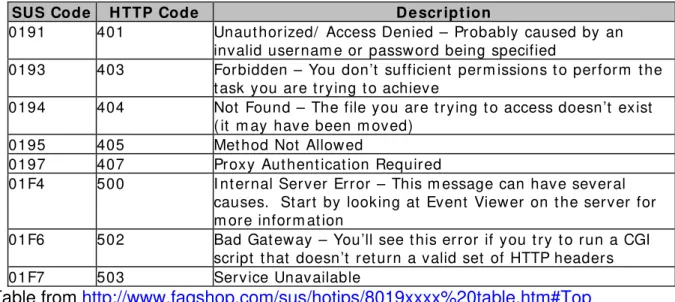
Note that HTTP errors are represented in hexadecimal format instead of decimal with the form 8019xxxx where xxxx is the number to be converted to decimal. Common error codes are shown in the next table.
Table from http://www.faqshop.com/sus/hotips/8019xxxx%20table.htm#Top
SUS Code H TTP Code D e scr ipt ion
0191 401 Unaut horized/ Access Denied – Probably caused by an
invalid user nam e or passw ord being specified
0193 403 Forbidden – You don’t sufficient perm issions t o perform t he
t ask you are t rying t o achieve
0194 404 Not Found – The file you are t rying t o access doesn’t exist
( it m ay have been m oved)
0195 405 Met hod Not Allow ed
0197 407 Proxy Aut hent icat ion Required
01F4 500 I nt ernal Server Error – This m essage can have several
causes. St art by looking at Event Viewer on t he server for m ore inform at ion
01F6 502 Bad Gat eway – You’ll see t his error if you t ry t o run a CGI
script t hat doesn’t ret urn a valid set of HTTP headers
01F7 503 Service Unavailable
If no entries appear in ‘Windows update.log’ it is likely a client configuration issue. If no entries appear in the log of other clients, check the server Group Policy configuration.
5.2 IIS Logs
IIS logs provide a central logging location for SUS server activity. IIS log files are contained in ‘%windir%\system32\Logfiles\W3SVC1\exXXXXXX.log’ where XXXXX represents the date in year, month, and day format. The logs are rotated after 24 hours. The logs are difficult to interpret so a parsing utility is used to produce a format that is easier to understand. A log file parser is available from PDX Consulting at:
http://www.pdxconsulting.com/sus/
The IIS log can be used to determine:
• Which clients are polling the SUS server • Detection: success / failure
• Download: success / failure
• Installation: success / failure / declined
The IIS logs should be checked on a regular basis. If the log reports a particular client is continuously failing to perform some action, troubleshooting methods should be performed. For a list of error codes consult Appendix C.
5.3 Microsoft Baseline Security Analyzer (MBSA)
Microsoft Baseline Security Analyzer (MBSA) is a remote security scanner released by Microsoft to easily identify computers missing updates or improperly
command line security scanner in use before MBSA. In order to use MBSA, install the MBSASetup-en.msi file available from Microsoft. Log in to the machine performing the scanning as a user with administrative privileges on the machines to be scanned. Run MBSA, choose the scan options desired and specify the computers to be scanned. MBSA can easily be used to scan an entire domain. Once the report is generated, look for the computers missing several critical updates. If the computer is in the ‘Computers SUS’ Organizational Unit, the computer should be checked for proper functioning of the Windows Update client. If the computer is among several computers that are updated manually, the report can be used to determine if the computer should be updated soon.
5.4 Nessus
Nessus is an open source vulnerability scanner designed to work with
Linux/Unix. Nessus can provide a complete scan of a computer to detect vulnerabilities with non-Microsoft products. To use Nessus, consult the Nessus documentation.
6. TROUBLESHOOTING CLIENTS
6.1 Basic Troubleshooting
Clients that are configured for SUS and were previously working properly will sometimes stop updating correctly. A client computer typically stops working correctly because of an update that continuously fails to install. The simplest method for
repairing some errors that cause a client to stop functioning properly with SUS is to manually connect to Microsoft’s Windows Update site at
http://windowsupdate.microsoft.com using internet explorer and install the necessary updates. Connecting to Microsoft’s Windows Update will check for the proper version of the Windows Update client, which can correct some problems caused by software errors. Manually installing the updates can also fix problems associated with an update continuously failing to install on a particular computer. It may be necessary to remove previously downloaded updates from:
‘%ProgramFiles%\WindowsUpdate\wuaudnld.tmp\cabs’ before connecting to the Windows Update site if an update will not install correctly.
6.2 Advanced Troubleshooting
The following methods and utilities can be used to gather information required for advanced troubleshooting of SUS clients. The utilities described in the following section are stored on the network in an administrator share referred to as P:\
6.2.1 Checking the SUS client state
6.2.1.1 AUBehave:
You can use the AUBehave utility to check the current state of an SUS client. AUBehave is a visual basic script available from SUSserver.com
http://www.susserver.com/Tools/AUBehave/ To use AUBehave, run the script from the client PC and enter the name or address of the computer. This script was designed to allow remote checking of a client’s status, but remote checking may not function properly in the Institute. AUBehave is also located in P:\SUS\Checking
client\AUBehave.vbs
6.2.1.2 Manually checking the state of a client:
To manually check the state of a client computer, run regedt32.exe or regedit.exe from the client computer. Navigate to:
HKEY_LOCAL_MACHINE\SOFTWARE\Microsoft\Windows\CurrentVersion\Wind owsUpdate\Auto Update\AUState
Possible values for AUState are as follows:
0 = Initial 24 hour timeout (should not be seen with SUS)
1 = Waiting for user to run Automatic Update wizard (should not be seen with SUS) 2 = Detect pending
3 = Download pending (should not be seen with SUS)
4 = Download in progress (time in this state determined by size and number of updates, network traffic, computer usage, and load on SUS server. The Background Intelligent Transfer Service performs the download.)
5 = Install pending (This means updates have been downloaded and will be installed at the scheduled installation time.)
6 = Install complete 7 = Disabled
8 = Restart pending (This will be the value if the user declined the update. The
automatic update service is basically disabled until pending installations are installed.)
6.2.2 Forcing Clients to Poll the SUS server
Restartau.cmd is a batch file created to run on an SUS client to force the client to poll the SUS server. This utility is useful to run after updating or changing the group policy on the client, or after approving new updates on the SUS server. Resartau.cmd is contained in P:\SUS\Batch File\
The batch file uses reg.exe to delete the LastWaitTimeout registry entry and then restarts the automatic updates service. The client will not poll immediately. Typically clients check for updates within about 10 minutes. The file reg.exe is contained in the Windows 2000 Support tools available on the Windows 2000 CD or from:
http://www.microsoft.com/windows2000/downloads/servicepacks/sp4/supporttools.asp Contents of Restartau.cmd:
reg delete
"HKLM\SOFTWARE\Microsoft\Windows\CurrentVersion\WindowsUpdate\Aut o Update" /v LastWaitTimeout /f
6.2.3 Checking the Client for proper Group Policy
6.2.3.1 Windows 2000
To check the Group Policy configuration of a Windows 2000 client, run
‘gpresult.exe /C’. GPResult is stored in P:\SUS\Utilities but may already be available on some clients. GPResult is also available from the Windows 2000 resource kit
http://www.microsoft.com/windows2000/techinfo/reskit/tools/existing/gpresult-o.asp GPResult works with both Windows 2000 and Windows XP. However, Windows XP has another utility that is easier to use. If the computer is not inheriting SUS Group Policy you should see a report similar to the report below. The words in double quotations such as “date” will be filled with the appropriate values. Note that the computer below is a member of the ‘Computers’ Organizational Unit (OU) instead of the ‘Computers SUS’ Organizational Unit and therefore the ‘IOT_SUS_GP’ group policy is not applied:
Results of ‘gpresult.exe /C’
Microsoft (R) Windows (R) 2000 Operating System Group Policy Result tool Copyright (C) Microsoft Corp. 1981-1999
Created on “date” at “Time” Operating System Information:
Operating System Type: Professional
Operating System Version: 5.0.2195.Service Pack 4
Terminal Server Mode: Not supported
############################################################### Computer Group Policy results for:
CN=”PCname”,CN=Computers,DC=IOTPC,DC=imd,DC=nrc,DC=ca
Domain Name: IOTPC
Domain Type: Windows 2000
Site Name: Default-First-Site-Name
The computer is a member of the following security groups:
“default groups”
“any additional groups”
############################################################### Last time Group Policy was applied: “date” at “time”
Group Policy was applied from: knarr.IOTPC.imd.nrc.ca
Default Domain Policy
=============================================================== The computer received "Security" settings from these GPOs:
Local Group Policy Default Domain Policy
=============================================================== The computer received "EFS recovery" settings from these GPOs: Local Group Policy
Default Domain Policy
If the client is a member of the ‘Computers SUS’ organizational unit and is inheriting the ‘IOT_SUS_GP’ group policy you should see a report similar to the report below. Note the additional Group Policy Object (GPO) ‘IOT_SUS_GP’.
Results of ‘gpresult.exe /C’
Microsoft (R) Windows (R) 2000 Operating System Group Policy Result tool Copyright (C) Microsoft Corp. 1981-1999
Created on “date” at “time” Operating System Information:
Operating System Type: Professional
Operating System Version: 5.0.2195.Service Pack 4
Terminal Server Mode: Not supported
############################################################### Computer Group Policy results for:
CN=”PCname”,OU=Computers SUS,DC=IOTPC,DC=imd,DC=nrc,DC=ca
Domain Name: IOTPC
Domain Type: Windows 2000
Site Name: Default-First-Site-Name
The computer is a member of the following security groups:
“default groups”
“any additional groups”
############################################################### Last time Group Policy was applied: Date at Time
Group Policy was applied from: knarr.IOTPC.imd.nrc.ca
=============================================================== The computer received "Registry" settings from these GPOs:
Local Group Policy Default Domain Policy
IOT_SUS_GP
=============================================================== The computer received "Security" settings from these GPOs:
Local Group Policy Default Domain Policy
=============================================================== The computer received "EFS recovery" settings from these GPOs: Local Group Policy
6.2.3.2 Detailed Group Policy
If you wish to see a more detailed view of the group policy settings that are inherited, run ‘gpresult /C’ with the /V argument for verbose mode or /S for Super Verbose mode.
Output of gpresult /C /V:
The following settings were applied from: IOT_SUS_GP
KeyName: Software\Policies\Microsoft\Windows\WindowsUpdate ValueName: WUServer ValueType: REG_SZ Value: http://10.5.5.3 KeyName: Software\Policies\Microsoft\Windows\WindowsUpdate ValueName: WUStatusServer ValueType: REG_SZ Value: http://10.5.5.3 KeyName: Software\Policies\Microsoft\Windows\WindowsUpdate\AU ValueName: NoAutoUpdate ValueType: REG_DWORD Value: 0x00000000 KeyName: Software\Policies\Microsoft\Windows\WindowsUpdate\AU ValueName: AUOptions ValueType: REG_DWORD Value: 0x00000004 KeyName: Software\Policies\Microsoft\Windows\WindowsUpdate\AU ValueName: ScheduledInstallDay ValueType: REG_DWORD Value: 0x00000000 KeyName: Software\Policies\Microsoft\Windows\WindowsUpdate\AU ValueName: ScheduledInstallTime ValueType: REG_DWORD Value: 0x00000003 KeyName: Software\Policies\Microsoft\Windows\WindowsUpdate\AU ValueName: RescheduleWaitTime ValueType: REG_DWORD Value: 0x00000001 KeyName: Software\Policies\Microsoft\Windows\WindowsUpdate\AU ValueName: NoAutoRebootWithLoggedOnUsers ValueType: REG_DWORD Value: 0x00000001 KeyName: Software\Policies\Microsoft\Windows\WindowsUpdate\AU ValueName: UseWUServer ValueType: REG_DWORD Value: 0x00000001
6.2.3.3 Checking Group Policy in Windows XP
Windows XP contains a graphical user interface for checking group policy named the Resultant Set of Policies or RSOP. To open the RSOP snap-in, run RSOP.msc Output of the RSOP snap-in for a computer using SUS is shown below:
6.2.4 Refreshing Group Policy
After making a change to group policy it can take a long time for the changes to propagate to the clients. One way of manually refreshing group policy is by restarting the computer. Windows XP clients may require 3 restarts to refresh the policy due to a caching mechanism used to decrease starting time. To refresh group policy manually without restarting the client PC, the following methods can be used. It may be desirable to manually refresh the policy on a computer after it is added to the ‘Computers SUS’ organizational unit so that changes become applied immediately. The commands used to refresh group policy are as follows:
Windows 2000 – run: secedit /refreshpolicy machine_policy Windows XP – run: gpupdate
6.2.5 More Resources
For additional utilities and information visit: http://www.susserver.com/Tools/ or
http://www.faqshop.com/sus/default.htm
7. LIMITATIONS OF SOFTWARE UPDATE SERVICES
Software Update Services has several limitations which prevent SUS from
providing a complete patch management solution. SUS can only deploy critical updates and service packs to Windows 2000 and newer Microsoft operating systems. Updates whose severity is rated less than critical, updates for software other than Windows and updates for Windows NT and 95 clients must be deployed using an alternative method. In addition, SUS allows only one set of updates to be chosen for all clients. This means if a particular update causes problems only on a certain group of computers, either the update cannot be approved for distribution, or the clients have to be removed from SUS. Furthermore, SUS cannot force client computers to update. Clients only check for
updates approximately once per day and at random times, therefore a patch will not be installed throughout an organization for at least 24 hours after approval. As well, laptops and other computers only connected to the network occasionally do not install updates regularly enough. Another limitation of SUS is the basic scheduling options. Only one time for update installations can be chosen for each client and rescheduling options are very limited. A further limitation of SUS is a result of the configuration of computers within the Institute. Since users are given administrative permissions on their office computers, this gives them the ability to prevent the installation of updates.
8. CONCLUSION AND RECOMMENDATIONS
Software Update Services with Service Pack 1 provides an easy method of distributing critical updates to client computers. Using SUS the majority of the
computers at the Institute can be quickly patched when critical updates are released by Microsoft. It was decided to continue manual patching of servers and data acquisition computers in order to reduce the risk of problems. Manual patching of computers not using SUS must be performed on a regular basis. Office updates and lower risk windows updates must continue to be deployed either manually or via login scripts. Additionally, moving users from the local administrators group to a group with fewer privileges will help make SUS more transparent to end users. Moving users to a group with fewer privileges may, however, require computer staff to install more programs for users but it should also decrease the amount of problems caused by users installing untested applications and simplify license management. Windows Update Services (WUS), the successor to Software Update Services is scheduled to enter an evaluation phase in mid to late 2004. WUS is expected to support a larger range of updates, allow targeting of clients, have integrate scanning, and provide several other features which will overcome the limitations of SUS. WUS should be investigated as a replacement for SUS once the evaluate phase has been completed.
9. BIBLIOGRAPHY
Elms, W., Computer Systems Administrator, Institute for Marine Dynamics. (Summer 2003). Interviewed by author. St John’s, NL.
FAQShop.com “SUS Section” Available: http://www.faqshop.com/sus/
Available: 39000625q,00.htm
Grzywaczewski, Pawel & Boissat, Christian. “Software Update Services” (October 2003) Available: https://weba5.cern.ch/WinServices/docs/internal/SUS/content.asp Microsoft Corporation. “Deploying Software Update Services” (January 2003)
Available: 860a-465b179984af/SUS_Deployguide_sp1.doc
Microsoft Corporation. “Troubleshooting Group Policy in Windows 2000” (February 2001) Available: 40c1-95ac-f8f7c711452e/gptshoot.doc
Microsoft Corporation. “Windows 2000 Group Policy” (July 2000)
Available: 8792-276544ad6426/grouppolwp.doc
SUSserver.com. “Software Update Services” Available: http://www.susserver.com/ Thorburn, P., Computer Systems Administrator, Institute for Marine Dynamics.
(Summer 2003). Interviewed by author. St John’s, NL.
Wadman, R., Computer Systems Administrator, Institute for Marine Dynamics. (Summer 2003). Interviewed by author. St John’s, NL.
Walsh, Doug, Computer Systems Administrator, Institute for Marine Dynamics. (Summer 2003). Interviewed by author. St John’s, NL.
Wong, G., Computer Systems Administrator, Institute for Marine Dynamics. (Summer 2003). Interviewed by author. St John’s, NL.
Appendix A
Appendix A – Microsoft’s Patch Rating System
The tables below outline the severity rating system, recommended timeframes, and factors affecting timeframes for deploying security updates as determined by Microsoft’s Security Reponse Center team. The tables provide information administrators should consider when choosing the deployment strategy for each update.
Severity Ratings Rating Definition
Critical Exploitation could allow the propagation of an Internet worm such as Code Red or Nimda without user action
Important Exploitation could result in compromise of the confidentiality, integrity, or availability of users’ data or of the integrity or availability of processing resources
Moderate Exploitation serious but mitigated to a significant degree by factors such as default configuration, auditing, need for user action, or difficulty of exploitation
Low Exploitation is extremely difficult, or impact is minimal
Patching Timeframes Severity
Rating
Recommended Patching Time Frame Maximum Recommended Time Frame
Critical Within 24 hours Within two weeks
Important Within one month Within two months
Moderate Depending on expected availability, wait for next service pack or patch rollup that includes the patch or deploy the patch within four months
Deploy the software update within six months
Low Depending on expected availability, wait for
next service pack or patch rollup that includes the patch, or deploy the patch within one year
Deploy the software update within one year, or choose not to deploy at all
Factors afftecting Release Times Severity
Rating
Recommended Patching Time Frame Maximum Recommended Time Frame
Critical Within 24 hours Within two weeks
Important Within one month Within two months
Moderate Depending on expected availability, wait for next service pack or patch rollup that includes the patch or deploy the patch within four months
Deploy the software update within six months
Low Depending on expected availability, wait for
next service pack or patch rollup that includes the patch, or deploy the patch
Deploy the software update within one year, or choose not to deploy at all
Appendix B
Appendix B – Applying the updated Windows Update Template
1. Copy wuau.adm to %windir%\inf\ (typically C:\winnt\inf)
2. In the Group Policy console, right click ‘Administrative Templates’ and select ‘Add/Remove Teplates’ from the drop down menu as shown in the next figure.
3. Under the Add/Remove Templates window, select add. Navigate to the folder containing wuau.adm (C:\winnt\inf), select wuau.adm and click open. The updated template should appear in the Add/Remove Templates window as shown in the next figure. Click close.
Appendix C
Appendix C – Automatic Updates Error Codes
The following table contains a list of error codes delivered by Windows Automatic Updates taken from Microsoft’s SUS Deployment Guide.
Error Description Details
8007042b ERROR_PROCESS_ABORTED The process terminated unexpectedly. 80072733 DLOAD_FAILURE A non-blocking socket operation could
not be completed immediately. 8007001e AN ERROR OCCURED CALLING
DLLREGISTER SERVER
NULL
80070001 An error occurred during transmission: A network connection with the remote server could not be established.
NULL
ffffffff Cancel The user canceled the transaction
800704c7 Cancelled by user NULL
800703fd Cannot create a stable subkey under a volatile parent key.
Cannot create a stable subkey under a volatile parent key.
800c0008 Cannot download the information you requested.
NULL
80070570 Cannot open file NULL
80070015 Cannot open please verify the path and file are correct or The_device_is_not_ready
NULL
80070017 Data error (cyclic redundancy check). Data error (cyclic redundancy check).
80004004 E_ABORT Operation aborted error
80004005 E_Fail General error or Unknown Error
80070006 E_Handle Handle not valid error
80070057 E_INVALIDARG One or more arguments are not valid error.
800705aa Error loading resources NULL
80070005 ERROR_ACCESS_DENIED Access is denied. The authentication method is not supported.
800703f5 ERROR_CANTWIRTE The configuration registry key could not be written.
e000022b ERROR_DI_DONT_INSTALL NULL
8007045a ERROR_DLL_INIT_FAILED NULL
e0000234 ERROR_DRIVER_NONNATIVE NULL
800700ff ERROR_EA_LIST_INCONSISTENT The extended attributes are inconsistent.
Error Description Details
80072f76 ERROR_HTTP_HEADER_NOT_FOUND The requested http header could not be located
80072f78 ERROR_HTTP_INVALID_SERVER_RESP ONSE
The server response could not be parsed.
80072f7c ERROR_HTTP_REDIRECT_FAILED NULL
80072efd ERROR_INTERNET_CANNOT_CONNECT
Cannot connect to the Internet server
80072efe ERROR_INTERNET_CONNECTION_ABO RTED
The connection with the server has been terminated.
80072eff ERROR_INTERNET_CONNECTION_RES ET
The connection with the server has been reset.
80072ee4 ERROR_INTERNET_INTERNAL_ERROR An internal error has occurred. 80072ee7 ERROR_INTERNET_NAME_NOT_RESOL
VED
The server name could not be resolved. DNS Error. Please try a different root DNS (Like UUNET) 80072ee2 ERROR_INTERNET_TIMEOUT The request has timed out. The
connection to this Internet site took longer than the allotted time.
e000020d ERROR_INVALID_CLASS_INSTALLER NULL
800701a9 ERROR_INVALID_FUNCTION NULL
8007051b ERROR_INVALID_OWNER This security ID may not be assigned as the owner of this object.
8007045d ERROR_IO_DEVICE The request could not be performed because of an I/O device error.
800703e5 ERROR_IO_PENDING NULL
e0000219 ERROR_NO_ASSOCIATED_SERVICE NULL
800703fb ERROR_NO_LOG_SPACE System could not allocate the required space in a registry log.
80070103 Error_No_More_Items: Windows has determined that the selected driver is not the best driver for your machine.
e000020b ERROR_NO_SUCH_DEVINST NULL 80070008 ERROR_NOT_ENOUGH_MEMORY The system is out of memory. 800703e3 ERROR_OPERATION_ABORTED The I/O operation has been aborted
because of either a thread exit or an application request.
800700e7 ERROR_PIPE_BUSY NULL
80070715 ERROR_RESOURCE_TYPE_NOT_FOUN D
The specified resource type cannot be found in the image file.
e0000101 ERROR_SECTION_NOT_FOUND NULL
80070080 ERROR_WAIT_NO_CHILDREN There are no child processes to wait for.
Error Description Details 80070643 Fatal error during installation NULL
800c0002 http can not find the file specified http can not find the file specified 80070190 HTTP_STATUS_BAD_REQUEST (400) 400 // invalid syntax.
The request could not be processed by the server due to invalid syntax. 80070193 HTTP_STATUS_FORBIDDEN (403) 403// Server is too busy to process request. The server understood the request, but is refusing to fulfill it. 800701f8 HTTP_STATUS_GATEWAY_TIMEOUT
(504)
504 // timed out waiting for gateway. The request was timed out waiting for a gateway.
8007019b HTTP_STATUS_LENGTH_REQUIRED (411)
This is a known issue. Possibly relating to proxy servers that don't support http1.1. The server refuses to accept the request without a defined content length.
80070194 HTTP_STATUS_NOT_FOUND (404) 404// Cabs or page is not found. The server has not found anything matching the requested URI (Uniform Resource Identifier).
80070197 HTTP_STATUS_PROXY_AUTH_REQ (407)
407 error (proxy authentication required) - need specific password/user to access. Proxy authentication required. 80070198 HTTP_STATUS_REQUEST_TIMEOUT
(408)
The server timed out waiting for the request.
800701f4 HTTP_STATUS_SERVER_ERROR (500) The server encountered an
unexpected condition that prevented it from fulfilling the request.
800701f7 HTTP_STATUS_SERVICE_UNAVAIL (503) 503// Server is to busy to process request. The service is temporarily overloaded.
800703e6 Invalid access to memory location NULL
800700c1 is not a valid Win32 application not a valid Win32 application. 0x3 iuctl.dll and iuengine.dll are not the correct
version
iuctl.dll.dll and iuengine.dll are not the correct version and are unable to be updated.
0x1 iuctl.dll is not the correct version iuctl.dll is not the correct version and is unable to be updated.
fffffb4a JET_errDatabaseCorrupted NULL fffffbf8 JET_errFileAccessDenied NULL
fffffc0d JET_errOutOfMemory NULL
Error Description Details 800a1391 Microsoft Jscript® runtime 'Recordset1' is
undefined
Jscript error “undefined identifier"
800a0005 Microsoft VBScript runtime error Invalid procedure call or argument:
'fs.OpenTextFile'
NULL
800a01b6 Microsoft VBScript runtime error Object doesn't support this property or method:
NULL
80000007 Operation aborted NULL
80070490 Permission denied / [Problem initializing or using session variables] or Element not found
NULL
800701f6 Proxy was unable to forward the request to the destination server
NULL
c0000005 STATUS_ACCESS_VIOLATION NULL
c000013a STATUS_CONTROL_C_EXIT NULL c0000142 STATUS_DLL_INIT_FAILED NULL c000001d STATUS_ILLEGAL_INSTRUCTION NULL c0000006 STATUS_IN_PAGE_ERROR NULL
0x0 Success NULL
8007000d The Data is invalid. Cannot open NULL 8007048f The device is not connected. NULL 800705af The paging file is too small for this operation
to complete
NULL
80070020 The process cannot access the file because it is being used by another process
NULL
8007041f The service database is locked NULL 80070426 The service has not been started NULL 80070004 The set of folders could not be opened. You
do not have sufficient privileges to access the file. Personal Folders
NULL
8007007e The specified module could not be found NULL 80070430 The specified service has been marked for
deletion
NULL
80070002 INSTALL_FAILURE Error_File_Not_Found: The system cannot find the file Specified.
80070003 The system cannot find the path specified. Windows Update folder does not exist or the V4 folder within Windows Update is missing. (The correct code path is something like this: %Program Files%\WindowsUpdate\V4)
800b0100 TRUST_E_NOSIGNATURE NULL
Error Description Details 800b0004 Trust_E_Subject_Not_Trusted; The subject
is not trusted for the specified action.
The subject is not trusted for the specified action. (Digital Signatures on file D:\Program
Files\WindowsUpdate\V4\iuident.cab are not trusted)
80070714 Version unavailable or Invalid The specified image file did not contain a resource section. 80072EE7 DLOAD_FAILURE The requested lookup key was not
found in any active activation context. 801901F4 Invalid interface string Invalid interface string